

Accessing the app
1
Log in to http://dashboard.pexcard.com/
2
Go to Apps > Available.
3
Find PEX Connector for Aplos.
4
Click More info > Install > Launch.
Select your use case(s)
There are two ways to connect PEX with Aplos. Enable both when you can so reconciliation stays simple.- Auto-create vendor cards from my Aplos vendor list.
- Sync transactions from PEX to Aplos nightly.

Connect to your Aplos account
After you log in to PEX, confirm you are already connected to Aplos.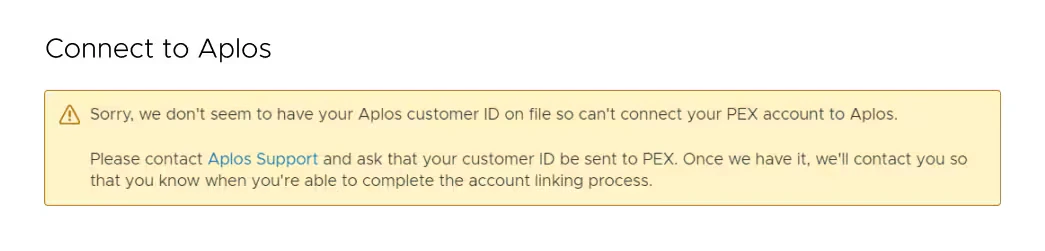
Select vendors to auto-create vendor cards for
You will see a list of your top vendors. A to Z, Z to A, and Total Spend are sorting options for the Your Aplos vendors list. Select the vendors you want vendor cards for: click a name in Your Aplos vendors. Hold Cmd + click (Mac) or Ctrl/Shift + click (Windows) to select multiple. To select every vendor, click Select All.Note:You can select up to 25 vendors at a time.
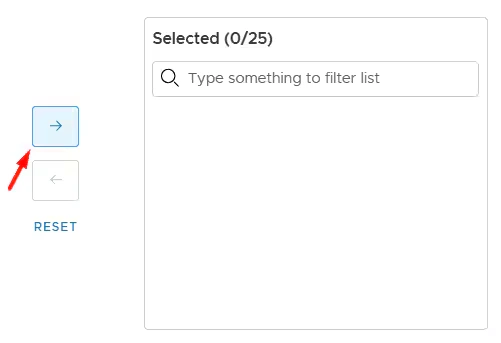
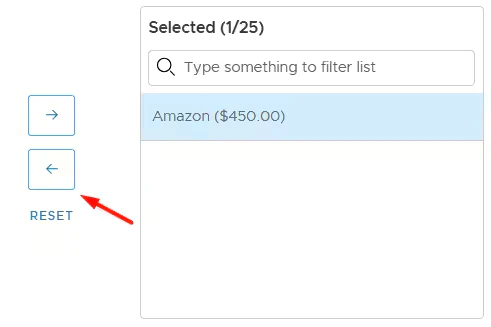
Note:Vendor cards are created only for vendors in Selected vendors.
Add card details
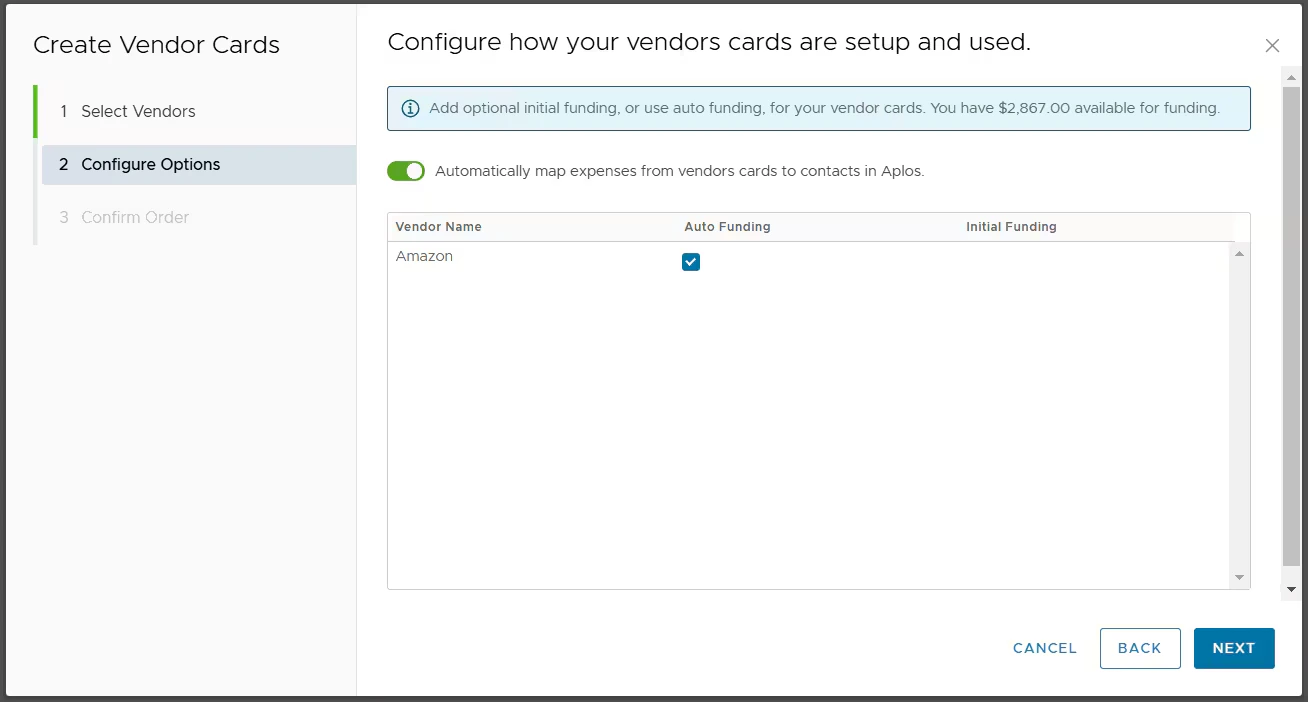
- Set an auto card funding limit drawn from your PEX Business Balance.
- Turn off auto funding and add initial funding for that vendor card (PEX Prepaid only).
Note:If transaction sync with Aplos is already set to book purchases to a single vendor, you will also see Automatically map expenses from vendor cards to vendors in Aplos.
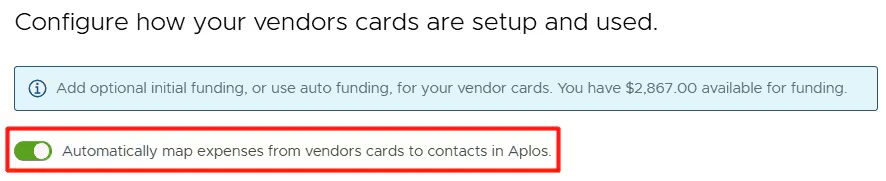
- PEX purchases book to the matching vendors on your vendor cards.
- If a purchase has no matching vendor, it books to a single vendor.
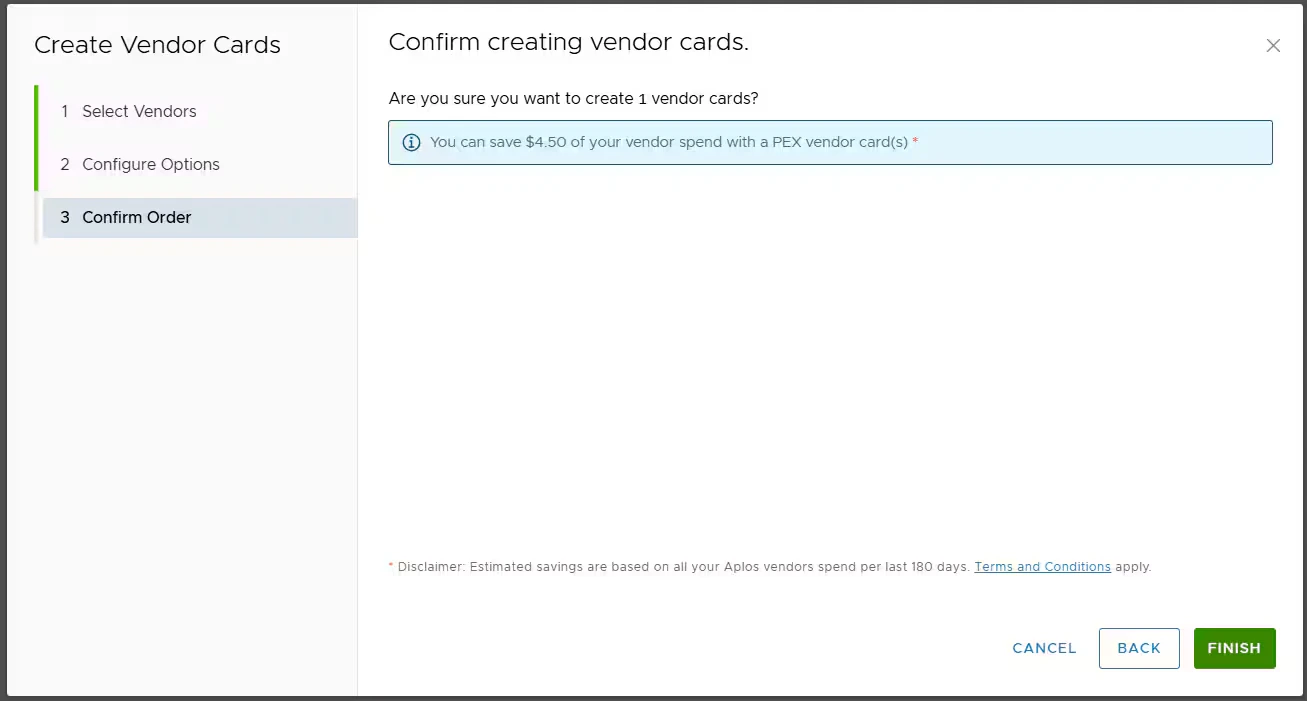
Managing vendor cards
View PEX vendor cards created from your Aplos list.