

Ways to add a bill
You can create bills by hand, but we recommend bringing them in automatically. The details are filled in for you, so there’s less to retype and less to get wrong.Recommended:
- Email bills to PEX. Forward an invoice to your PEX billing email address and we pull out the vendor, amount and dates for you. See Email bills to PEX.
- Sync unpaid bills from your accounting system. This works with QuickBooks Online today, and Aplos is coming soon. In the QuickBooks Online connector settings, select Sync outstanding bills from QuickBooks into PEX under Configure bill sync and your unpaid bills come into PEX for payment. See the QuickBooks Online connector for Prepaid or Credit Expense.
1. Create a bill
To submit a new bill:- Log in to the Dashboard
- Navigate to Bills
- Click Create bill
- Upload the bill (optional)
- Select a vendor
Note:If you don’t have any vendors yet, go to Vendors and create one.
-
Enter:
- Bill amount
- Bill date
- Due date
- Add tags (optional, if enabled). If the vendor has a previous bill, its tags are copied for you — see Tags from the vendor’s last bill below
- Click Preview
- Click Submit
Tags from the vendor’s last bill
When you pick a vendor, we copy the tags (GL codes) from your last bill for that vendor so you don’t code the same thing twice. You’ll see Tags copied from the last bill for vendor name with a Clear link if you’d rather start fresh.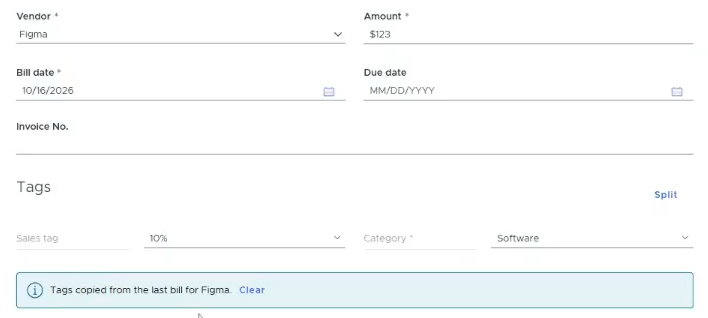
- We only copy from the most recent bill that wasn’t a draft, rejected or cancelled — if that bill had no tags, nothing is copied, even when an older one did
- If the last bill was split, each line keeps its share of the total and the amounts are rescaled to match the new bill to the cent
- Change the vendor before you touch the tags and the tags swap too; once you’ve edited a tag, changing the vendor leaves your entries alone
- A copied value that’s since been disabled is dropped, so check any required tag before you submit
Bill approval
- After submission, the bill will enter the approval workflow, if one exists.
- If no policy exists, Admins with Manage bills & vendors permission must approve the bill.
- You may edit tags while the bill is in Pending approval.
- Approve
- Reject
What you’ll see on the Review tab
The Review tab opens sorted by due date, oldest first, so the most overdue bills are at the top. Select Created, Due or Amount to sort by that column, and select it again to reverse it. History opens newest first by created date.- Overdue labels. A bill that’s 1 to 30 days past due shows a yellow Overdue label next to the due date. Past 30 days it becomes a red 30+ days overdue. Bills due today or later show the date on its own.
- A running total. Tick any bills and the action bar shows how many you’ve selected and what they come to — for example 3 selected · $230.00 — so you don’t add them up by hand.
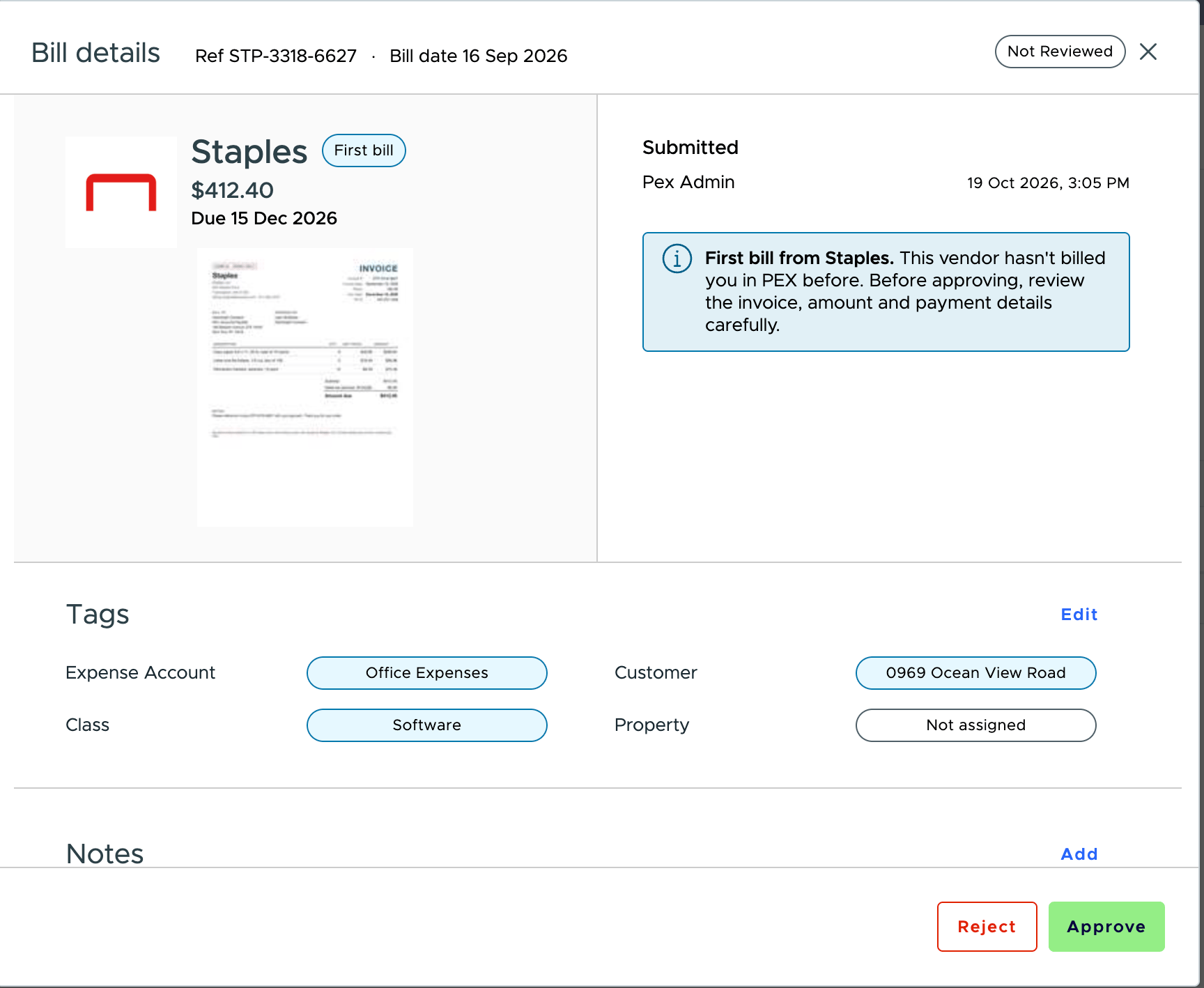
- First bill from a vendor. When a bill is the oldest one you’ve raised for that vendor, we show a First bill label beside the vendor name and a note where the recent bills list would be. It’s a cue to check the payment details before money goes to a payee for the first time.
- Nothing to review. An empty queue shows a confirmation that you’re all caught up, not an error. If you have more than one linked account, we also remind you that the queue only covers the business you’re in — approvals waiting in your other accounts won’t appear here.
2. Create a payment for approved bills
Once bills are approved, they appear under Payments. To create payments:- Go to Payments
- Select the approved bills using the checkboxes
- Select the vendor
- Set the Payment processing date
- Scroll down and click Create payment bundles
- Review and confirm
- Click Create
Payment methods
- Default method: Virtual Card
- To change to ACH:
- Click the item
- Choose ACH under Payment Requests
Note:You must have the Manage ACH transfers permission to initiate ACH payments. On PEX Credit accounts this permission is called Pay statement early through ACH.
3. Track payment status
Payments and bills can be monitored here:- Bills → for creation, approval or rejection
- Payments → for payment bundles, processing and method details
- Reports → for reconciliation and exporting CSV files
- Pending approval
- Approved
- In payment bundle
- Processing
- Completed
- Failed
4. Tips & best practices
- Double-check vendor banking info before creating ACH payments.
- Select the correct vendor for each bill before bundling.
- Use tags for better reconciliation.
- Set payment processing dates before the due date to avoid late payments.
- Maintain adequate funding in your linked external accounts.