

Steps to Connect PEX to other Apps
1
Log in to your Zapier account.
2
On the Zapier account dashboard, click on the ‘Make a Zap’ button.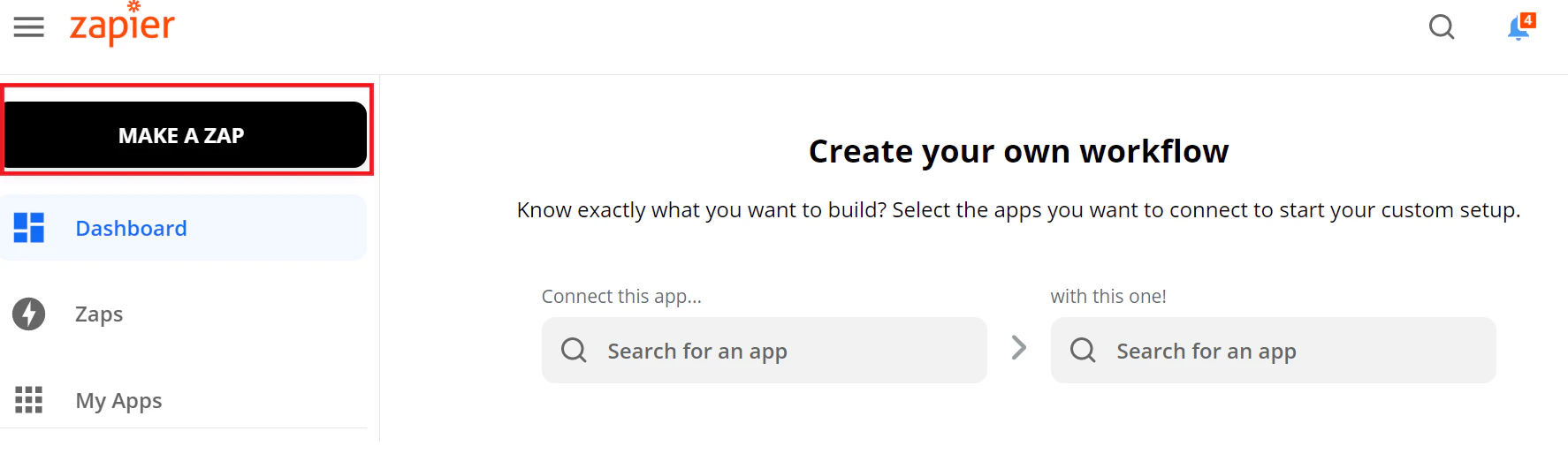
3
Select Trigger app, i.e the app which would start the workflow and the trigger event, for example, Gmail is chosen here as a trigger app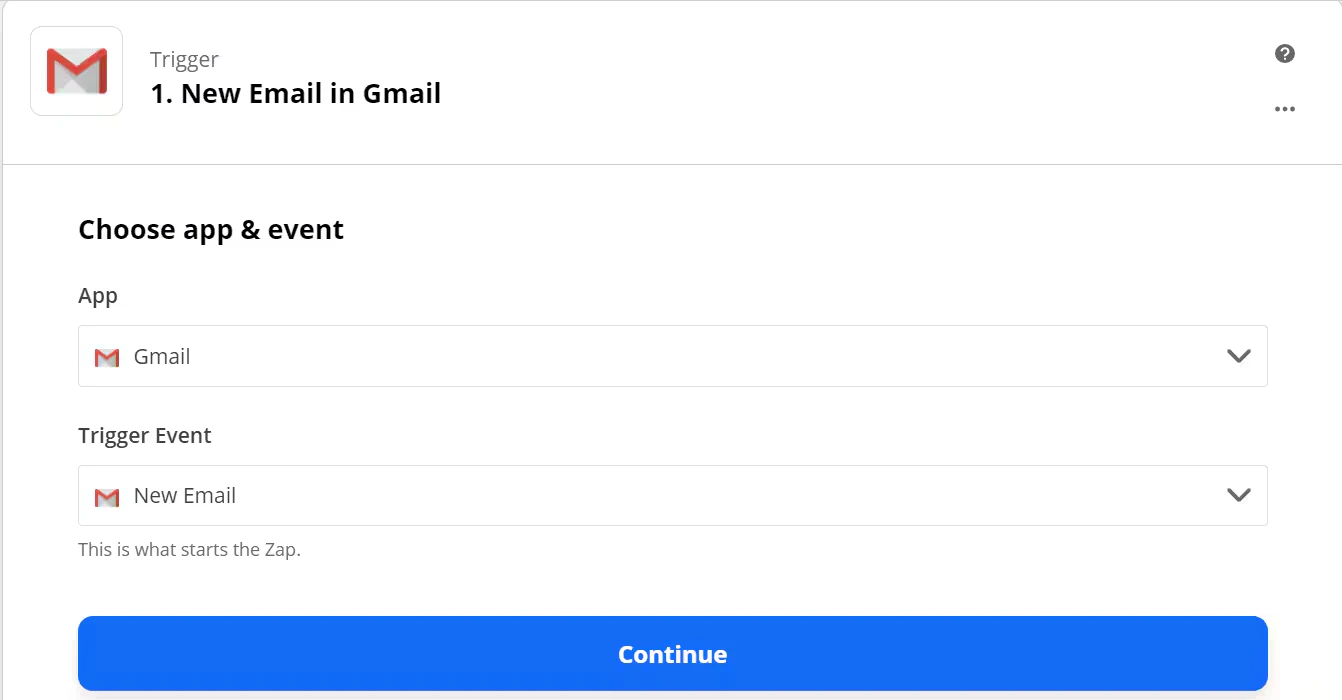
4
Log in to your Gmail account as prompted
5
Choose Action app as PEX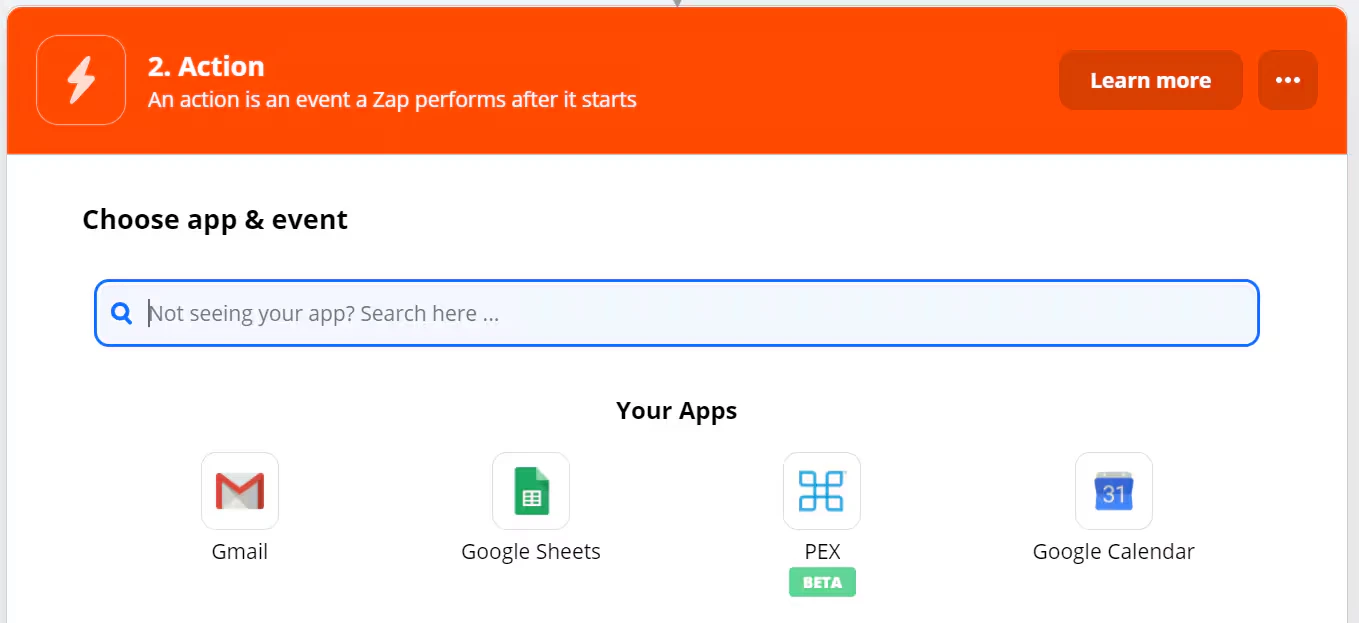
6
Choose an Action event from the drop-down list. PEX continues to add more actions to expand its capabilities.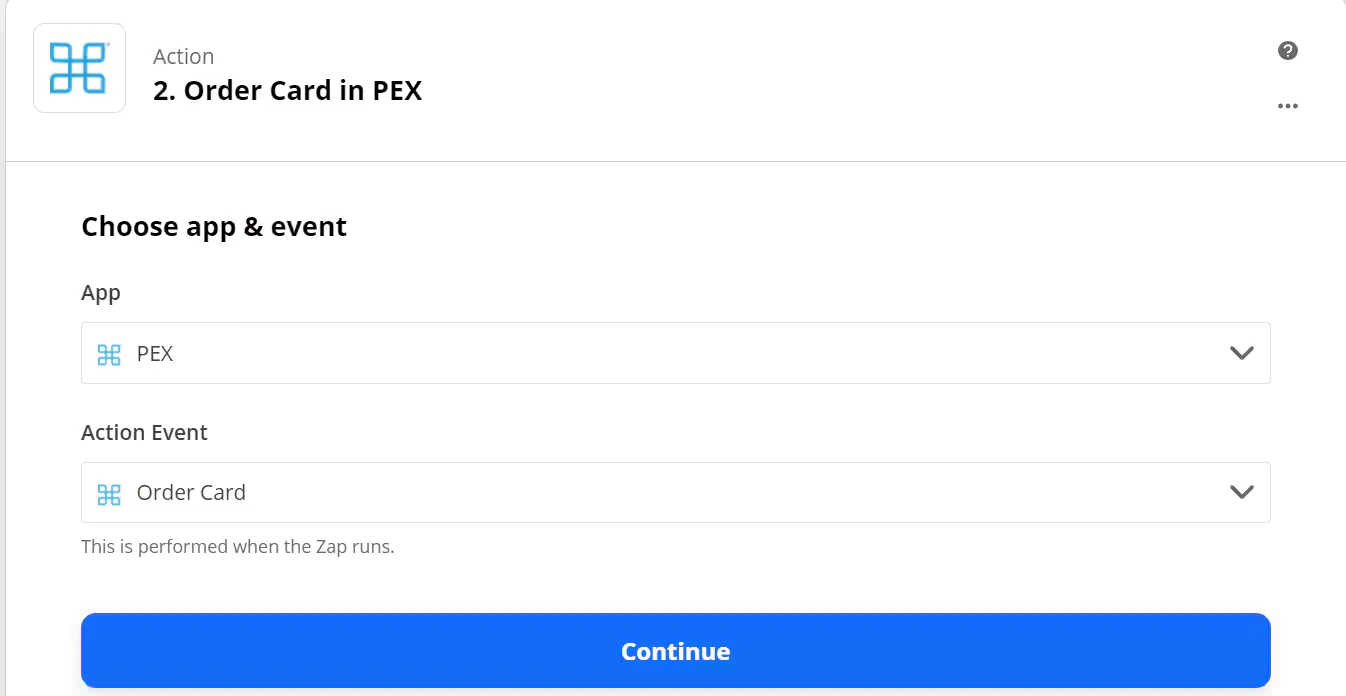
7
Log in to your PEX account.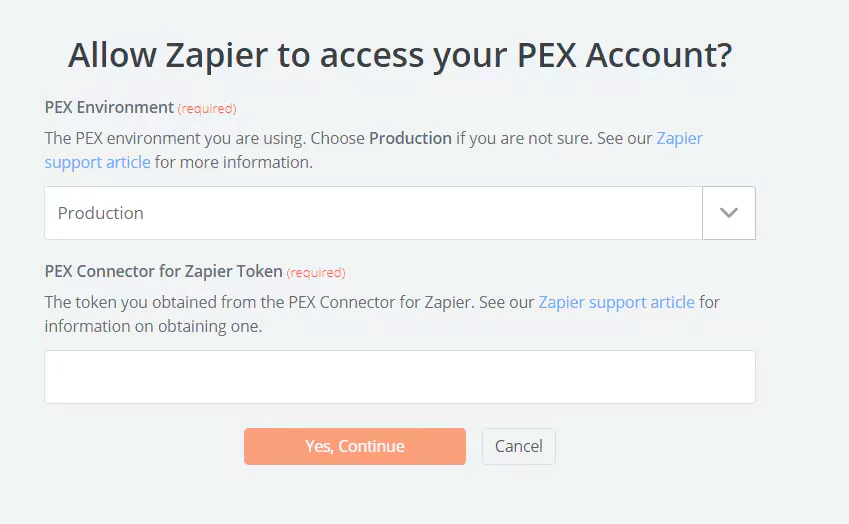
8
To get the PEX connector token for Zapier,
Log in to PEX dashboard site (dashboard.pexcard.com)
Select the Apps section, look for the Zapier app.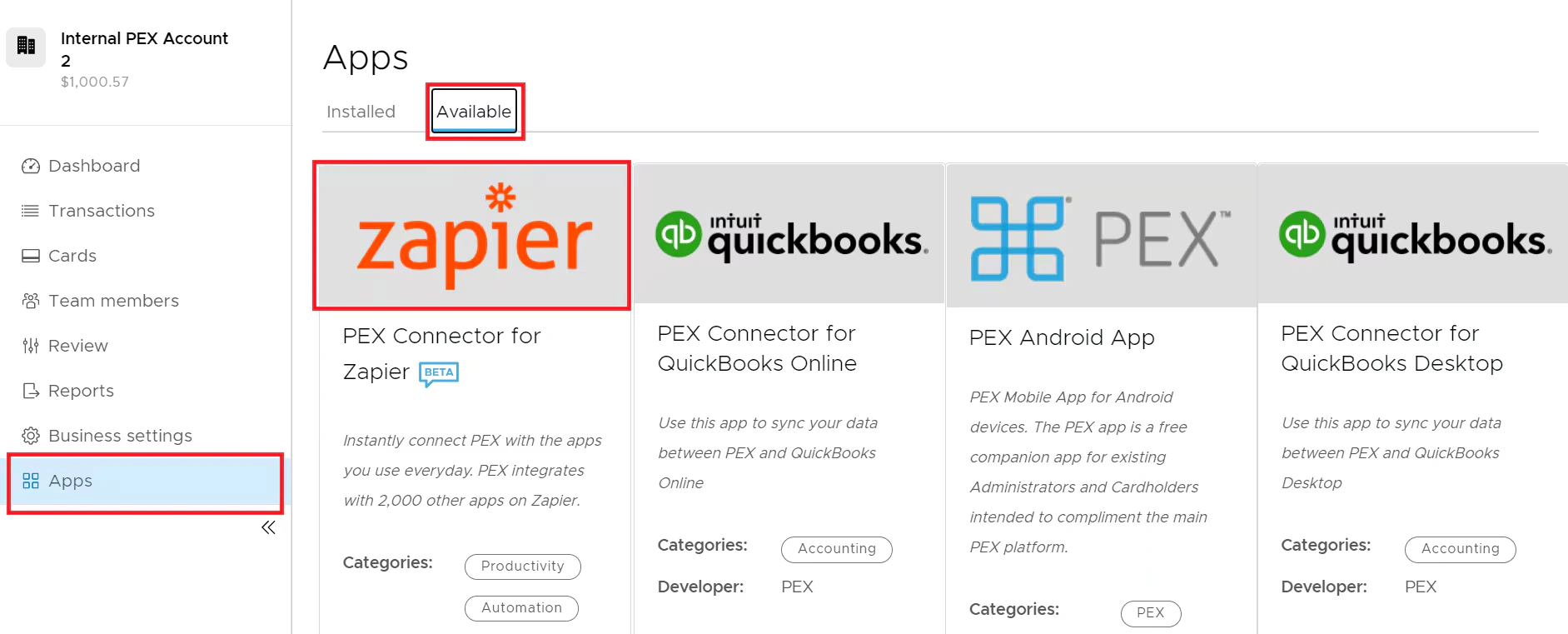
9
Select the Zapier App
Click on Install
Once the app is installed, it is ready to launch. Click on Launch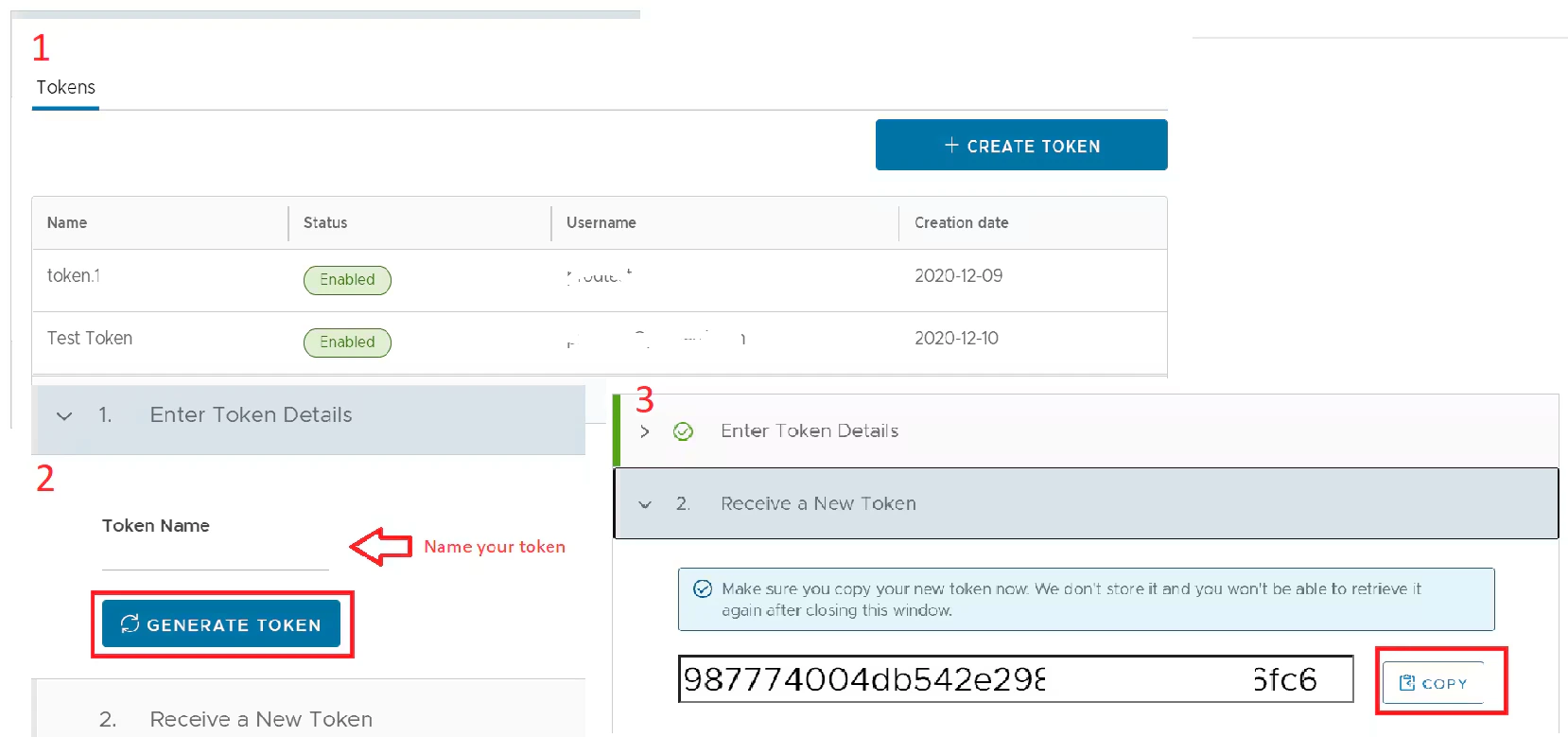
Note:To install the connector, you need to enable the following permissions: Edit business settings & apps, Manage cardholder, View card transactions. You can enable them in My Profile -> Permissions.
If you have created tokens for your PEX connector for Zapier before, you can see the details here. You can not access the old tokens.
Please generate a new token by clicking on the ‘Create Token’ button,
Copy the generated token
10
Paste the Token string copied in the Token filed on the Zapier platform.
Please make sure the PEX Environment is selected as ‘Production’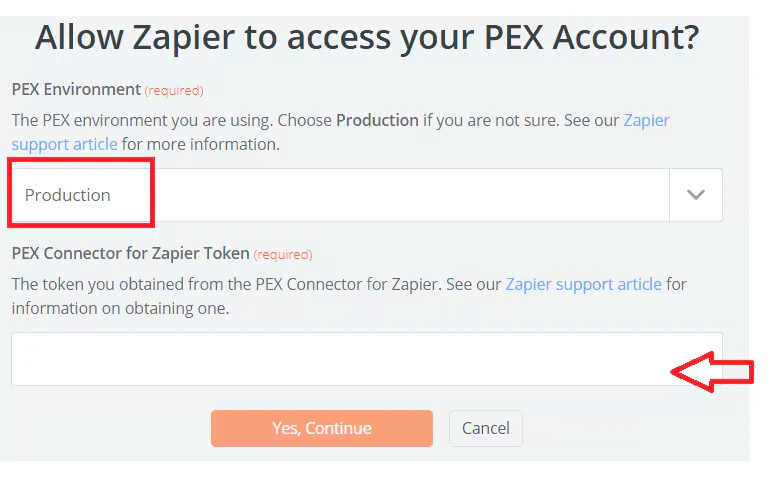
11
Click on ‘Yes, Continue’
12
Next, fill up the required information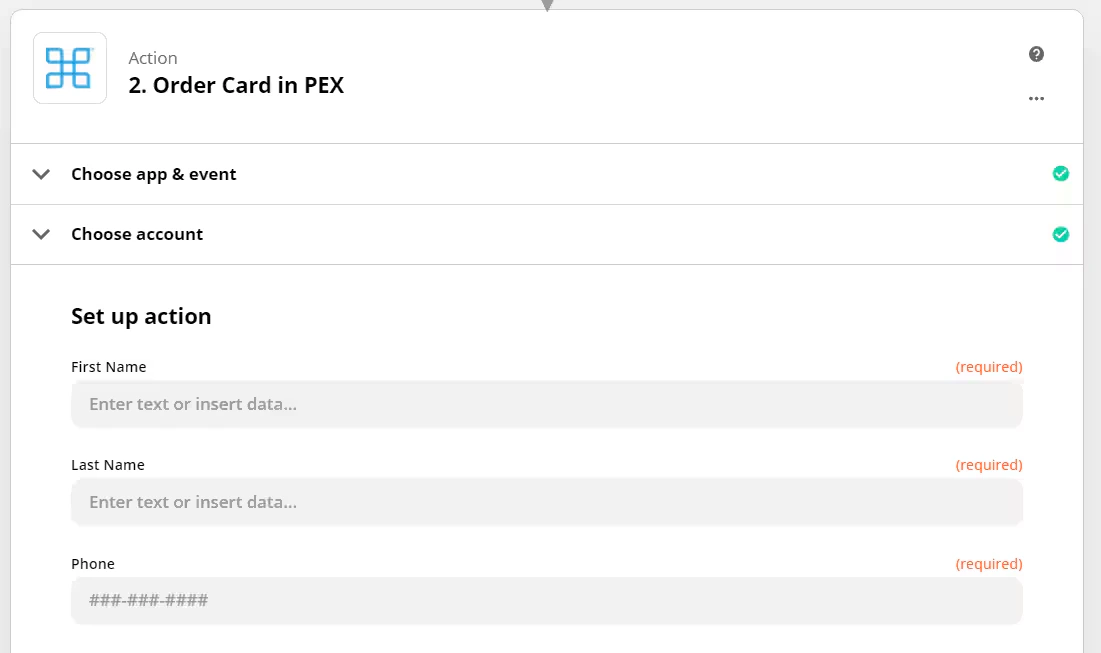
13
Follow the next prompts to complete the Zap Set up and turn ON the Zap.