1
Log in to http://dashboard.pexcard.com/
3
Click Add Tag.
4
Select Dropdown as the type.
5
Enter a name: Expense Account.
6
Optionally, add a description like “Expense Accounts”.
7
Check Enabled to make this tag visible on transactions.
8
Choose whether or not this tag is “Required”.
- If the “Required” checkbox is checked, cardholders must tag a transaction with it.
9
Click Save tag to finish.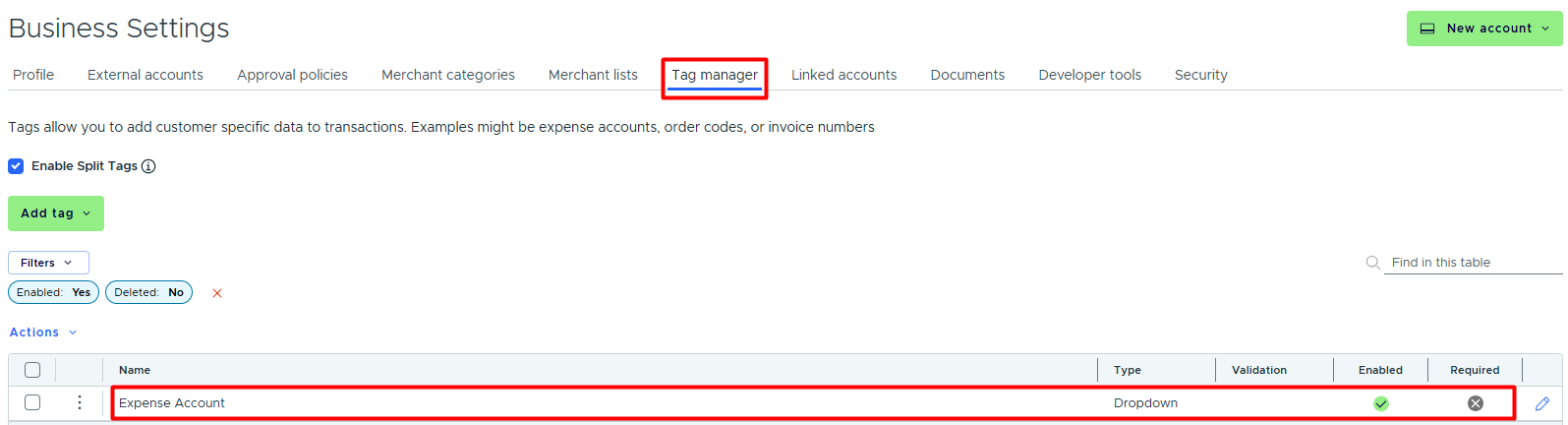
- The new tag will appear on the Tag Manager page.
10
Create one tag for each Blackbaud field mapped to a PEX tag (like Fund, Department, etc.) following the same steps above.
11
Create one tag for each Blackbaud field mapped to a PEX tag (like Fund, Department, etc.) following the same steps above.Once the tags are set up, you will also see them:
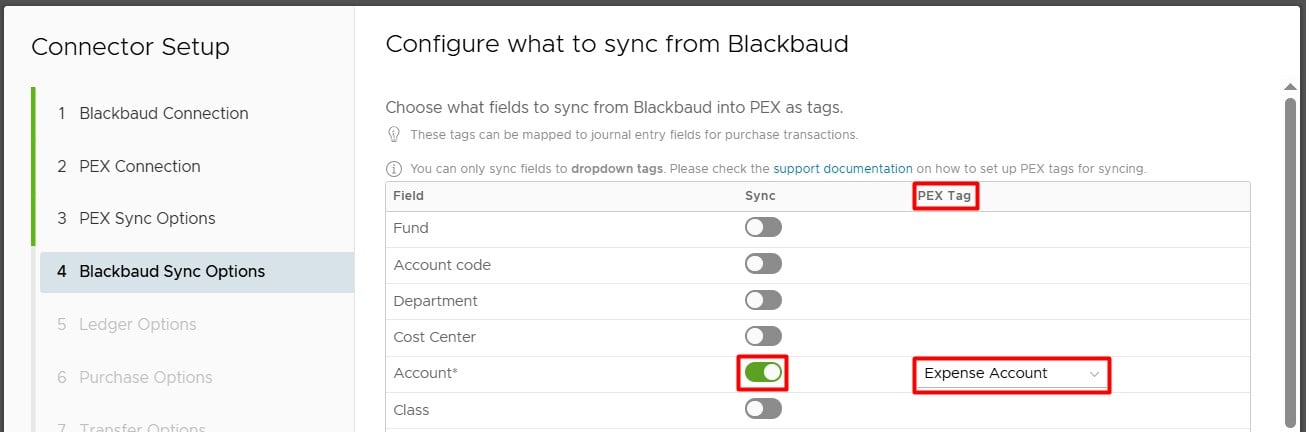
- In the PEX Tag dropdown lists in connector setup steps.
- On the PEX transaction details screen, so you and your Cardholders can tag transactions.
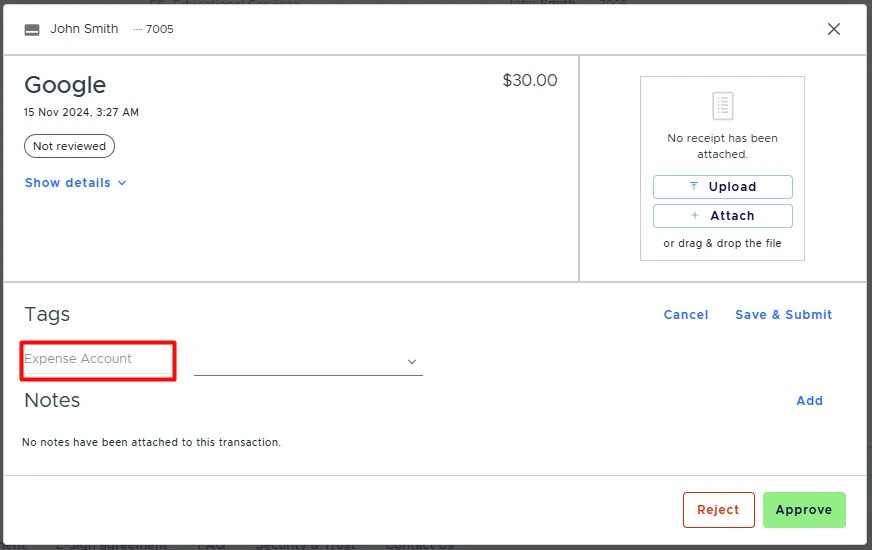
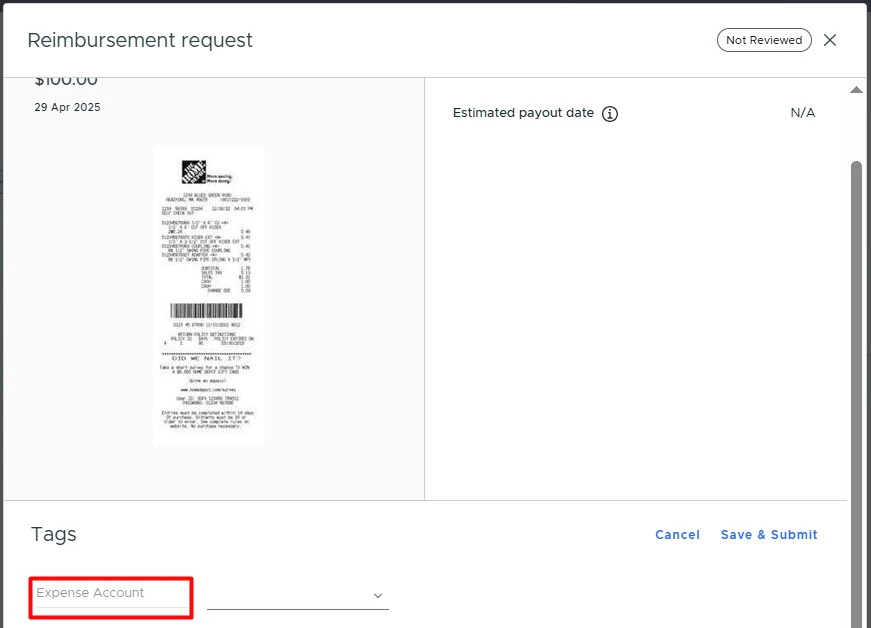
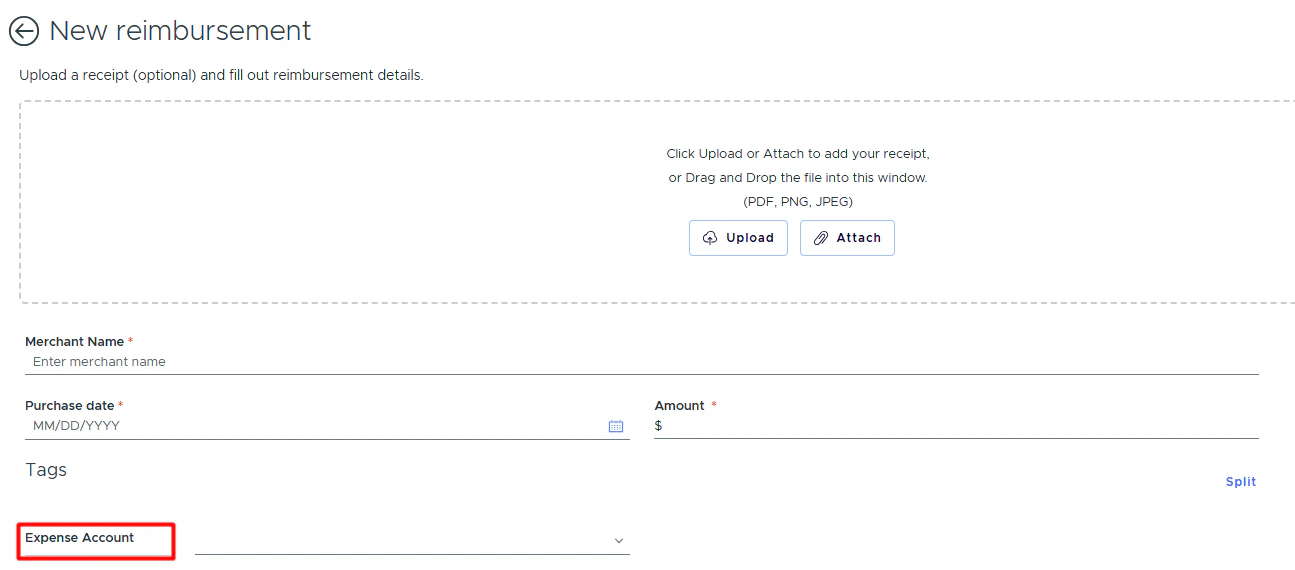
- On the PEX reimbursement details screen, so you and your Cardholders can tag reimbursements.
Admin view
Cardholder view