1
Log in to dashboard.pexcard.com
2
After entering your username and password, PEX will send a unique 6-digit code to the email address that we have on file for your user account
3
When you receive the code, enter it in the “Secure Access Code” field
4
Click “Confirm Code”
- Do not enter any spaces or additional characters
- The code is valid for one time use only
5
If you do not receive an email with a 6-digit code, then please check your spam folder to see if the email went into spam
6
You can request another code by clicking the link titled “I didn’t receive a code”.
Note:for security reasons, PEX agents are unable to provide you with a replacement code
7
If you don’t recognize the email address shown as being associated with your PEX user account, then please contact a business administrator for your organization to confirm or to change the email address.
8
PEX will automatically remember your device after you enter a Secure Access Code.
- If you delete the security certificate or “cookies” from your device, however, you may be prompted to enter a new code on your next login.
Why am I being prompted for a code every time I log in?
The most common reasons you’re prompted for a secure access code multiple times on the same device are:- You’re using incognito mode (in Chrome) or private browsing (in Firefox or Safari)
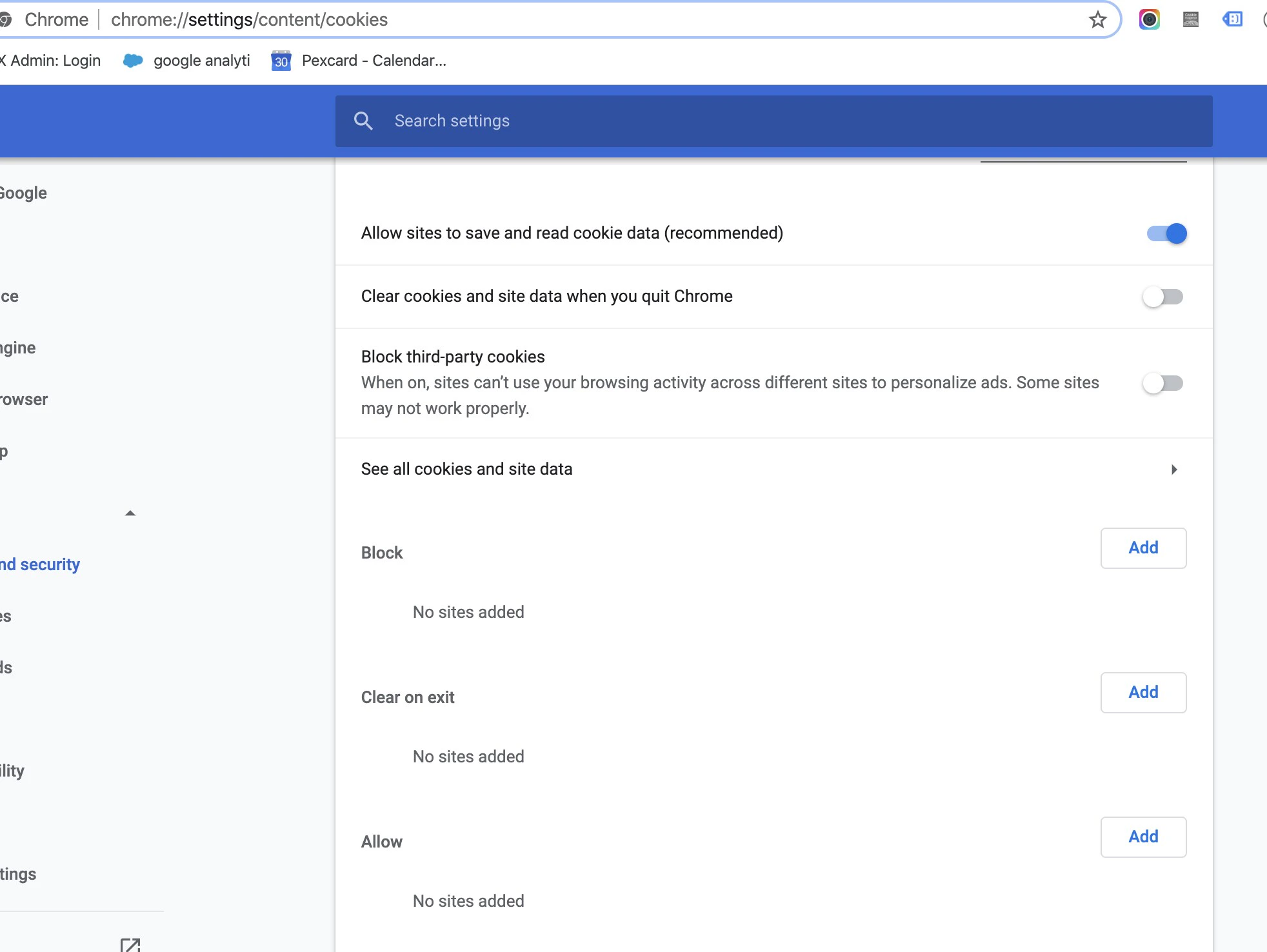
- Your browser is set to clear cookies and site data on exit (check under browser preferences > cookies & site data)
- You have a plugin that blocks site data