

How to Update your Business Address
You can update your business address by logging into the Dashboard, and following the instructions below:1
Log into dashboard.pexcard.com
2
From the “Dashboard” tab, click “Business Settings” on the left side navigation
3
Click the “Edit” button under your Business Profile address information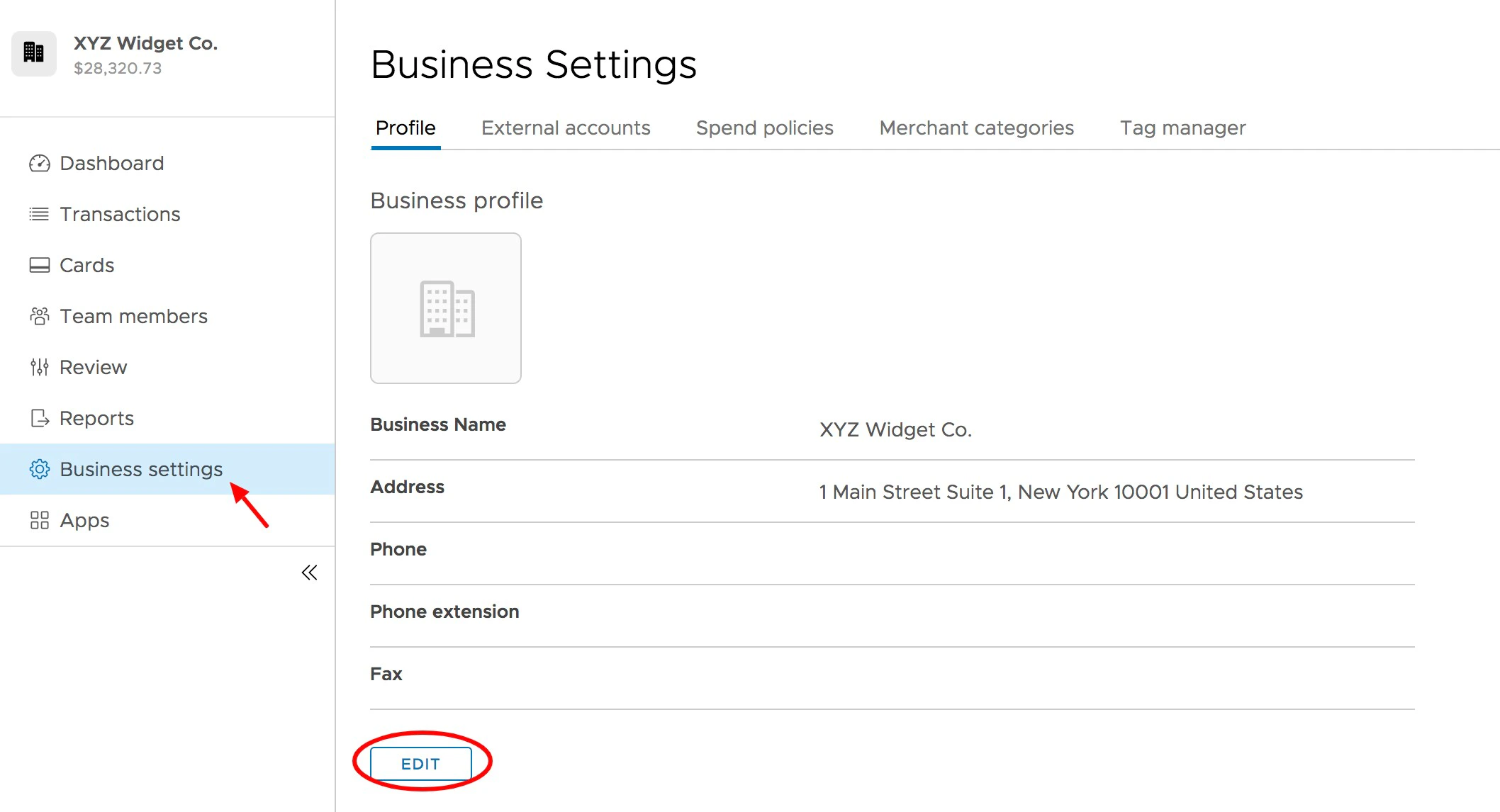
4
Update your business address in the fields provided
5
To update the billing address for all cardholders, check the box “I want to update all cardholder billing addresses to match the above address”
6
To update the shipping address for all cardholders, check the box “I want to update all cardholder shipping addresses to match the above address”
7
Click the “Update” button to save changes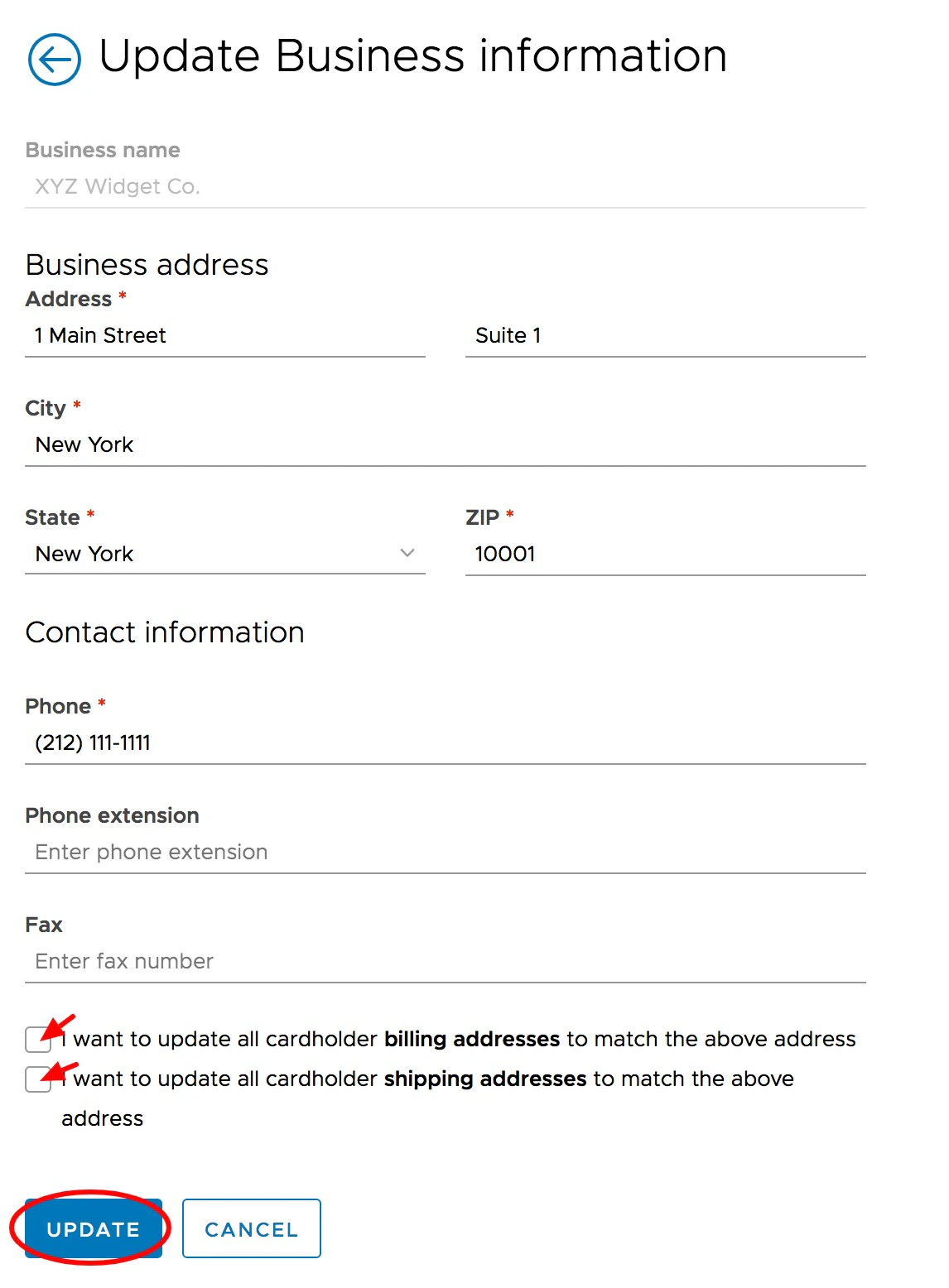
Note:Administrators are required to have the Edit Business Profile permission enabled to update these fields.