

Note:Creating a new administrator may only be sent from a web browser. This option is not available on the mobile app.
How to Create a New Administrator Invite
1
Log in to dashboard.pexcard.com
2
Click the “Team Members” tab
3
If you are the primary Admin, or have permissions to add/edit/terminate an Administrator, you will see a blue “Invite Admin” button in the upper right corner of the Team Member page. Click this button to Invite an Admin.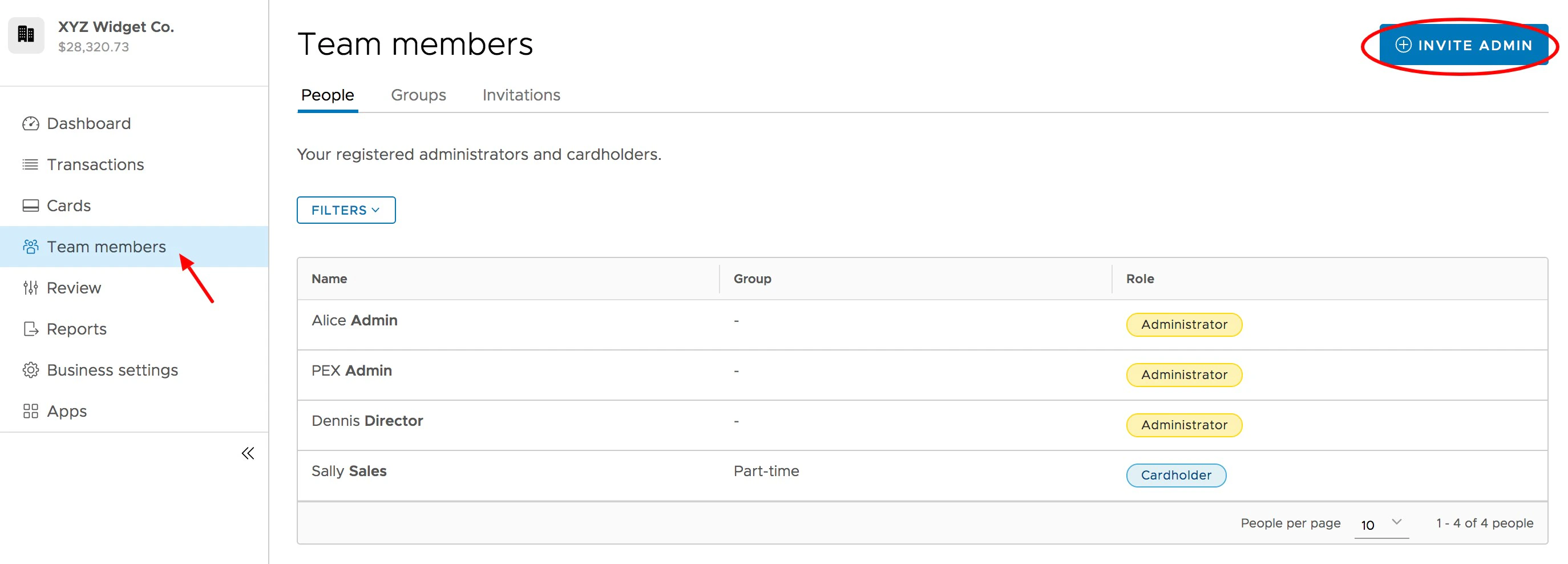
4
Fill out the details on the page titled “Invite admin to your organization”. Required fields are First Name, Last Name, and Email Address.
5
(optional) Enter the address for the Admin
- You can click the link to “Use office address” if you wish to populate these fields with your business address
6
(optional) Enter a phone number
7
(optional) Enter the new Administrator’s date of birth (MM/DD/YYYY)
- Note: Administrators must be at least 18 years old
8
(optional) Select the permissions you want to extend to the new Administrator
- If you do not choose any permissions, this administrator will have “view only” permissions, which will only allow the new admin to view and download reports and statements
9
(optional- if applicable) If you have linked sub accounts, you will be able to select which accounts this admin will have access to under the Accounts section
10
Click the blue “Send Invite” button at the bottom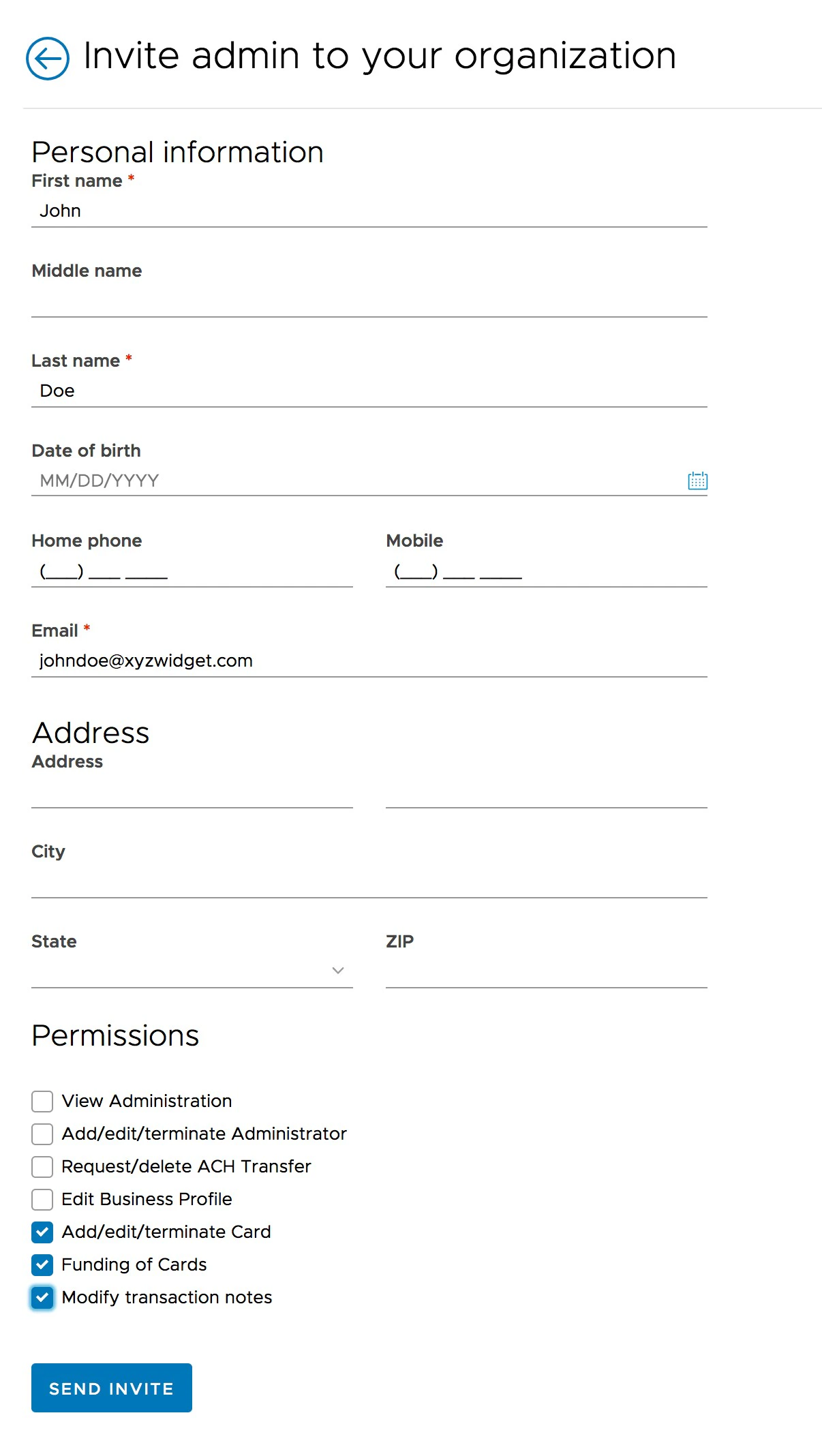
11
The new Administrator will receive an email instructing them how to activate their account. You will be able to review the Invitation on the Invitations tab on the Team Members screen.
- You can click on the name of the invited Admin in the list to review the information entered, resend the invitation, edit and update the invitation, or delete the invitation.
- Status of an Invitation can read Pending or Expired.
- Have another administrator account already? Link your logins with the steps found here.