- Through the Administrator Site
- Through the Mobile App
- Download the iOS app from the App Store
- Download the Android app from the Google Play Store
- The download is free but carrier data rates may apply
- The funds will go back into your main PEX account
- Note: Defunding cards is not an available feature on cardholder owned Disburse account programs
How to remove funds from a card using the Administrator Site
1
Log in to dashboard.pexcard.com
2
Click the “Cards” tab
3
Locate the cardholder’s name
4
In the “Quick Fund” box at right, enter the amount to remove as a negative number (e.g., “-200”)
5
Click the blue “Arrow” button. The removed balance instantly reverts back to the business account balance reflected in the upper left corner of the dashboard.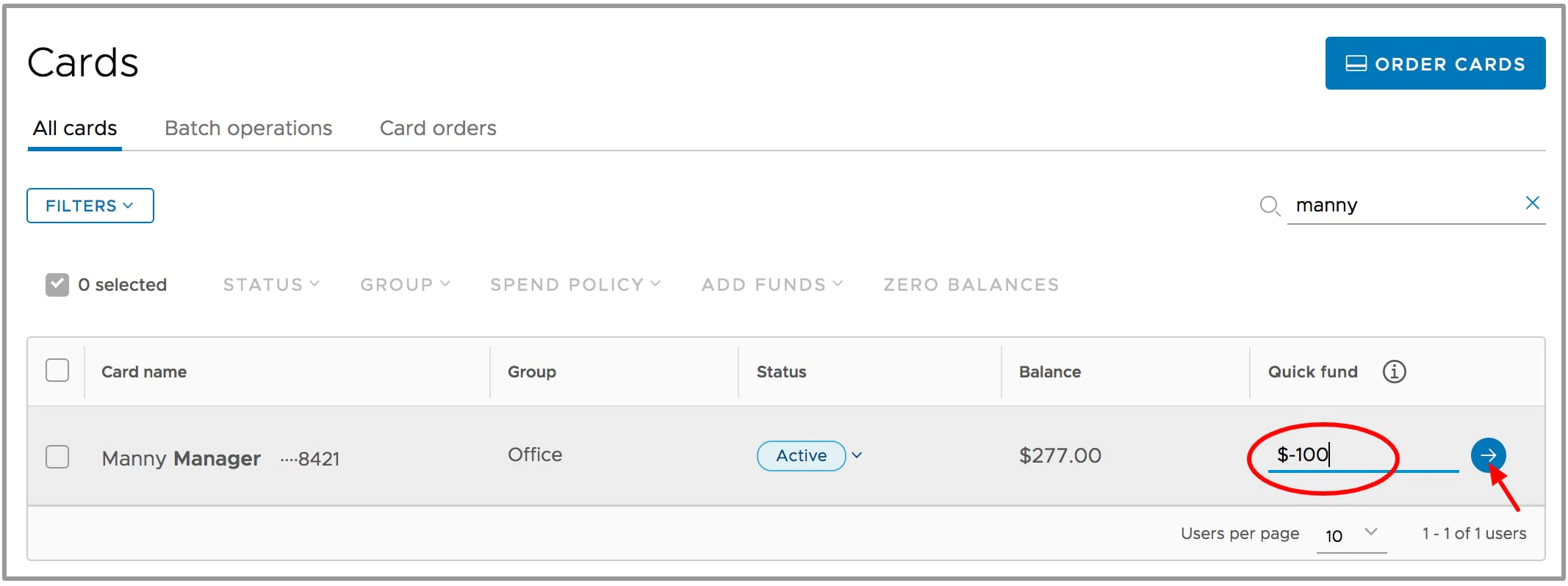
How to remove funds from a card using the Mobile App
1
Log into the Mobile App
2
Click the “Cards” icon at the bottom of the screen
3
Navigate to the cardholder
4
Click on the cardholder’s name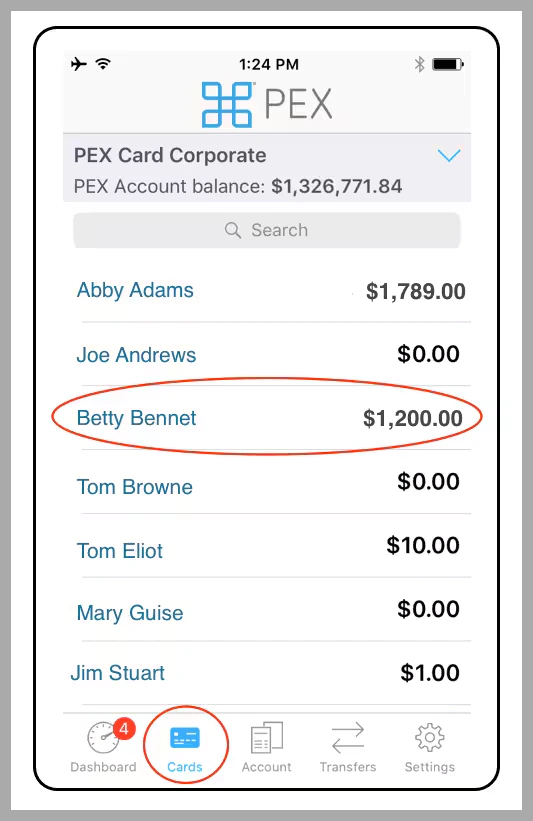
5
In the “Quick Fund” box, enter the amount to remove from the card (as a positive number, e.g., 200)
6
Click the blue “Remove Funds” button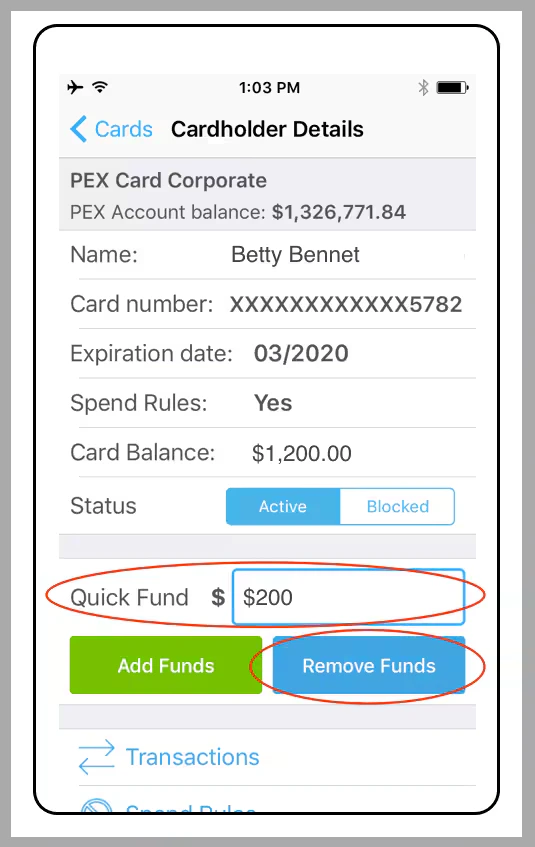
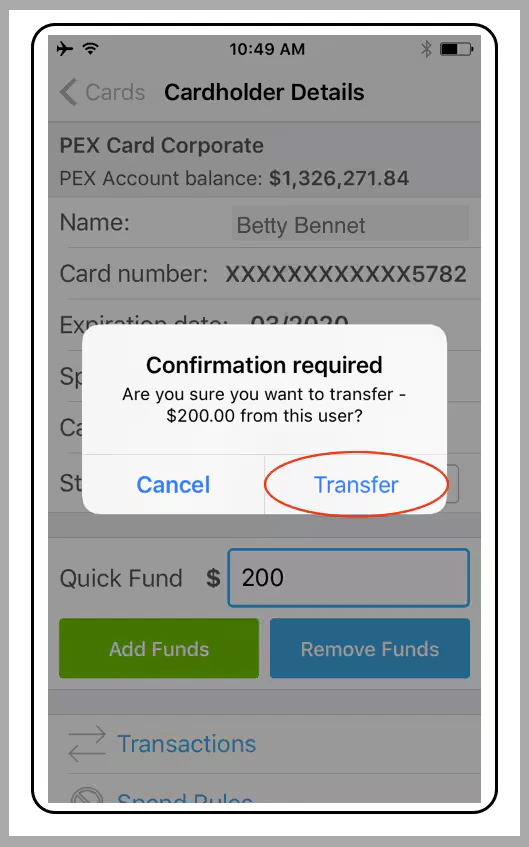
7
Click “Transfer” in the confirmation dialogue box to remove funds from the card