- Through the PEX Web App (desktop)
- Through the Mobile App
- Download the iOS app from the App Store
- Download the Android app from the Google Play Store
- The download is free but carrier data rates may apply
How to update a cardholder profile through the Web App / Dashboard
1
Log in to dashboard.pexcard.com
2
Click the “Team Members” tab
3
Locate the cardholder
4
Click on the cardholder’s name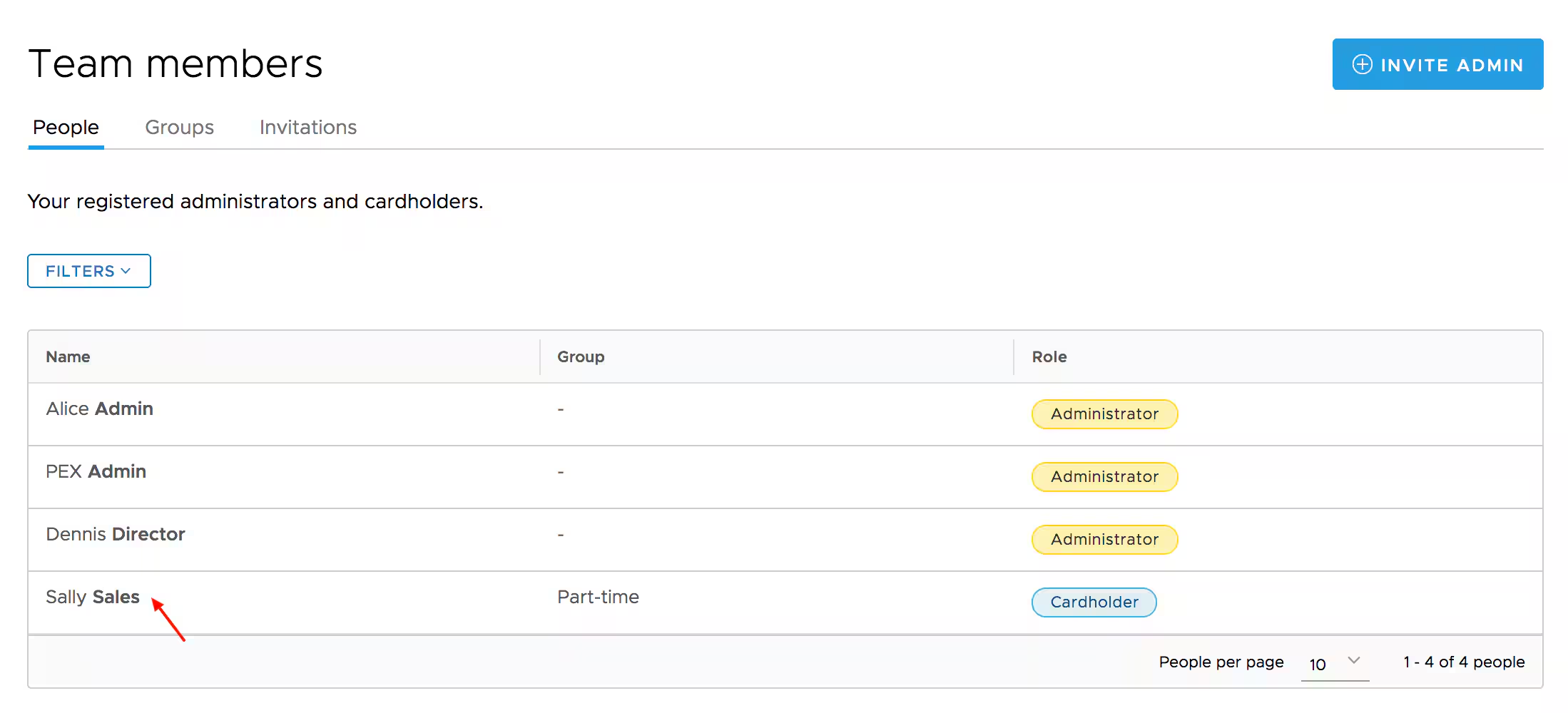
5
Click the “Edit Profile” button at the bottom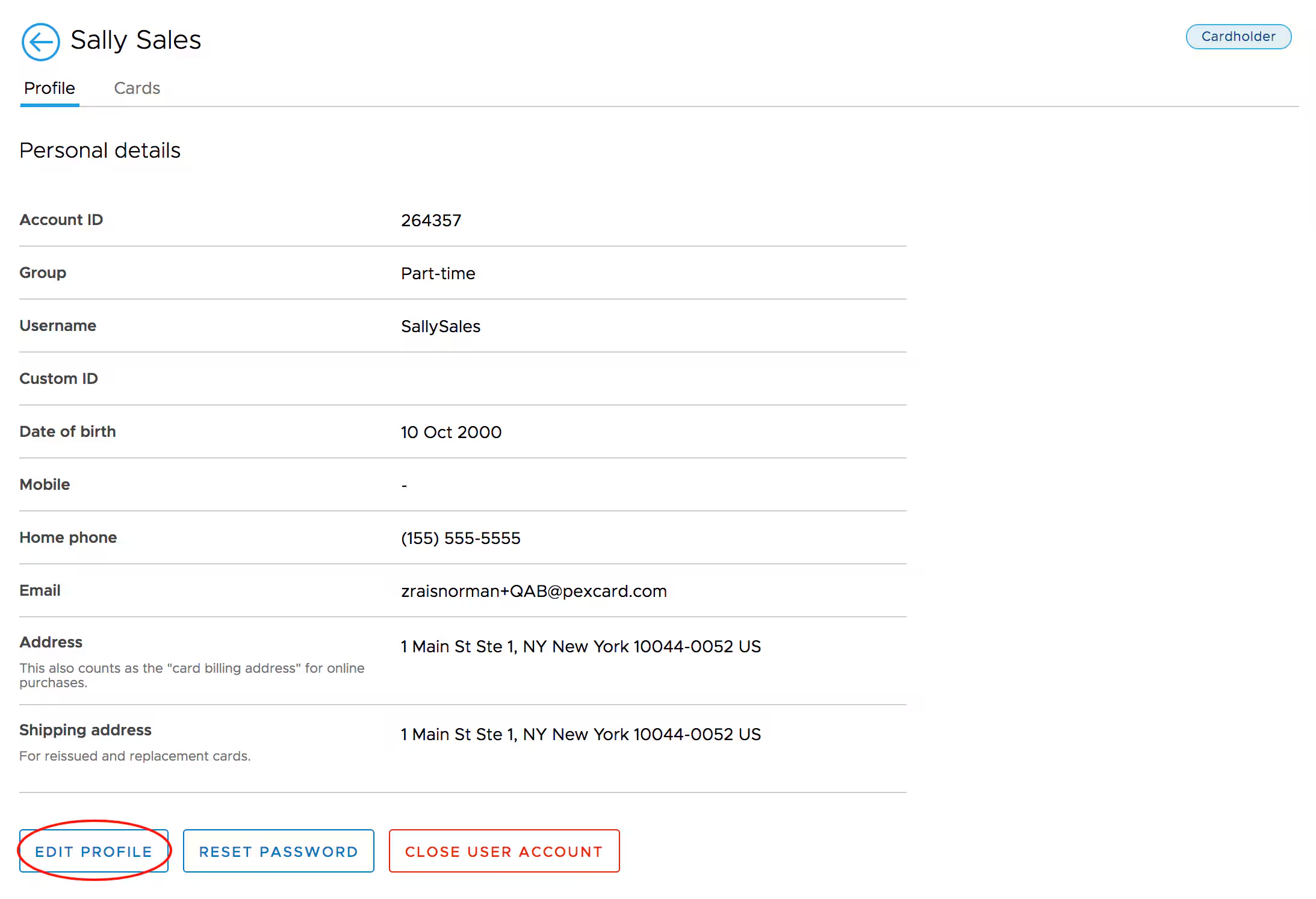
6
Edit “Personal address” (this also counts as the “Card Billing Address” for online purchases)
7
Edit “Shipping Address” (for reissued and replacement cards)
8
Click the “Update” button to save changes
How to update a cardholder profile through the Mobile App
1
Log in to the Mobile App
2
Click the “Cards” icon at the bottom of the screen
3
Click on the cardholder’s name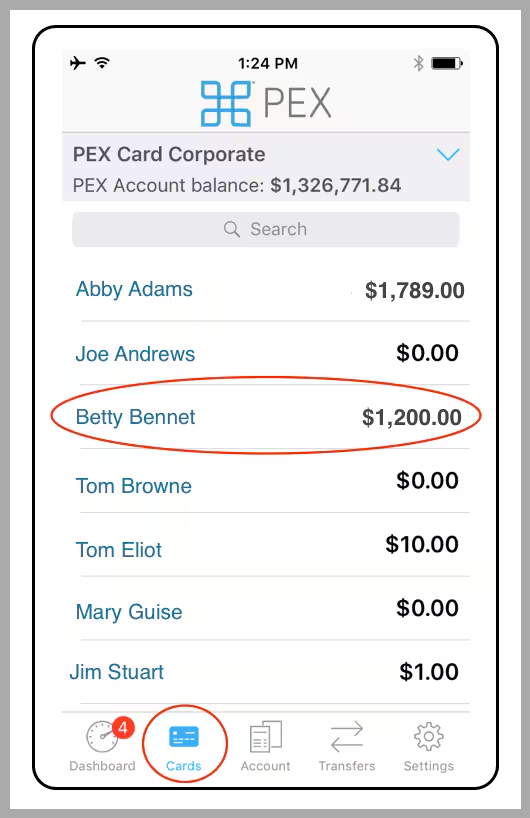
4
Click on “Profile” in Cardholder Details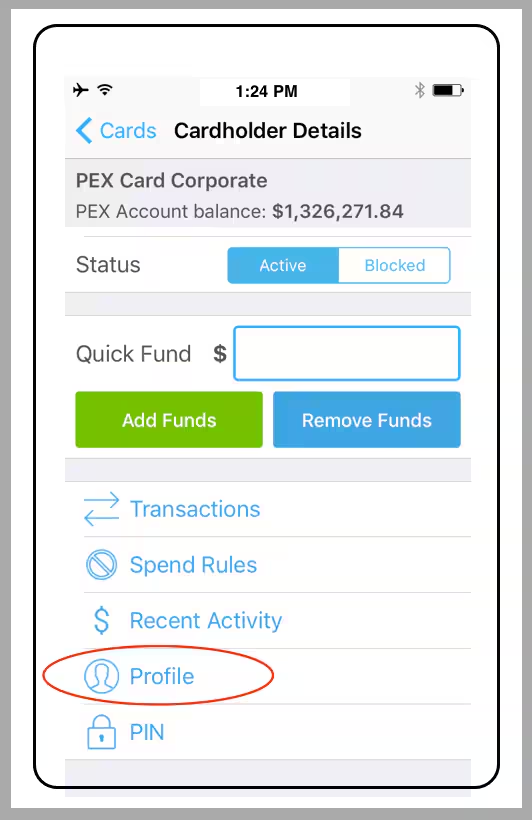
5
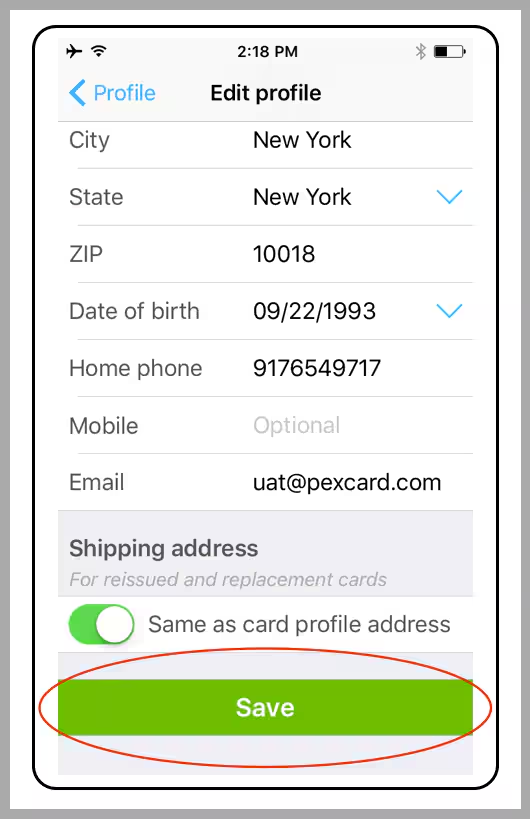
Click on “Edit Profile”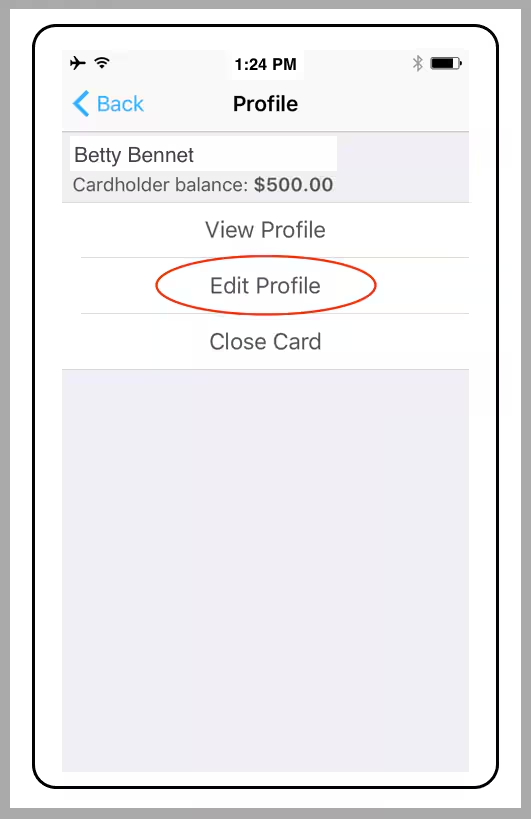
6
Make changes to the Profile
7
Click the green “Save” button at the end of the Edit Profile section