- Once closed, you can not reactivate the card, have it replaced, nor view the full 16 digit card number on the dashboard
- If you need another card for the same individual, then order a new card using the Order Cards button
- When you close a card, any balance on the closed card is added back into the main corporate account
How to close a card via the PEX Web App
Method 1
1
Log in to dashboard.pexcard.com
2
Click on the “Cards” tab
3
Locate and select the checkboxes next to the cards you wish to close
- You can use Filters to narrow your list, or find a set of cards
4
Click the “Status” button above the list, and select “Closed” from the dropdown menu
5
Review and click “Change Status” in the confirmation screen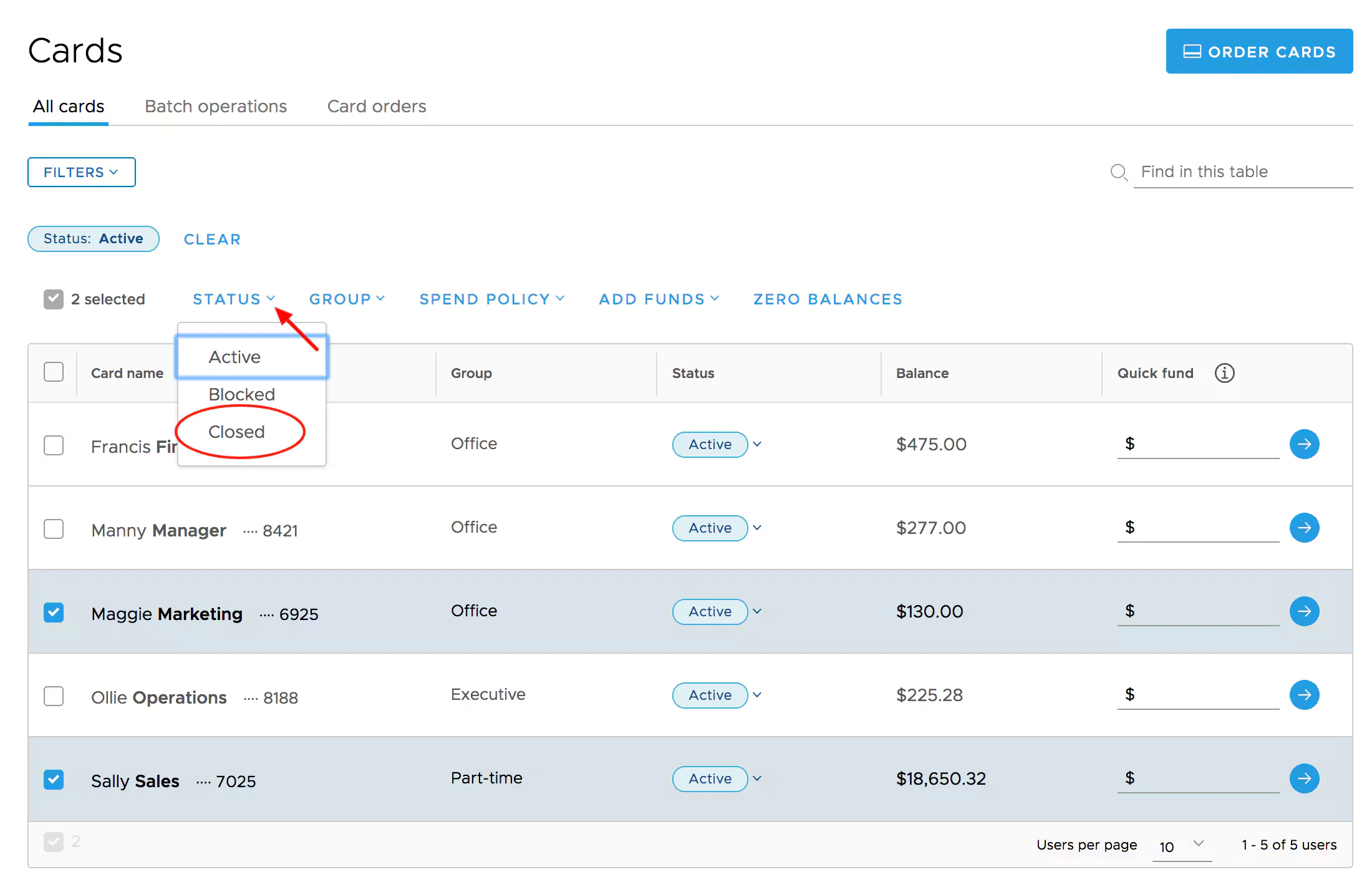
Method 2
1
Log in to dashboard.pexcard.com
2
Click on the “Cards” tab
3
Locate and select the specified card you wish to close
4
Locate and select the 3 dots in the upper right corner
5
Click Close Card Account
How to close a card using the Mobile App
You must have the PEX mobile app installed on your phone or mobile device. If you do not have the app, please download the app using one of the links below:- Download the iOS App from the App Store
- Download the Android App from the Google Play Store
Note:The download is free but carrier data rates may apply
1
Log in to the Mobile App
2
Click the “Cards” icon at the bottom of the screen
3
Navigate to the cardholder
4
Click on the cardholder’s name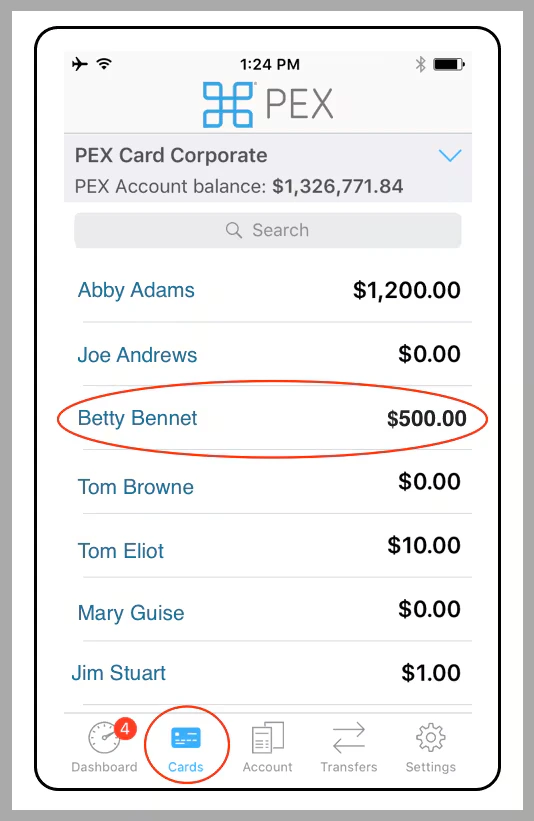
5
Click “Profile” in the Cardholder Details section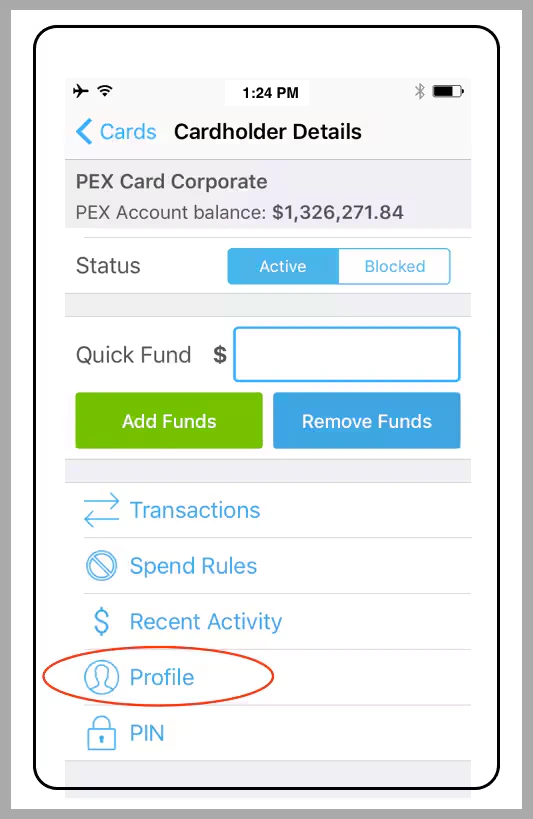
6
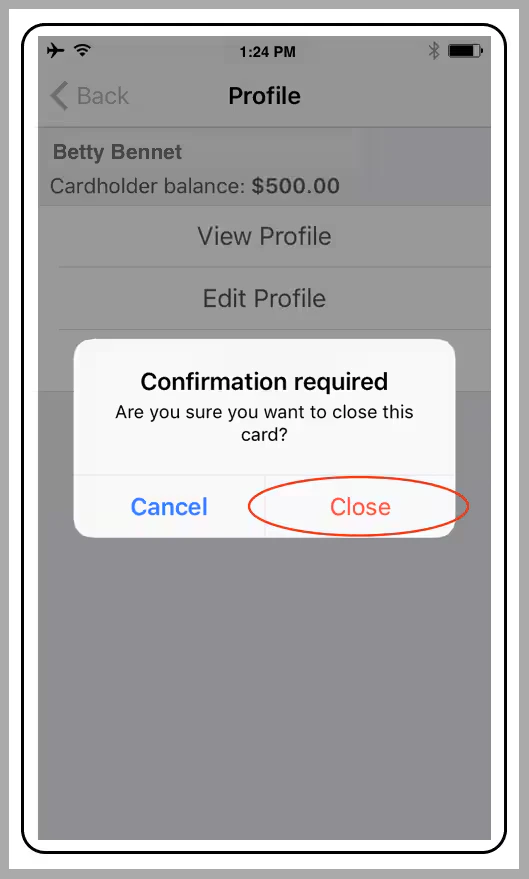
Click “Close Card”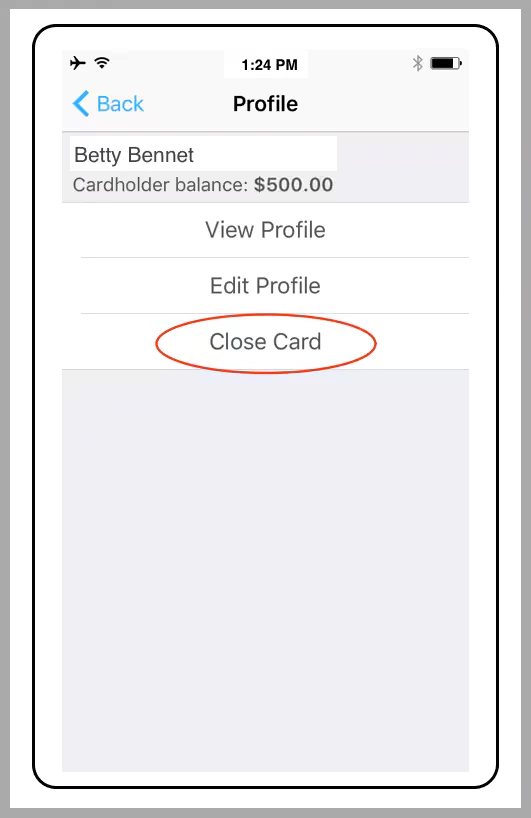
7
Click “Close” in the confirmation dialogue box to close the card