

- Daily (24 hour period — Midnight to Midnight ET)
- Weekly (Sunday to Saturday)
- Monthly (1st to 31st)
- Annual (Jan 1st to Dec 31st)
- Lifetime
Note:Different Plans have different features. Please check your PEX Plan (contact your Account Manager for details):
- CORE
- PRO
- INFINITE
How to set time-based spend limits through the Administrator Site
1
Log in to dashboard.pexcard.com
2
Click the “Cards” tab on the left side of the page
3
Locate and click on the cardholder’s name to open the card details page
4
Click on “Spend Rules” on the card details page
5
Click on the “Add Per-Time Limit” button to select from a dropdown menu the time period(s) where you will limit spending (as your Plan allows):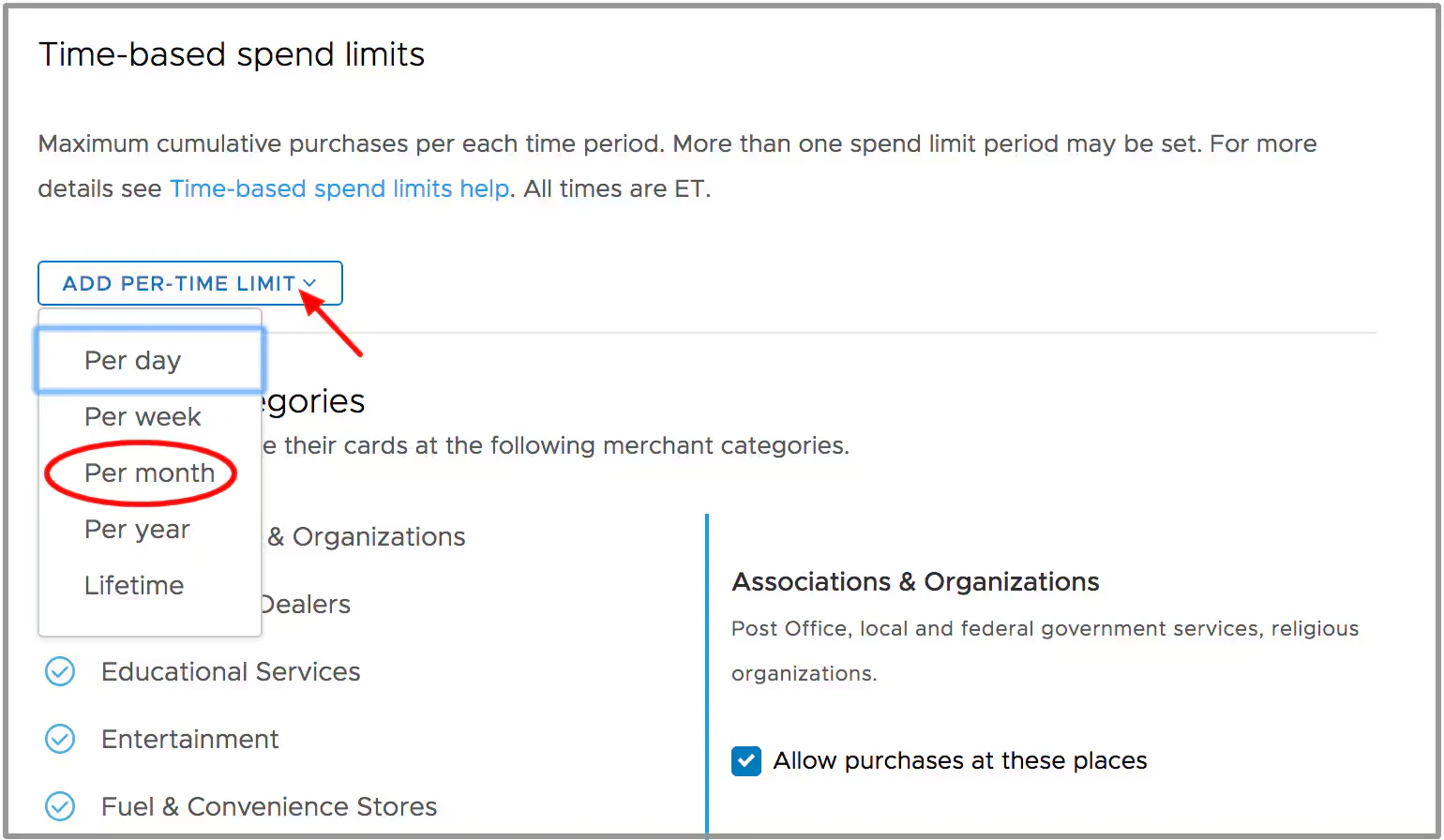
- Daily
- Weekly
- Monthly
- Annual
- Lifetime
6
Enter a value in the field and hit enter.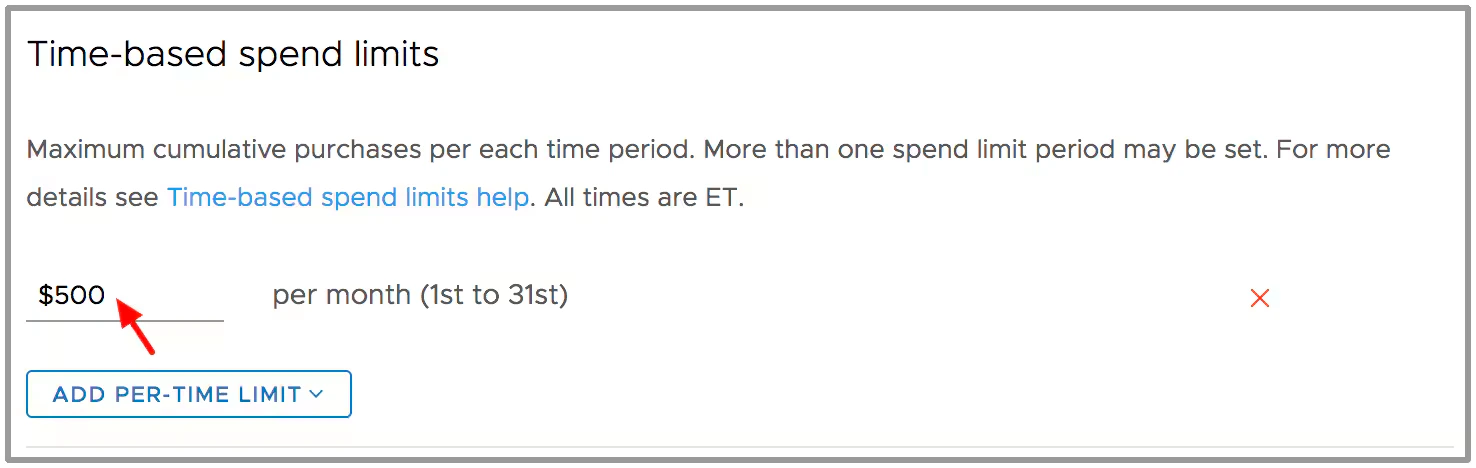
7
A confirmation window will open for you to confirm the update to the cardholder spend rules.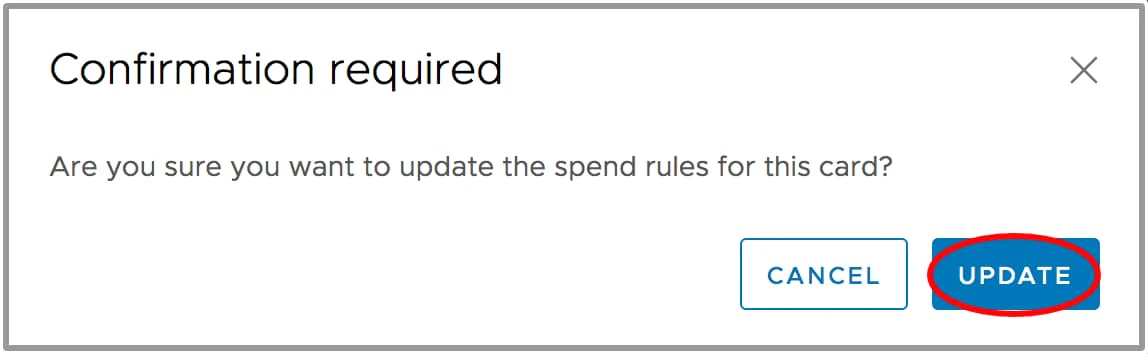
Note:a Time-Based Spend Limit can be deleted by clicking the red “X” next to the rule.