

- Download the iOS app from the App Store
- Download the Android app from the Google Play Store
- The download is free but carrier data rates may apply
How to block a card through the Dashboard site
1
Log in to dashboard.pexcard.com
2
Click the “Cards” tab
3
Locate the cardholder you wish to block, and click on their name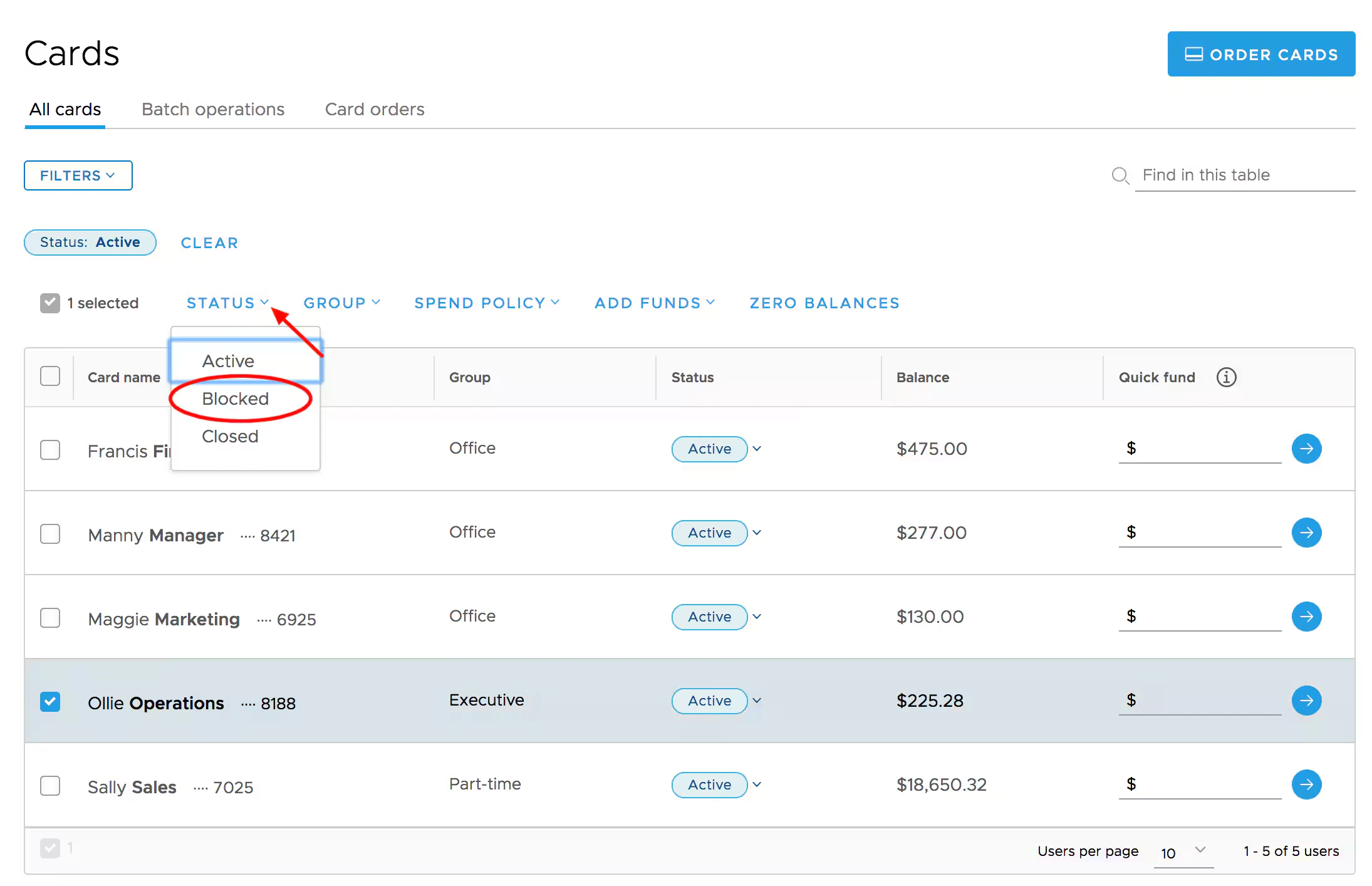
- You can also click the checkbox next to the individual cardholder, or select multiple cards on the cards list (to perform a bulk action)
- Click the “Status” button above the list and select “Blocked” from the dropdown
- Review and click “Change Status” on the confirmation screen when performing a bulk action
4
On the card details screen, click the dropdown next to Card Status
5
Select “Blocked” from the dropdown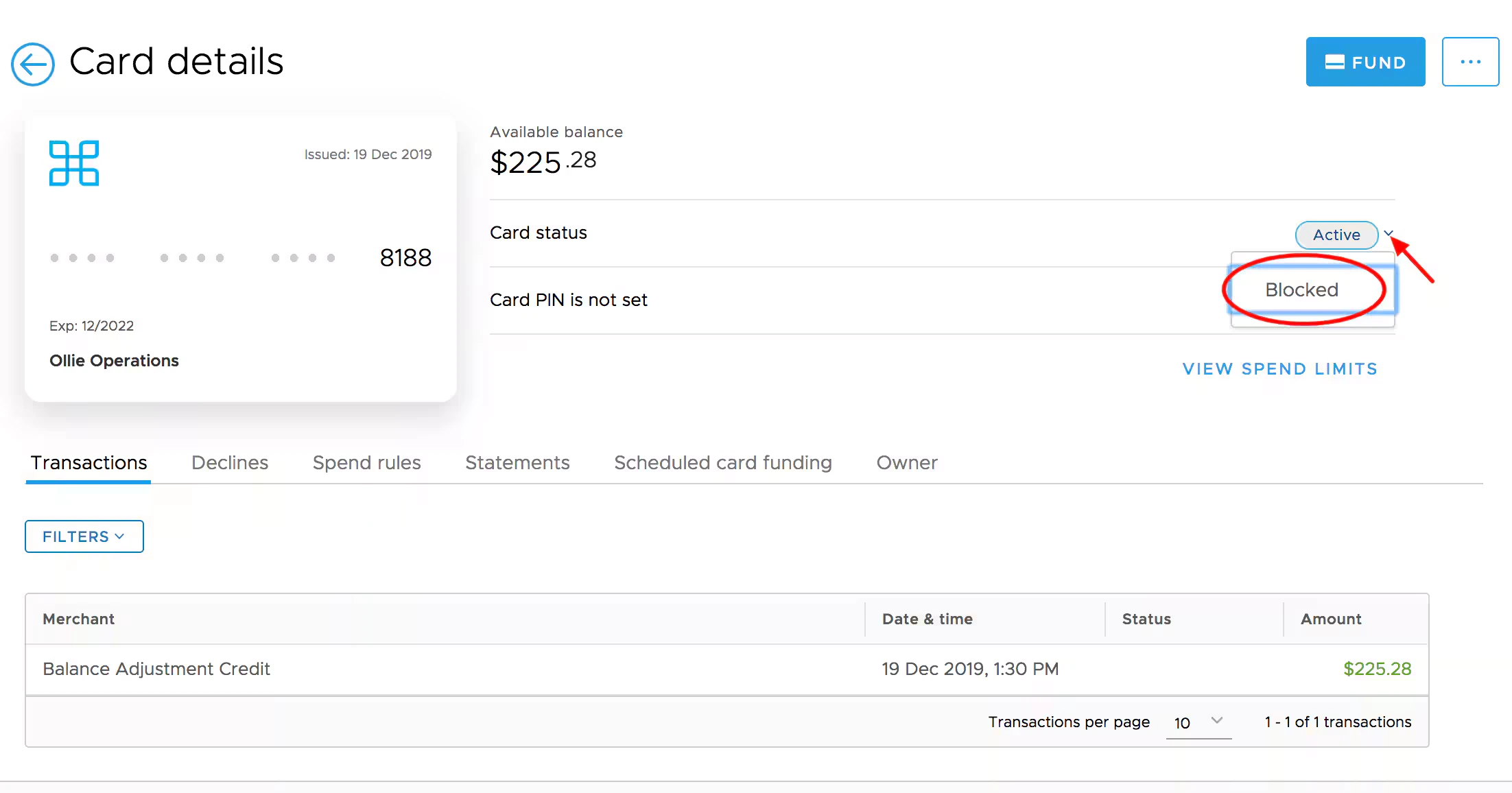
- The status will change instantly. You may need to refresh your web browser to see the new Blocked status in effect.
How to block a card using the Mobile App
1
Log into the Mobile App
2
Click the “Cards” icon at the bottom of the screen
3
Click on the cardholder’s name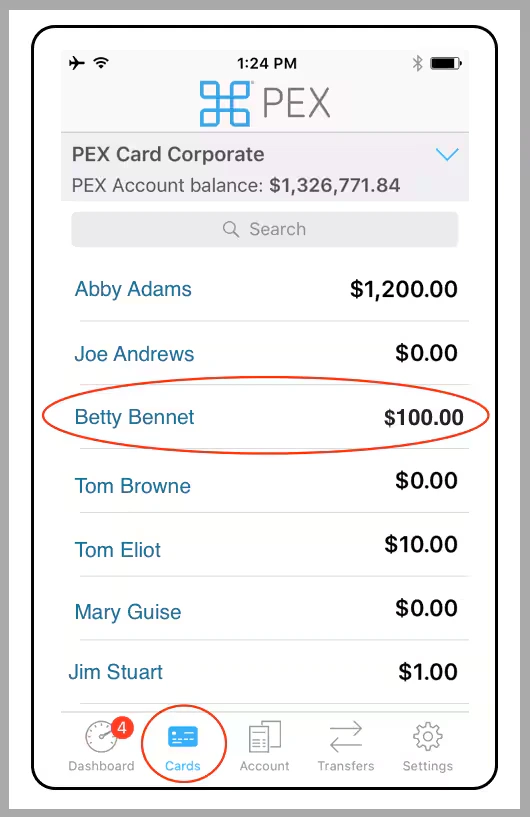
4
Under Status, click “Blocked”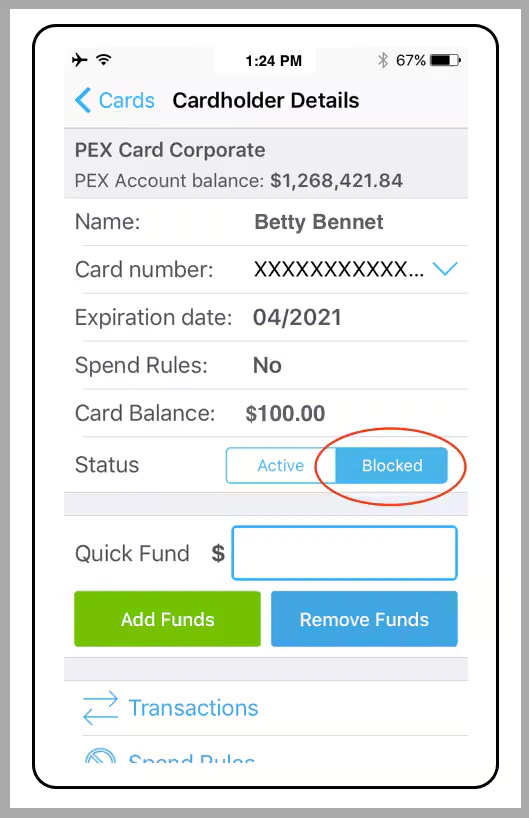
Note:
- Blocked cards are still considered to be “Open” and will be subject to monthly card fees
- If a cardholder will no longer use the card at all (e.g., if the cardholder leaves the company) you should permanently close the card. Please see How to Close (Terminate) a Card