How to manage cards using filters
1
Log in to dashboard.pexcard.com
2
Click the “Cards” tab
3
Click “Filters”
4
Select your desired parameters from the dropdown menus. Available filters include:
- Cardholder name
- Card number
- Card ID
- Group
- Spend policy
- Status
- Has PIN?
- Balance
- Date issued
- Expiration date
- Date last used
- Single use cards (Bill Pay only)
5
Type relevant details in the blank fields for each filter (if applicable)
6
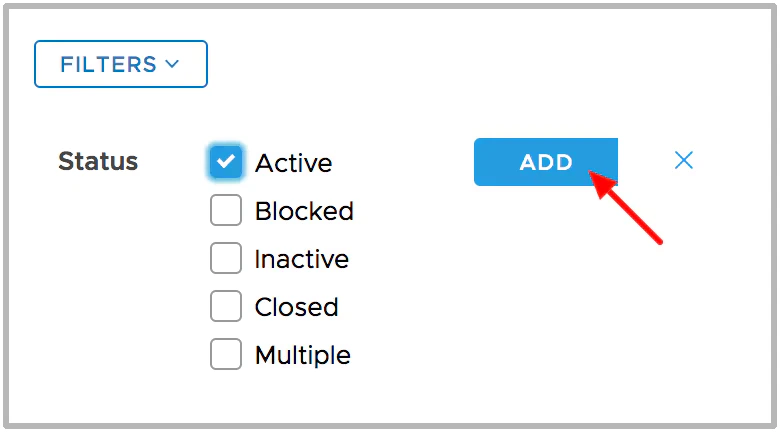
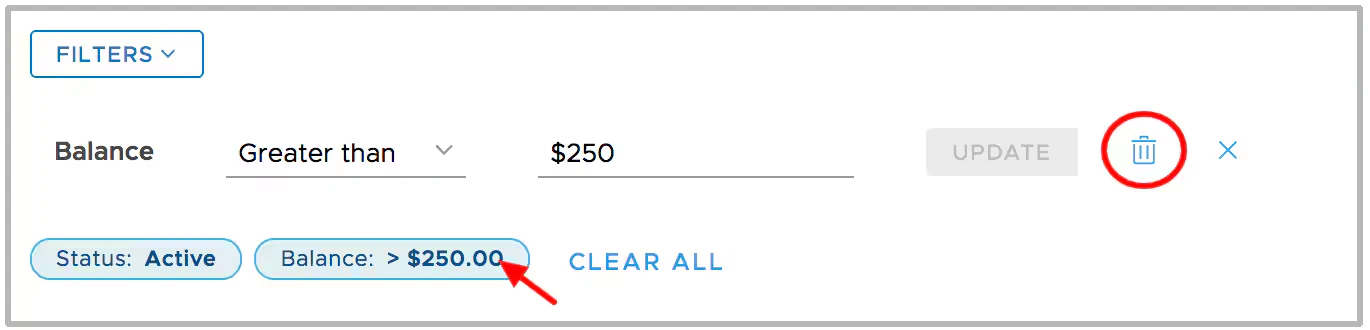
Click Add or the trash can icon to add or remove filters when applying multiple filters
- Click on an existing filter badge to edit the filter
- The “x” closes the filter edit window
- Use the “Clear All” button to clear all filters and start over
7
After clicking “Add”, the list displayed is the filtered list
- There is no limit to the number of filters you can apply to a list