

How to create a bulk card order
1
Log in to dashboard.pexcard.com
2
Click on the “Cards” tab
3
Click on the “Order Cards” blue button in the upper right
4
Check to see how many new cards are available to you under the terms of your current Plan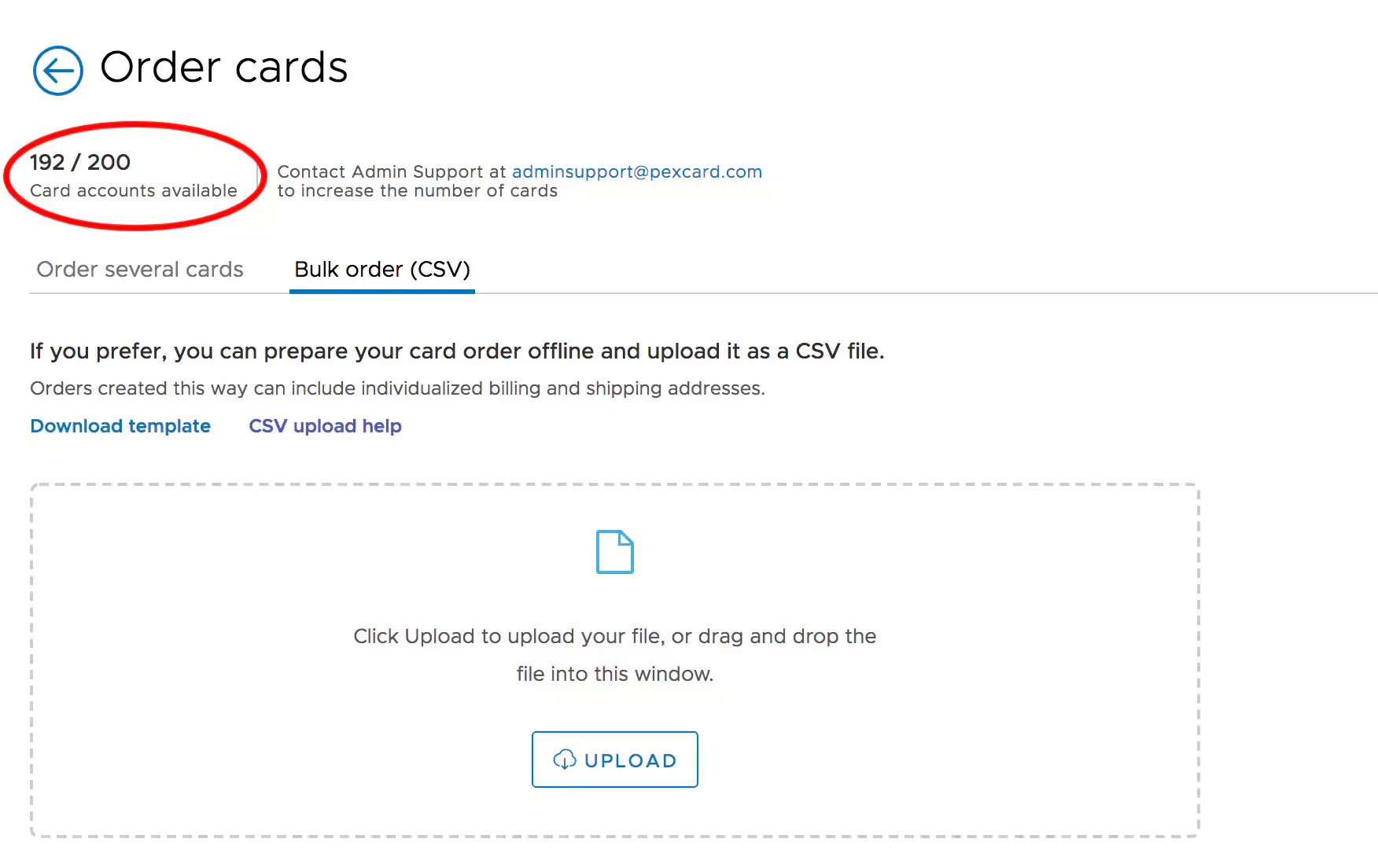
- You will see the number of new cards available to your organization at the top of the page
- To request an increase in the number of cards, contact Admin Support at adminsupport@pexcard.com
5
Click the tab for “Bulk Order (CSV)”. Click on “Download Order Template” in CSV. Find the downloaded CSV file in your Downloads, and proceed to Completing the Team Member card order request form in CSV below to prepare your CSV file.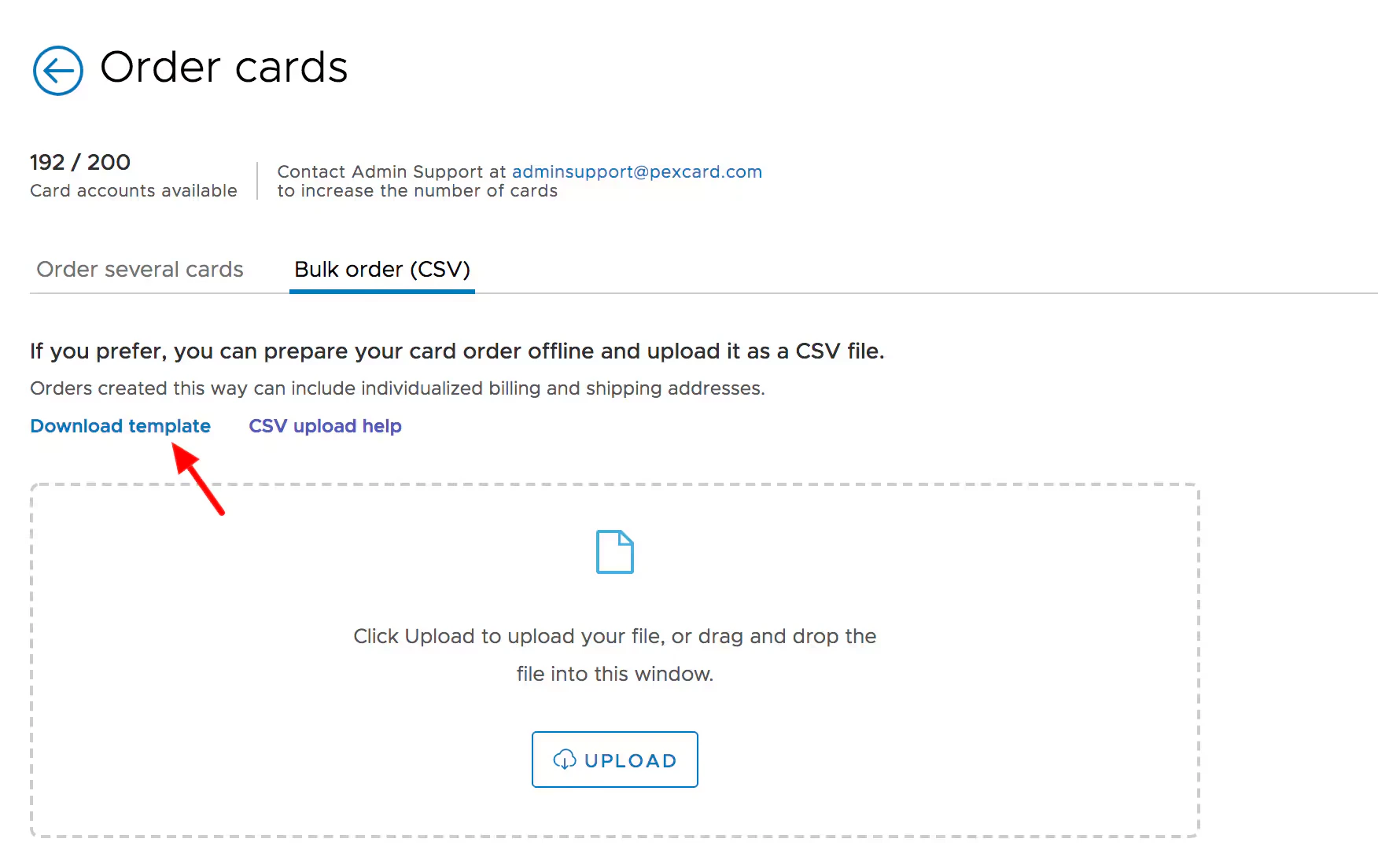
Note:Changes to the format of the form will cause the file to be rejected when attempting to upload.
Completing the Team Member card order request form in CSV
1
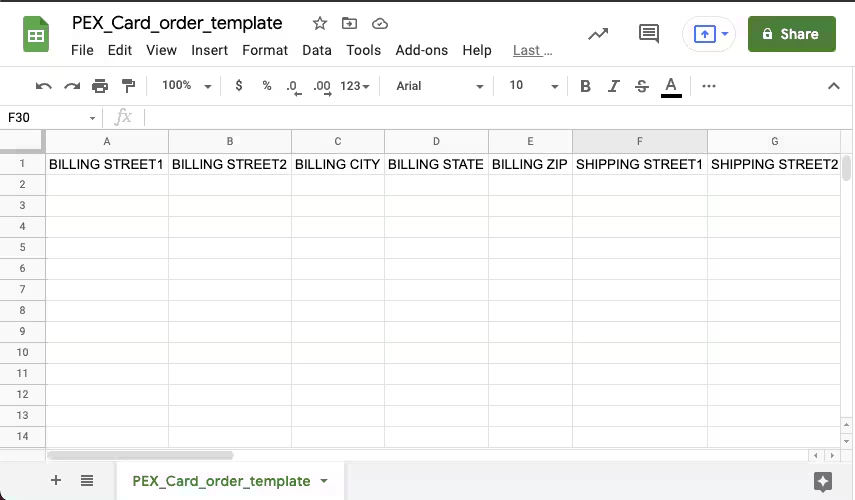
Complete the Bulk Card Order Request Form in CSV (Comma Separated Value)
- You can use the most popular spreadsheet editing programs to complete the file
- Excel
- Numbers
- Google Sheets
2
The authentication system will require cardholders to enter their year of birth or a 6-digit code sent to their email address when they register their cards. Please be sure that you provide accurate information.
- Please be sure that you provide accurate information
- Note: Cardholders for Disburse programs must be at least 18 years old
3
When you select “PRIORITYMAIL”, “RUSH” or “EXPEDITED” Delivery (Column K), you incur a fee for expediting the processing and shipping of your card order (Columns F and G)
4
Delivery Methods for cards:
- FREE - First Class Mail (10-15 Business Days) - No Charge
- PRIORITYMAIL - (4-8 Business Days - tracking included) -
$10fee - EXPEDITED - (up to 5 business days - tracking included) -
$55fee - RUSH - (up to 4 business days - tracking included) -
$70fee
5
Complete the Bulk Card Order Request form
6
Upload the document on the card order page
CSV details (Team Member)
This table outlines the structure and rules for each column in the PEX Team Member Bulk Card Order CSV template. Adhering to these specifications is crucial for successful uploads. All columns are required unless otherwise noted.
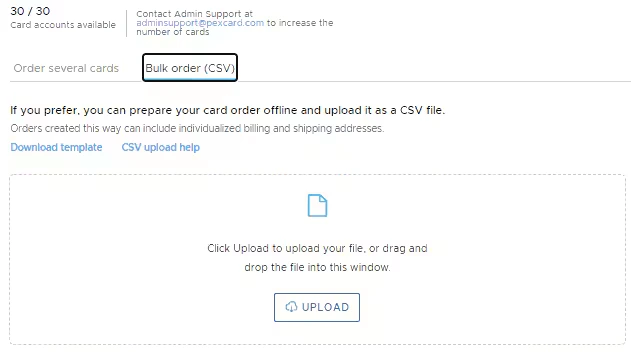
Save the file and upload it onto the dashboard by clicking Upload.
Note:The form must be saved in the original format it was downloaded. Any changes to the format of the form will cause the file to be rejected and show errors.
Completing the Vendor card order request form in CSV
1
Complete the Bulk Card Order Request Form in CSV (Comma Separated Value)
- You can use the most popular spreadsheet editing programs to complete the file
- Excel
- Numbers
- Google Sheets
2
Complete the Bulk Card Order Request form
3
Upload the document on the card order page
CSV details (Vendor)
This table outlines the structure and rules for each column in the PEX Vendor Card Order CSV template. Adhering to these specifications is crucial for successful uploads. All columns are required unless otherwise noted.
Save the file and upload it onto the dashboard by clicking Upload.
Note:The form must be saved in the original format it was downloaded. Any changes to the format of the form will cause the file to be rejected and show errors.