

How to Add Spend Rules to a Card:
1
Log in to dashboard.pexcard.com
2
Click “Cards” on the left menu
3
Locate and click on a Cardholder’s name
4
Click on “Spend Rules” tab
5
When the radial button for “Custom rules for this cardholder” is selected, you may select the Merchant Categories section according to your desired spend rule. Make sure the check box for “Allow purchases at these places” is checked within each category. A check mark will appear next to categories that are selected (i.e. turned on)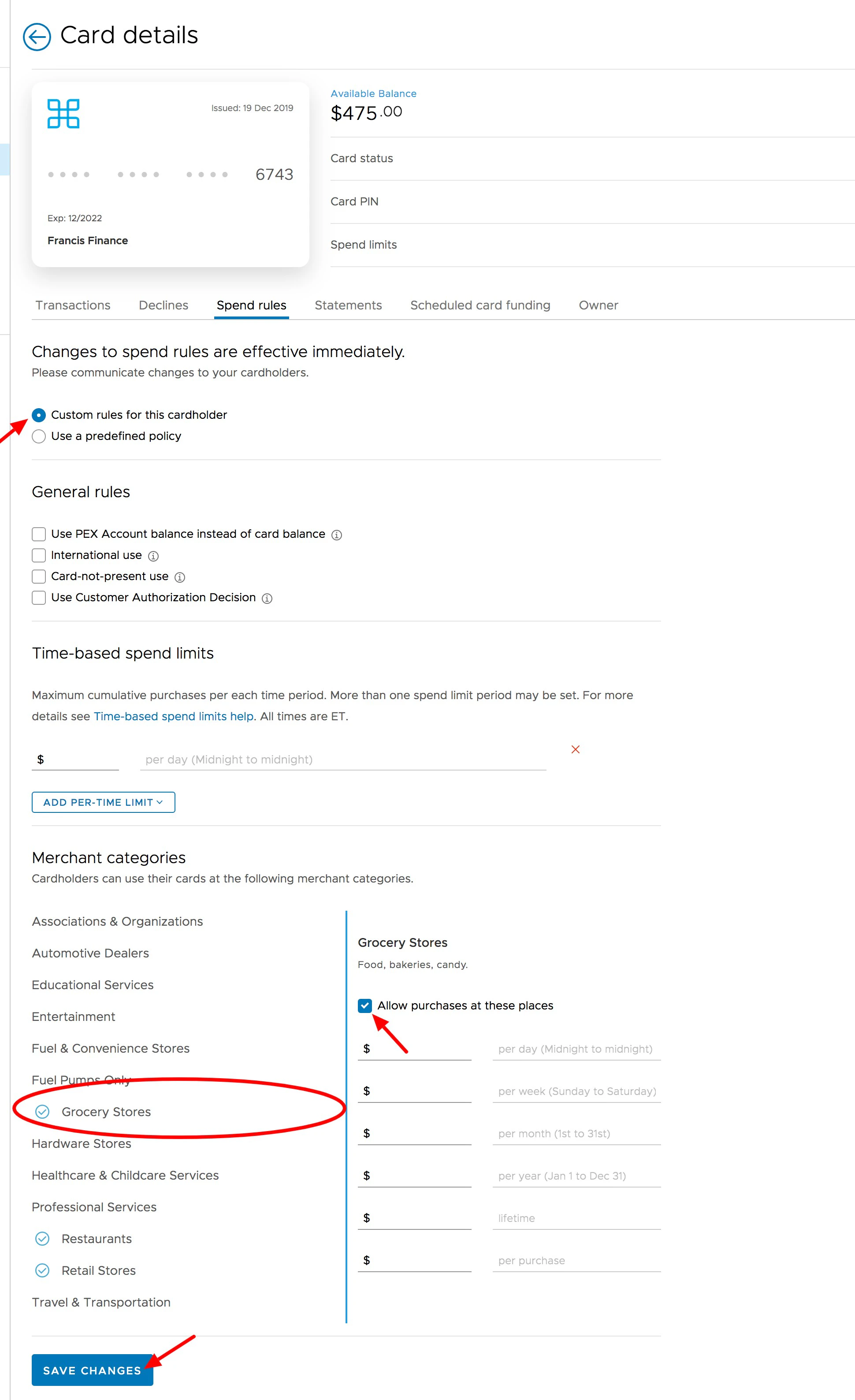
6
Once you make your spend rule selections, be sure to click the blue “Save Changes” button at the bottom. The spend rules will take effect immediately.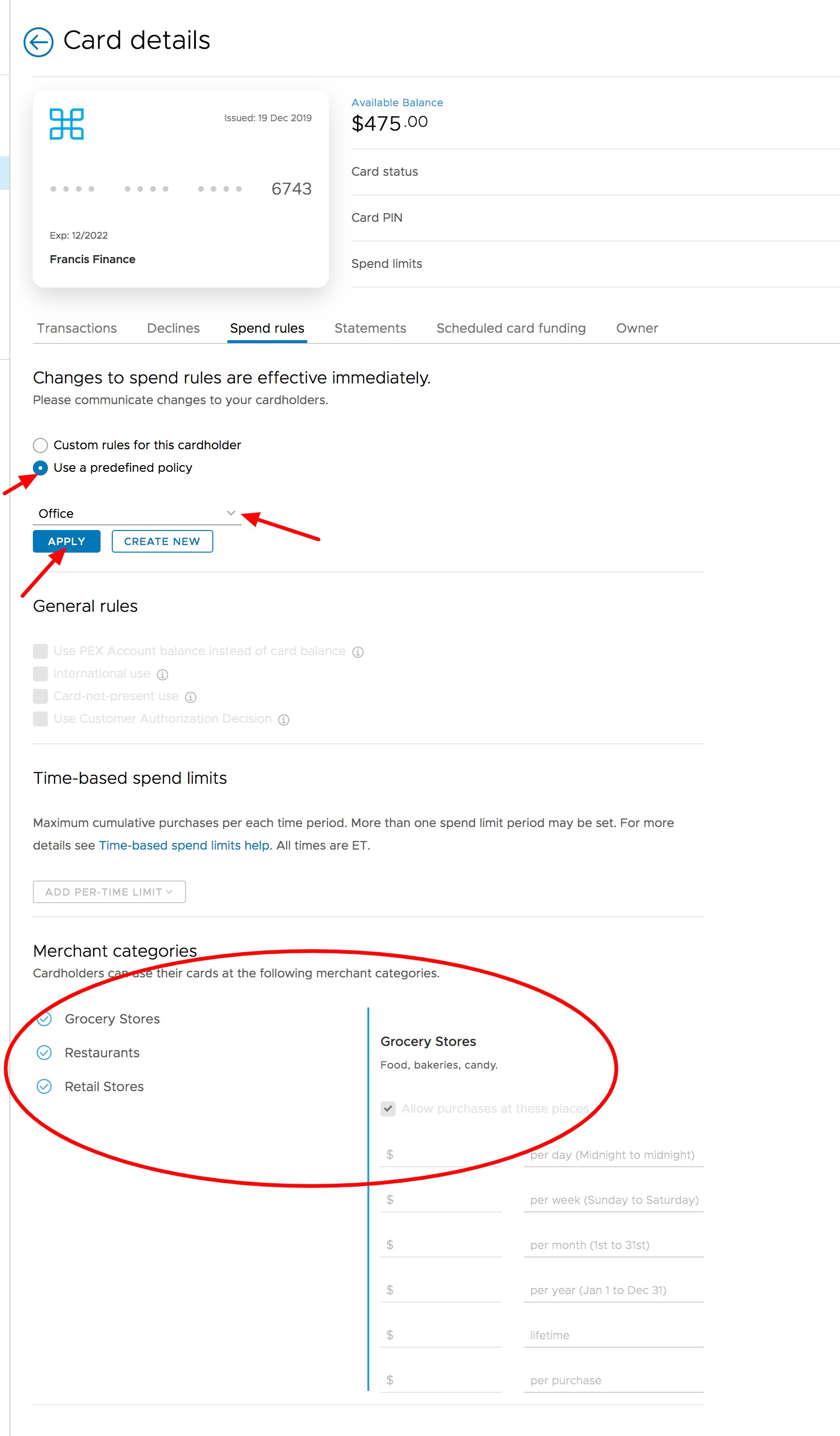
- If you would like to remove or edit a spend rule category from a card, follow the steps above and remove the check from the box of that category, and click the “Save Changes” button at the bottom.
- When the radial button for “Use a predefined policy” is selected, use the drop down menu to browse and select predefined policies that may already be set up. Click “Apply” and confirm your selection for the changes to take effect.