

Note:The PEX AI Agent is currently in Beta. Responses are AI-generated — always verify important actions before confirming them.
What is the PEX AI Agent?
The PEX AI Agent (also called Ask PEX) is a built-in assistant in the PEX Dashboard. Ask a question in plain language and it answers from your live account data, walks you through a task step by step or does the task for you once you confirm.Launching the PEX AI Agent
1
Open the Dashboard
Log in to your PEX account and go to the Dashboard.
2
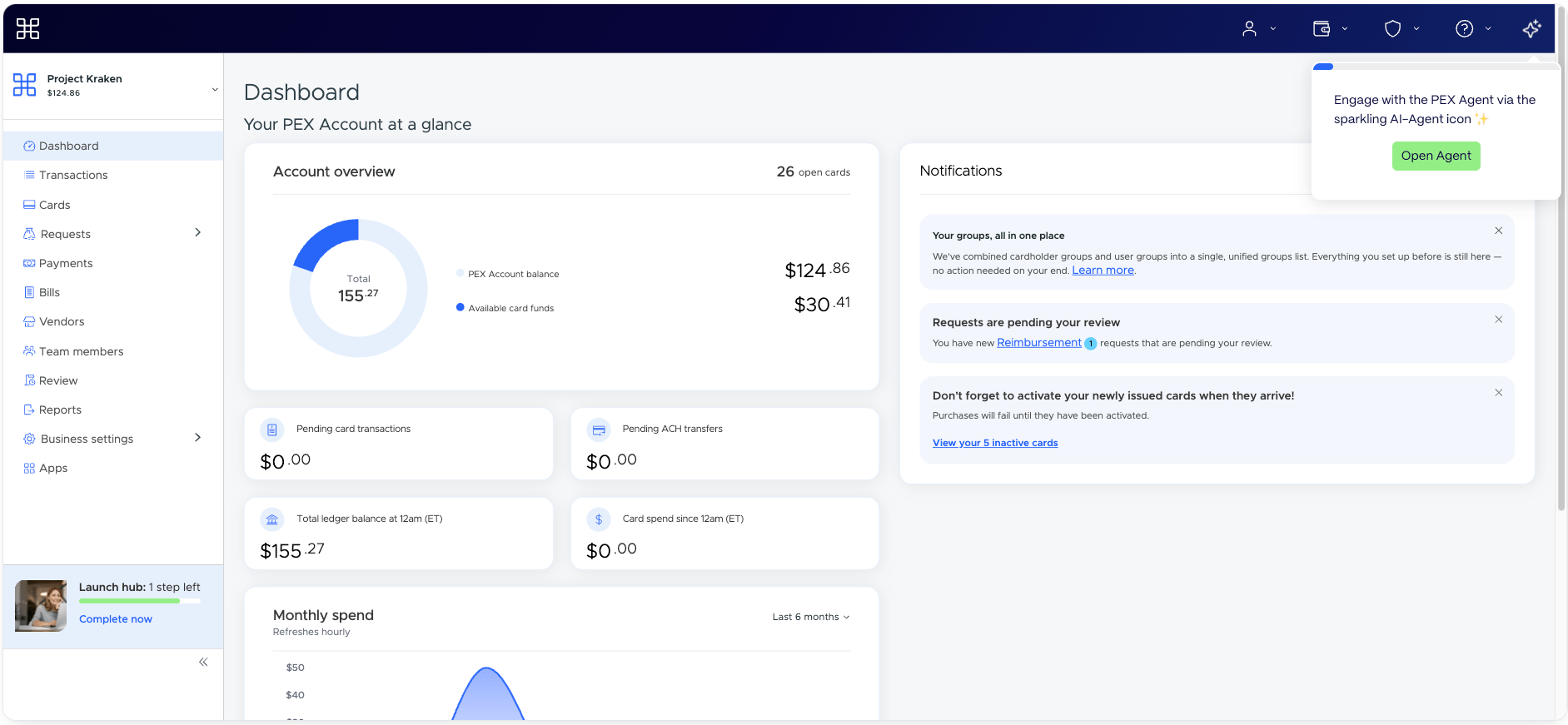
Click the Sparkle icon
Click the Sparkle icon (✨) in the top-right menu of the Dashboard. This opens the Ask PEX panel on the right side of the screen.
What the agent can do
Answer questions about your account
Get quick answers from your live data — your balance, cards and Cardholders, cards with a $0 balance, groups, admins, recent purchases, linked bank accounts and business settings. You can also ask when a card will arrive or when a Credit Expense payment will post. Try: “How many active cards do we have?” or “When will Maria’s card arrive?”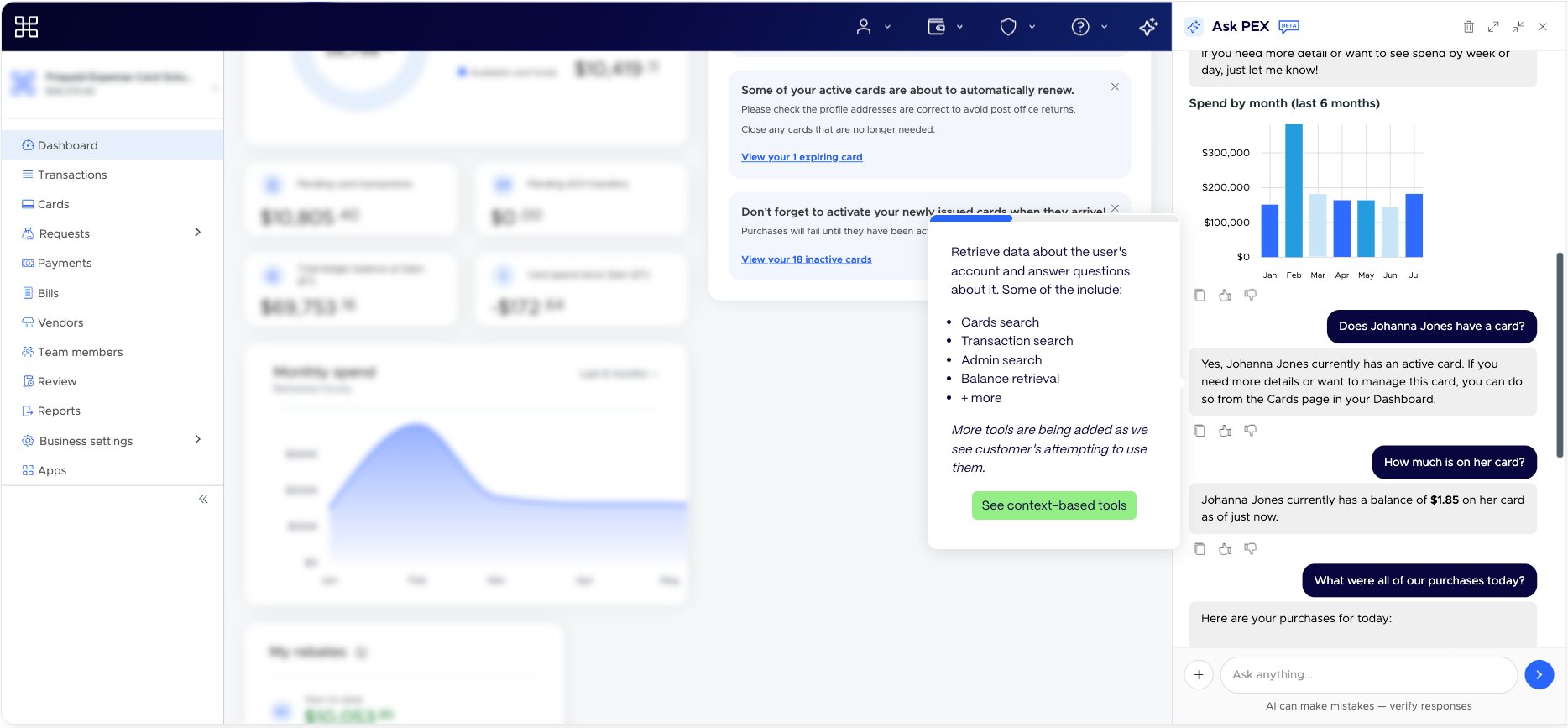
See spend insights
Get charts of your spend over time, top merchants, decline reasons and credit utilization. Fuel summaries are available for vehicle cards. Try: “Show our spend for the last three months” or “Why were cards declined this week?”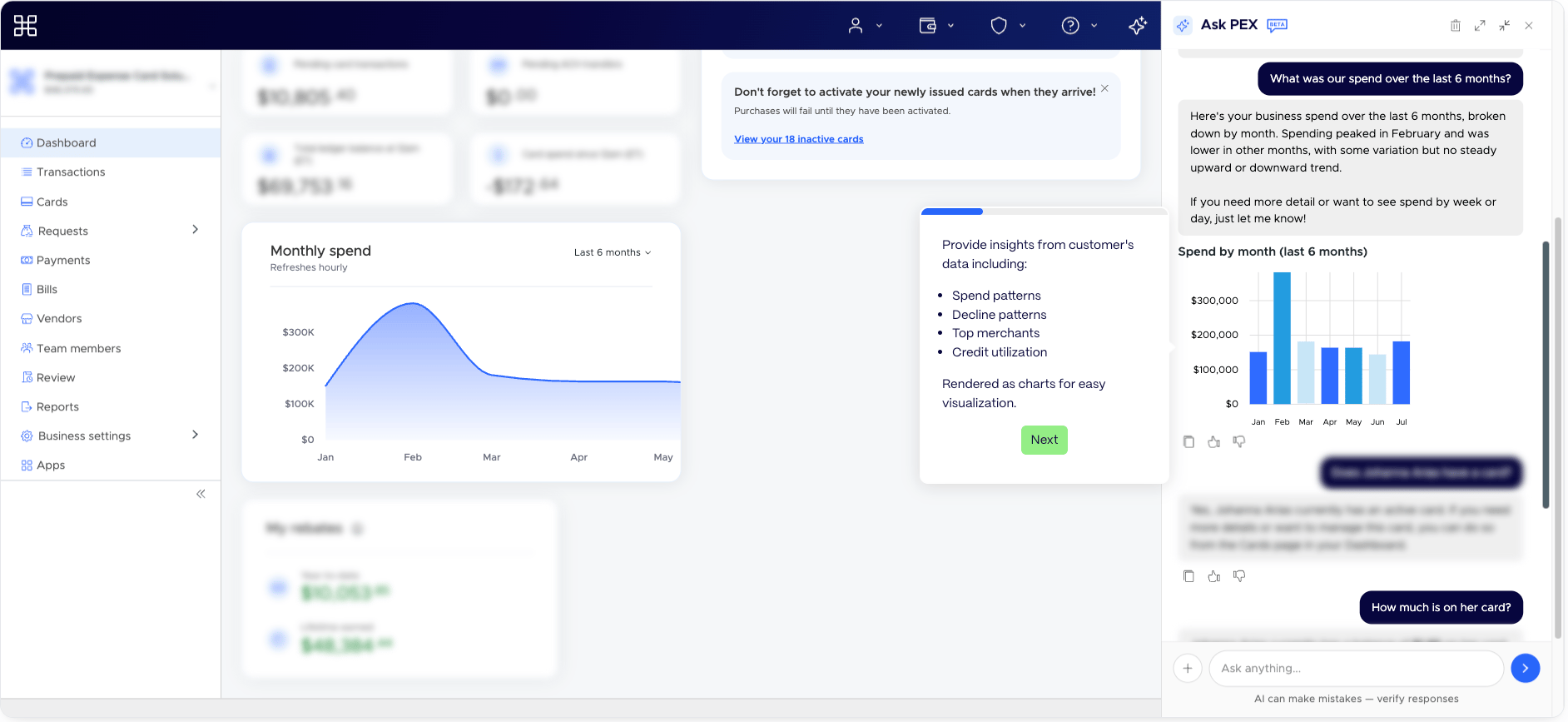
Manage cards and Cardholders
- Order team member and vendor cards and email a vendor card to the vendor
- Fund one card, a whole group or every card with a $0 balance — and move money between cards (Prepaid Expense)
- Replace a lost, stolen or damaged card
- Create groups and add members
Move money
- Link an external bank account
- Transfer funds into your PEX account by ACH, or get your wire instructions
- Set up automatic low-balance transfers (Prepaid Expense, when enabled for your account)
Set spend controls, tags and approvals
- Create or update spend policies, or set custom spend rules on a single card
- Create tags and tag options
- Set up approval policies and overrides — the agent can also read an uploaded org chart (CSV or image) and create user groups from it. See Configuring multi-level approval policies
Review and approve
- See everything waiting for your review in one list
- Approve or reject funding requests, card requests, reimbursements, payment transfers and bills — one at a time or in bulk
Stay on top of receipts
- Show a receipt in the chat and ask what’s on it
- Find transactions missing receipts and email reminders to Cardholders
- File a lost receipt affidavit
Bill Pay
If your business has Bill Pay, ask about your vendors, bills and payments — and approve or reject bill payments. See Manage and troubleshoot Bill Pay. Try: “Did we pay Acme?” or “Which bills need my approval?”Admins, settings and apps
- Invite admins and manage admin roles
- Get guided setup for single sign-on, notifications, accounting software sync, PEX apps like Auto Tagger and Auto Enforcer, API access and the PEX mobile app
Get help
Ask how anything works and the agent finds the answer in the PEX help center. Need a person? Ask, and the agent shares how to reach PEX Support. It can also write up your issue and send it to our support team so someone follows up with you.Before the agent makes a change
- You always confirm first. Before money moves or anything is created, changed or approved, the agent shows you a summary and waits for your yes.
- It follows your permissions. The agent only does what your admin permissions allow. If you’re missing a permission, it tells you which one you need.
- Some features depend on your account. For example, funding cards is available on Prepaid Expense, and Bill Pay questions need Bill Pay turned on. If something isn’t available, the agent tells you.
- Sensitive details stay hidden. The agent never shows full card numbers or bank account numbers.
What the agent can’t do
- File or manage transaction disputes
- Create or change bills, vendors or payments in Bill Pay
- Help with topics outside PEX
Tips for getting the best results
- Be specific. “Fund Maria’s card with $200” works better than “funding”.
- Include everything in one message when you can — who, how much and when.
- Start with a suggested prompt if you’re not sure what to ask.
- Because the agent is in Beta, verify any important action before confirming it — a reminder appears at the bottom of the panel: “AI can make mistakes — verify responses.”
Frequently asked questions
Where do I find the PEX AI Agent?
Where do I find the PEX AI Agent?
Click the Sparkle icon (✨) in the top-right menu of the PEX Dashboard to open the Ask PEX panel.
Is the PEX AI Agent free to use?
Is the PEX AI Agent free to use?
Yes — the PEX AI Agent is included in the PEX Dashboard. It is currently in Beta.
Can the agent complete tasks for me?
Can the agent complete tasks for me?
Yes. The agent can complete many tasks right in the chat — like funding cards, ordering cards, creating policies and approving requests. It always shows you what it will do and waits for your confirmation first. For other tasks, it walks you through the steps and opens the right Dashboard page.
Why can't the agent do something I asked?
Why can't the agent do something I asked?
The agent follows your admin permissions and the features on your account. If it can’t help, it tells you why — for example, which permission you need — or points you to PEX Support.