

How to Delete a Tag
1
Log in to dashboard.pexcard.com
2
Click on “Business Settings”
3
Click on the “Tag Manager” tab
4
Click on the “X” at the far right of the description of the tag you want to delete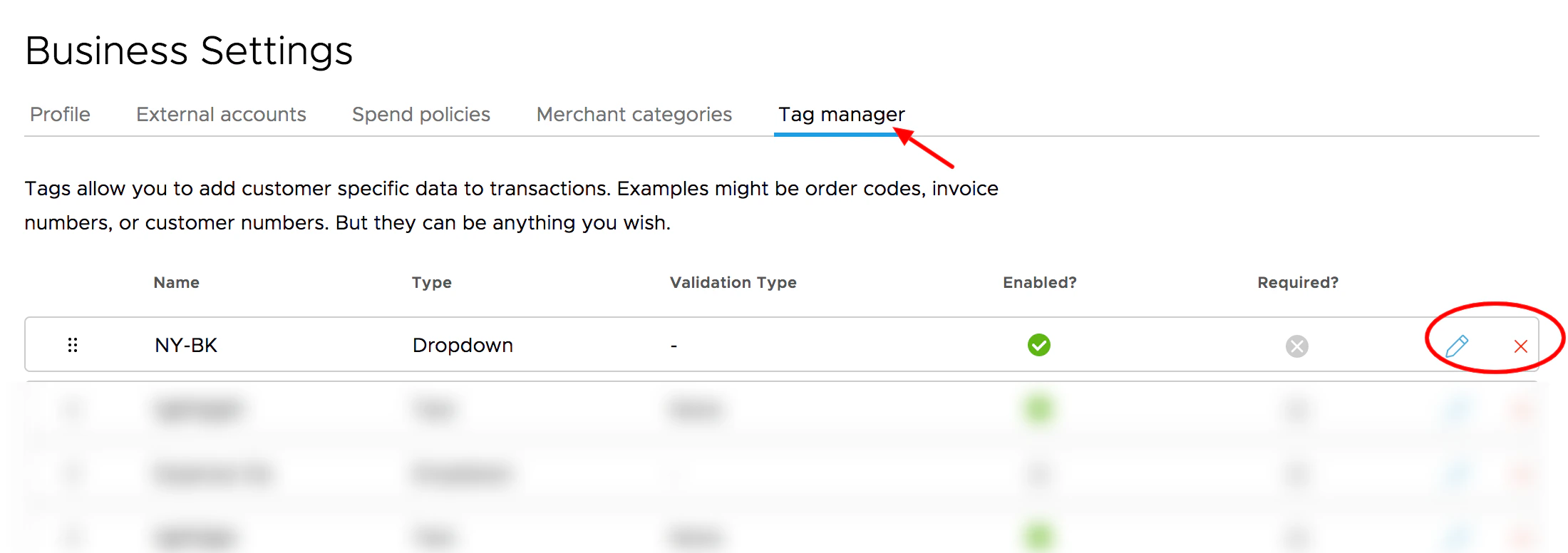
Click on the 'X' to delete the tag.
5
You will see a confirmation dialog box asking you to confirm that you want to delete the tag
6
Click the “Delete” button in the confirmation dialog box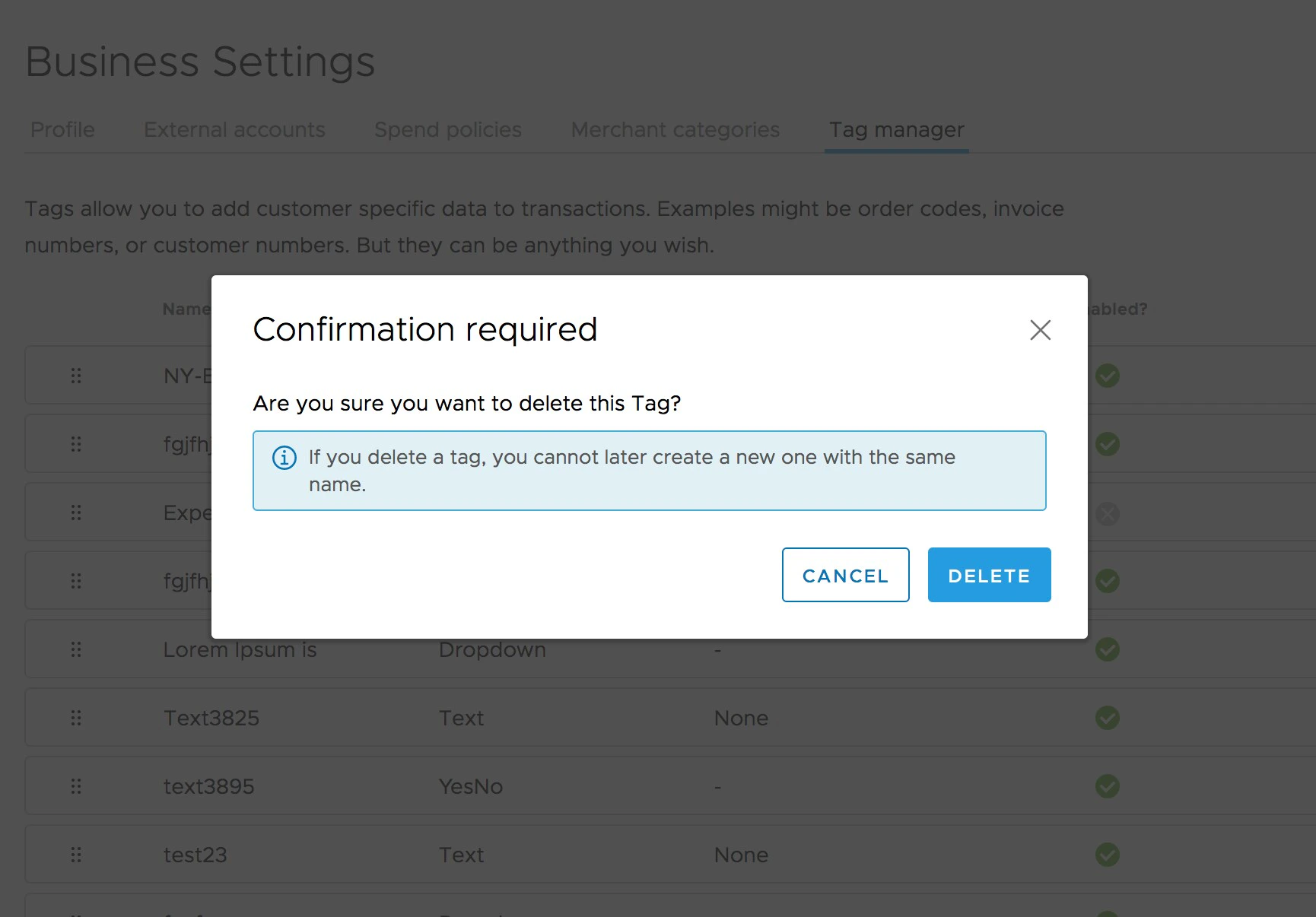
Note:
- Any previous transactions that have this tag assigned will still show the details for the tag
- Deleting a tag does not delete the tag information from historical transactions
- If a tag is deleted that is later needed, creating a new tag with the same name will not be allowed. Tags must all have unique names
- If you want to recover a deleted tag, reach out to adminsupport@pexcard.com