

- Download the iOS app from the App Store
- Download the Android app from the Google Play Store
- The download is free but carrier data rates may apply
How to Delete a Receipt Using the Mobile App
1
Log into the Mobile App
2
Click on the “Cards” icon
3
Click on the cardholder’s name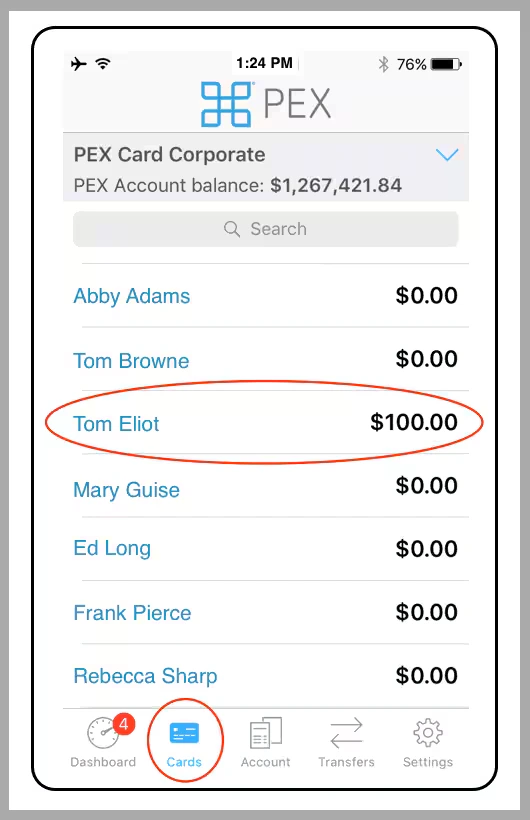
4
Click on “Transactions”
5
Navigate to the transaction
6
Click on the transaction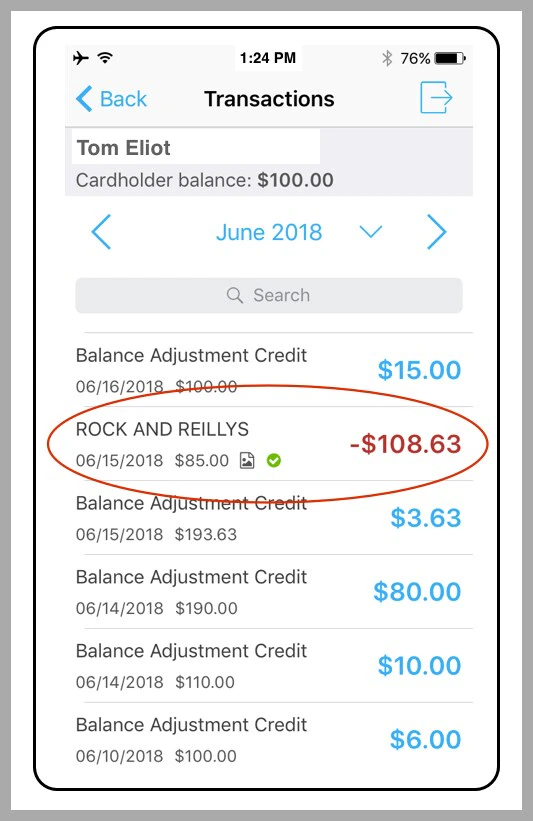
7
Click on the receipt icon in the Transaction Details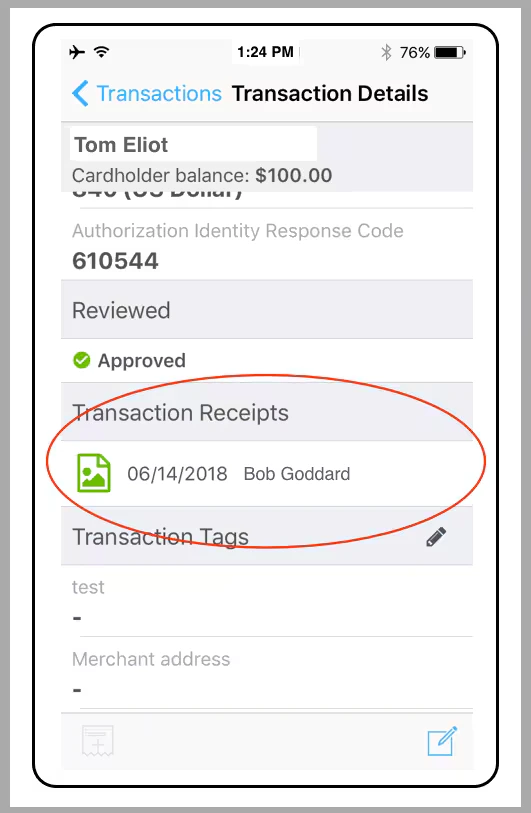
8
Click on the Trash Can icon at lower right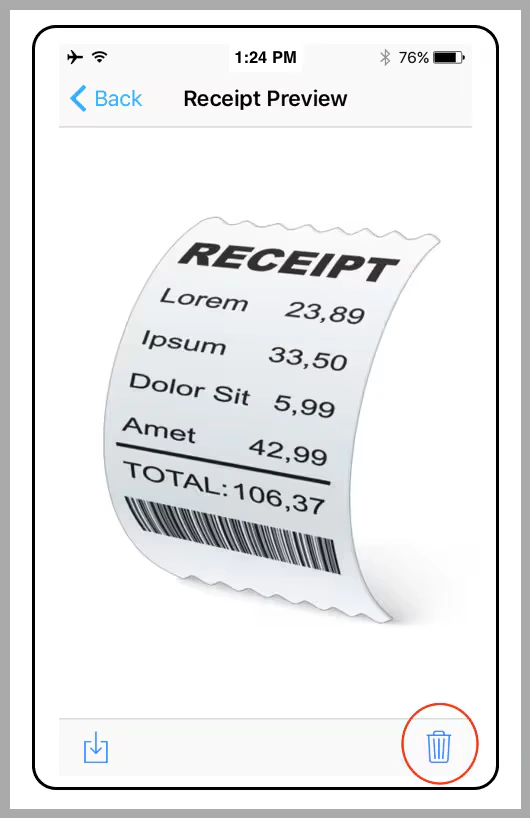
9
Click “Delete” in the confirmation dialogue box
Note:
- Deleting a receipt does not delete any transaction Notes
- Once you delete the receipt, you can attach a new file to the transaction
How to Delete a Receipt Using the PEX Site
1
Log in to dashboard.pexcard.com
2
Click the Cards tab
3
Locate the name of the cardholder, and click on it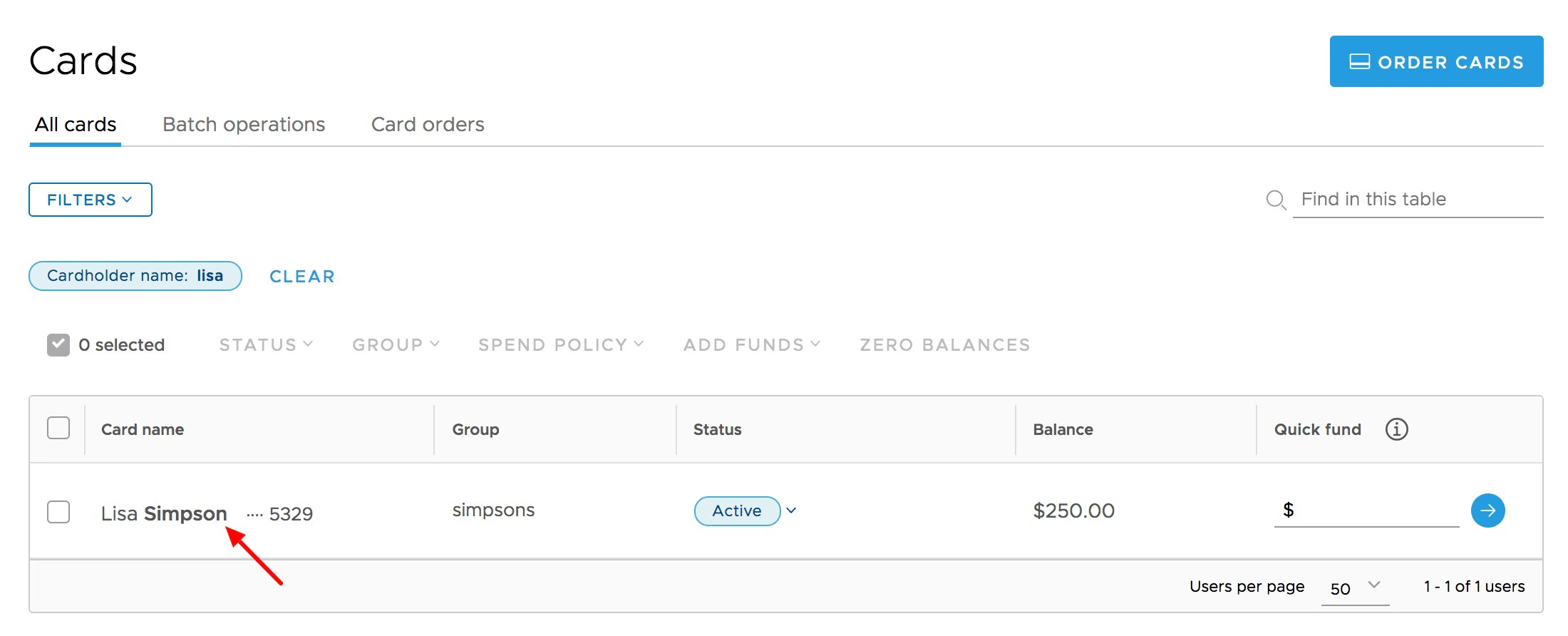
4
In the transaction list, Click on the transaction for which you wish to delete its attached receipt file
- If a receipt is uploaded, it will be visible on the upper right side of the transaction window
5
Click the “X” in the upper right corner of the receipt image when you hover your cursor over the box to edit or delete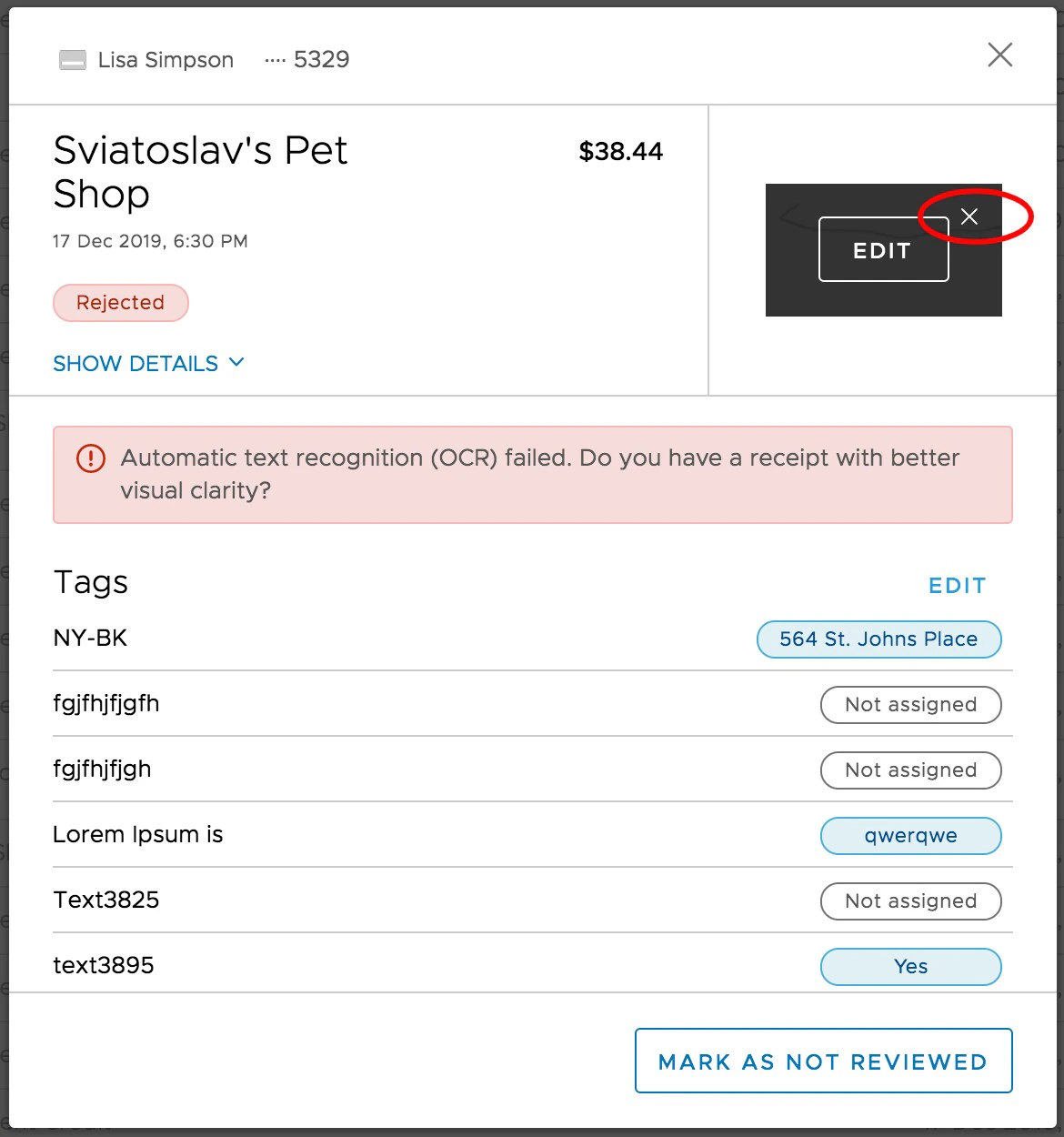
6
Click the “Delete” button on the confirmation screen
7
Alternatively, you can also open the receipt to edit it and click the “trash can” icon on the left of the receipt panel.
Note:
- Deleting a receipt does not delete any transaction Notes
- Once you delete the receipt, you can attach a new file to the transaction