> ## Documentation Index
> Fetch the complete documentation index at: https://support.pexcard.com/llms.txt
> Use this file to discover all available pages before exploring further.
# How to Change My Email Address (Cardholder)
> Cardholders can change their email addresses either through the PEX Mobile App or the PEX Dashboard Site.
[Instructions for the Mobile App](/cardholder-guide/how-to-change-my-email-address-cardholder#using-the-pex-mobile-app) | [Instructions for the PEX Dashboard Site](/cardholder-guide/how-to-change-my-email-address-cardholder#using-the-pex-dashboard-site)
## Using the PEX Mobile App
Download the Mobile App (iOS and Android):
* Download [PEX for iOS](https://itunes.apple.com/app/id584331280) from the App Store
* Download [PEX for Android](https://play.google.com/store/apps/details?id=com.softjourn.pexcardholder) from the Google Play Store
* The download is free but carrier rates may apply
Log in to the Mobile App
Click the "Settings" icon at the bottom of the screen
Click "Profile"
Click on the Email field
Enter your new email address
Click the "Save" button in the upper-right corner
Enter the verification code that was sent to your mobile phone (if verified) or email address
Press 'Continue'
## Using the PEX Dashboard Site
Log in to [dashboard.pexcard.com](https://dashboard.pexcard.com?utm_source=support)
* If you cannot log in, please see [Troubleshooting Cardholder Login](/cardholder-guide/troubleshooting-cardholder-user-login)
Click on the My Profile icon in the upper right corner of the screen (icon of a person)
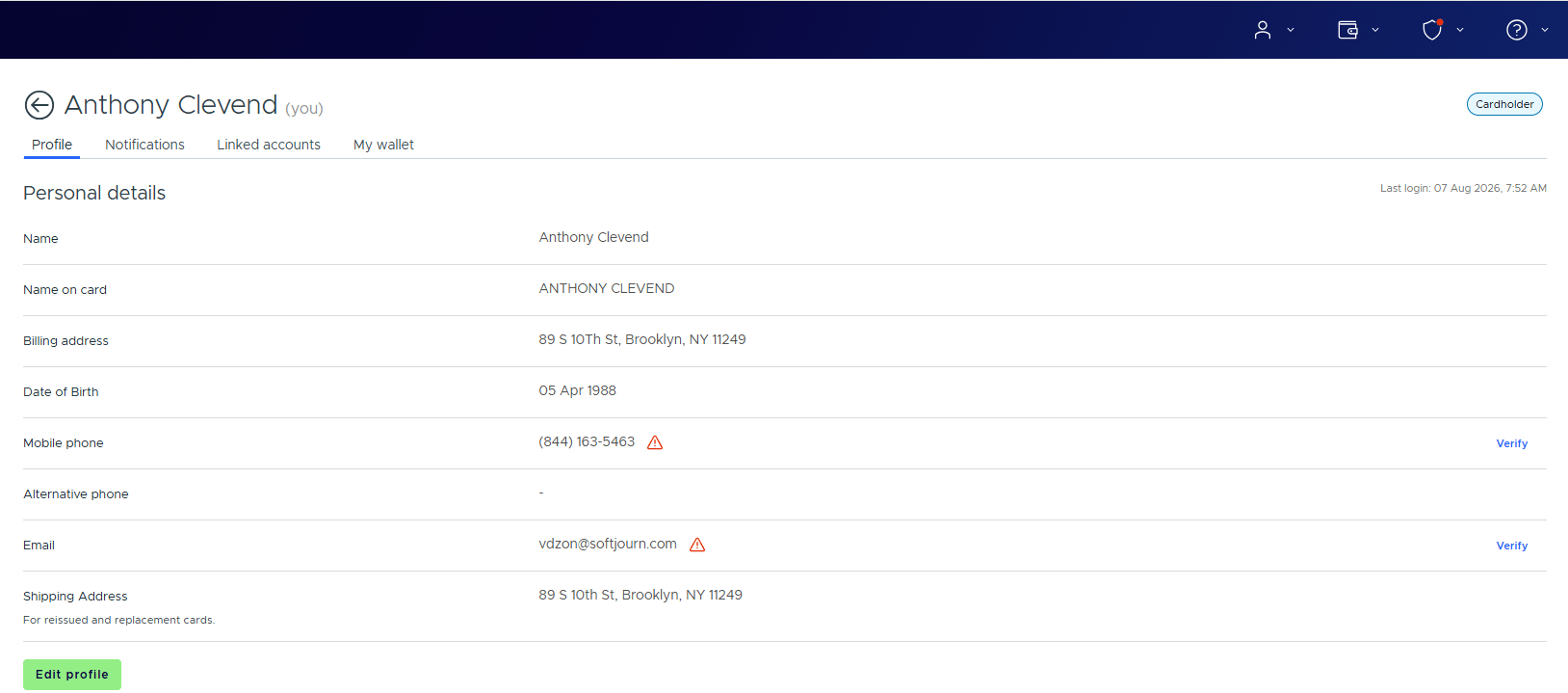 Click the "Edit profile" button
Enter the new email in the field provided
Click "Update" to save changes
Click the "Edit profile" button
Enter the new email in the field provided
Click "Update" to save changes
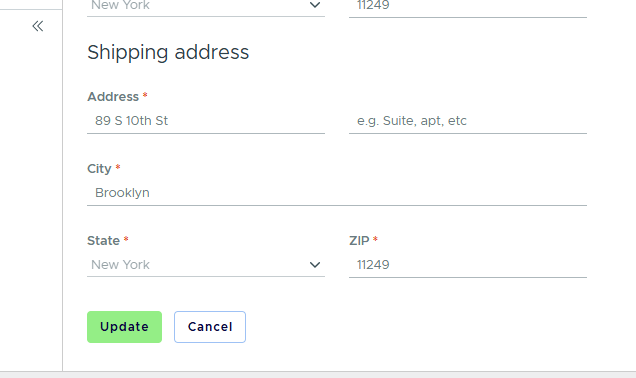 Enter the verification code that was sent to your mobile phone (if verified) or email address
 ## Related topics
- [Mobile App - Overview (Cardholder)](/cardholder-guide/mobile-app--overview-cardholder.md)
- [How to Change My Cardholder Password](/cardholder-guide/how-to-change-my-cardholder-password.md)
- [How to Change My Cardholder Username](/cardholder-guide/how-to-change-my-cardholder-username.md)
- [Managing My PEX Card and Account](/cardholder-guide/managing-my-pex-card-and-account.md)
- [Enabling Notifications for PEX Requests](/administrator-guide/enabling-notifications-for-pex-requests.md)
## Related topics
- [Mobile App - Overview (Cardholder)](/cardholder-guide/mobile-app--overview-cardholder.md)
- [How to Change My Cardholder Password](/cardholder-guide/how-to-change-my-cardholder-password.md)
- [How to Change My Cardholder Username](/cardholder-guide/how-to-change-my-cardholder-username.md)
- [Managing My PEX Card and Account](/cardholder-guide/managing-my-pex-card-and-account.md)
- [Enabling Notifications for PEX Requests](/administrator-guide/enabling-notifications-for-pex-requests.md)