> ## Documentation Index
> Fetch the complete documentation index at: https://support.pexcard.com/llms.txt
> Use this file to discover all available pages before exploring further.
# How to Add a Receipt to a Purchase
> Upload a receipt image to a transaction so your administrator has the documentation they need.
Cardholders can attach an image of a receipt to a transaction in several ways:
1. [Text to PEX](/cardholder-guide/text-to-pex-cardholder-guide)
2. The [mobile app](/cardholder-guide/how-to-attach-a-receipt-to-a-transaction-record-mobile-app-cardholder)
3. [Email to PEX](/cardholder-guide/email-to-pex-cardholder-guide)
4. [On the dashboard](#how-to-attach-a-receipt-to-a-transaction)
## How to Attach a Receipt to a Transaction
Take a picture of the receipt or scan the receipt to your computer
Log in to [dashboard.pexcard.com](https://dashboard.pexcard.com?utm_source=support)
Navigate to the "Transactions" tab
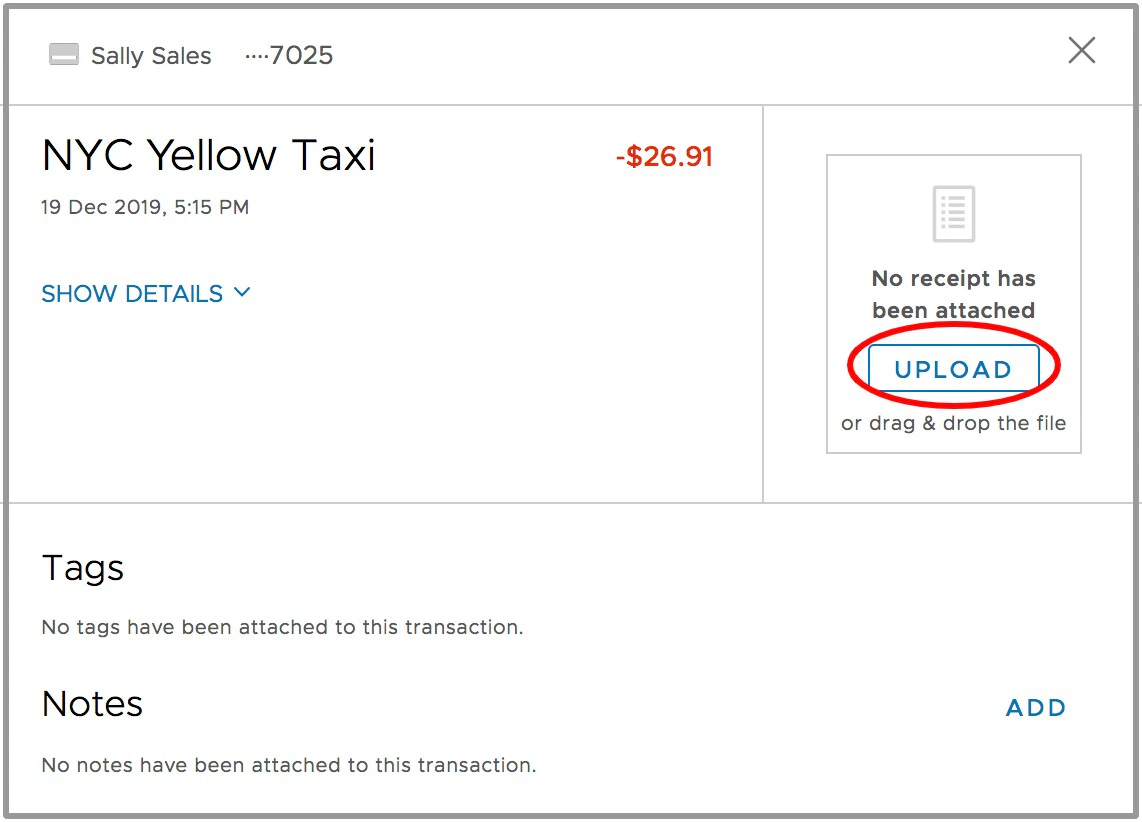
Locate the relevant transaction, and click on it to see the transaction details
* You can use the *Filter* button above the transaction list to add a filter which may help narrow the list of transactions to help find a specific transaction.
Click the "Upload" button in the transaction details window
Locate the image file of the receipt on your computer
* You can also drag-and-drop the file on to the window that says "Upload"
Upload and attach the image - one file per transaction.
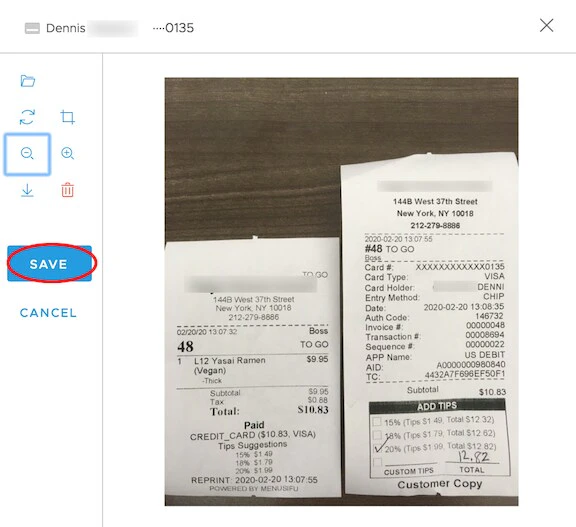
Click "Save" in the following window.
* The image upload window will have tools such as Rotate, Crop, Zoom In, Zoom Out to help you edit the image.
* You can also choose a different file, save an existing receipt image from this window to your current device, and/or Edit your uploaded image at a later date from this window.
When uploading an image of the receipt, the PEX system will verify that:
* The image format is one that is supported by the system:
* .PNG
* .JPG
* .PDF
* The file contains no malware or computer viruses
* The file is not corrupted
* The file is smaller than 1 MB
## Other ways to submit a receipt
You don't have to log in to the website every time you want to attach a receipt. PEX can also collect receipts by text message and by email, and it will auto match them to the right transaction for you.
When you make a purchase, PEX can send you a **receipt reminder** by SMS or email so you don't forget to submit documentation. Reply to that reminder with a photo of your receipt and PEX takes care of the rest. You can turn the receipt reminder on from the [Notifications](https://dashboard.pexcard.com/account/notifications) tab in your profile.
* **Text to PEX** — Text a photo of your receipt to PEX at (640) 800-7522, or reply to your SMS receipt reminder. See the [Text to PEX (Cardholder guide)](/cardholder-guide/text-to-pex-cardholder-guide) for setup and details.
* **Email to PEX** — Email a receipt to [receipts@pexcard.com](mailto:receipts@pexcard.com), or reply to your email receipt reminder. See the [Email to PEX (Cardholder guide)](/cardholder-guide/email-to-pex-cardholder-guide) for setup and details.
**Note:**
To receive receipt reminders and submit receipts by text or email, make sure the phone number or email address you use is verified in your [profile](https://dashboard.pexcard.com/account/profile).
## FAQ
No. The receipt image is enough for PEX to auto match it to the transaction.
Yes. When you text or email in multiple receipts, PEX auto matches each one to its corresponding transaction. On the website, upload one file per transaction.
Yes. Just make sure the date and total amount paid are visible.
For best matching results, make sure the receipt shows the merchant name, date and total amount paid, and only submit receipts for purchases made with your PEX card. If it still doesn't match, you can attach it manually from the website or the [mobile app](/cardholder-guide/how-to-attach-a-receipt-to-a-transaction-record-mobile-app-cardholder).
You can text a photo of your receipt to PEX at (640) 800-7522 or email it to [receipts@pexcard.com](mailto:receipts@pexcard.com). See the [Text to PEX](/cardholder-guide/text-to-pex-cardholder-guide) and [Email to PEX](/cardholder-guide/email-to-pex-cardholder-guide) guides for details.
## Related topics
- [Connector for Blackbaud (Prepaid)](/administrator-guide/connector-for-blackbaud-prepaid.md)
- [How to Attach Receipt to Transaction (Administrator)](/administrator-guide/how-to-attach-receipt-to-transaction-administrator.md)
- [How to manage purchases from the Card transactions page](/administrator-guide/how-to-manage-purchases-from-the-card-transactions-page.md)
- [Managing Your Purchases with PEX](/cardholder-guide/managing-your-purchases-with-pex.md)
- [Transactions](/cardholder-guide/transactions.md)