> ## Documentation Index
> Fetch the complete documentation index at: https://support.pexcard.com/llms.txt
> Use this file to discover all available pages before exploring further.
# How to Transfer Funds Between Two PEX Accounts
> Move funds instantly between two linked prepaid PEX accounts from the administrator dashboard, and learn what permissions are required — applies to prepaid accounts only
Applies to: prepaid accounts only.
If your organization has more than one prepaid PEX account, you can move funds directly from one PEX account to another without sending money back to your external bank first. These account-to-account transfers post immediately — there is no ACH waiting period and no transfer fee.
## Before you start
* Both accounts must be **prepaid** accounts. Credit Expense accounts can't send or receive these transfers, and they don't appear in the **From** or **To** lists.
* The accounts must be **linked accounts** within your organization. See [Linked Accounts and Sub-accounts on All Programs](/administrator-guide/linked-accounts-and-subaccounts-on-all-programs). If you don't yet have a second account, contact Administrator Support or your Customer Success Representative.
* You must be an administrator on **both** accounts — the sending account and the receiving account. If you're only an admin on one of them, the other account won't appear in the "To" list.
* Your administrator profile must have the **"Request/delete ACH transfer"** permission enabled on the account you start from. This permission controls the Make a Transfer page, so without it the button and page are not available to you.
* The sending account must have enough available balance. Transfers that would drop the sending account below its minimum balance requirement are rejected.
**Permissions:** Primary administrators have all permissions by default. Other administrators need "Request/delete ACH transfer" turned on under their profile in Team Members > (select admin) > Permissions. The permission description reads: *Create, approve, or delete ACH transfers; schedule and modify scheduled transfers.*
## How to transfer funds between two PEX accounts
Log in to the [PEX dashboard](https://dashboard.pexcard.com/?utm_source=support). You can start from either account — these steps use the account you're sending funds **from**.
Click **Transactions** in the left navigation.
Click **Make a Transfer** (blue button in the upper right).
In the **From** field, select the PEX account the funds should come out of.
In the **To** field, select the PEX account that should receive the funds. Your other PEX accounts appear under the **Linked accounts** heading in the dropdown — external bank accounts are listed separately above them under **External accounts**. Only accounts you administer appear here, and each one shows its current balance.
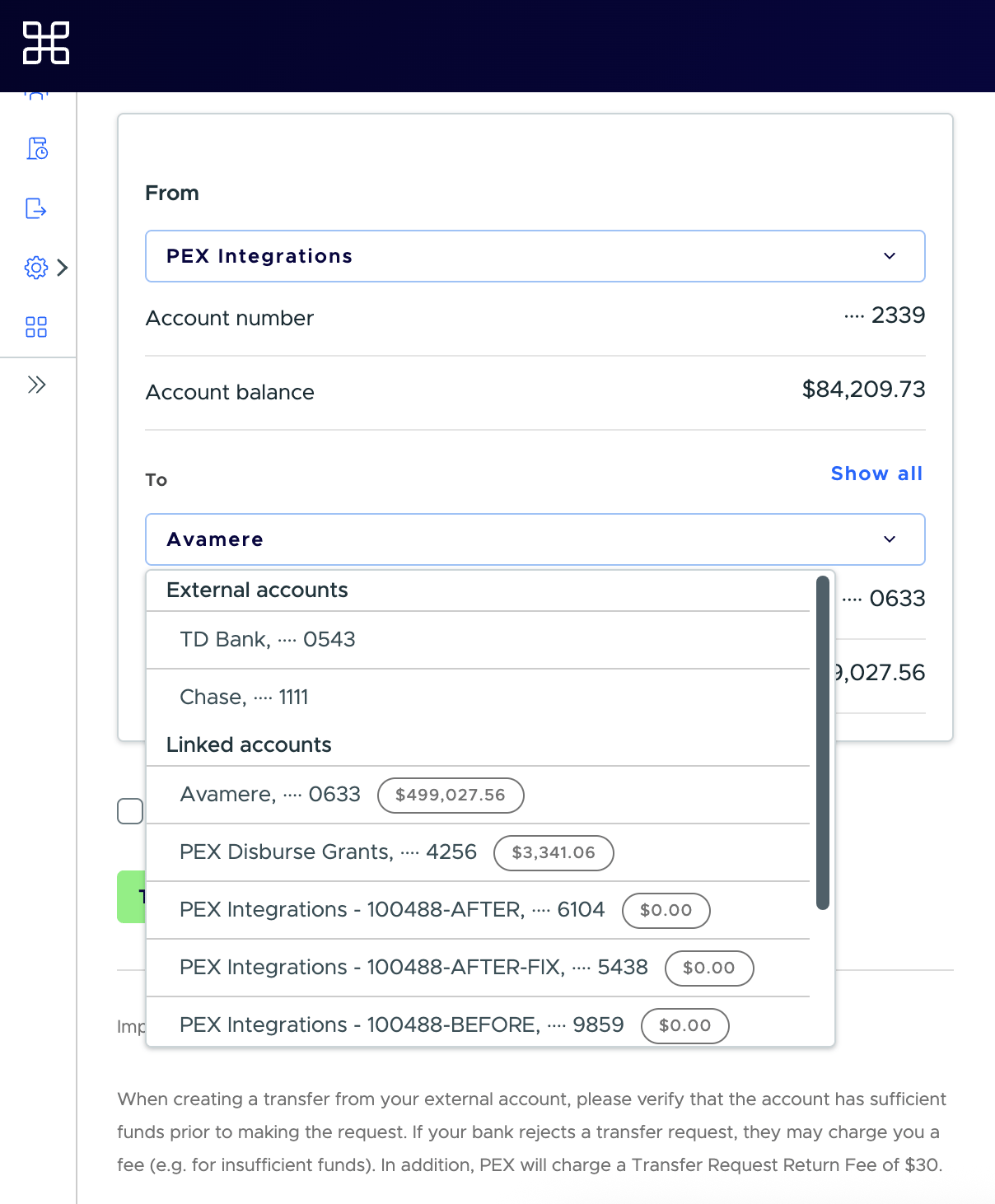 Enter the amount in **Amount to transfer**.
Click **Transfer**, then review the details and click **Confirm**.
You'll see a "Transfer completed" confirmation, and the funds are available in the receiving account right away.
**Note:**
You can run the transfer from either side. If you're logged in to the account that's receiving the funds, pick the other PEX account in the **From** field — your current account will then be the only choice in **To**.
## Scheduling a recurring transfer between PEX accounts
You can make an account-to-account transfer recurring:
On the Make a Transfer page, select the **From** and **To** PEX accounts and enter an amount.
Check **Make this a scheduled transfer**.
Choose how often the transfer should run — on the 1st of the month, or on a specific day of the week.
Click **Transfer** and confirm. The transfer appears on the **Scheduled Transfers** page, where you can edit or delete it later.
## Where to see the transfer
Completed account-to-account transfers appear under **Transactions > Business Transfers** for both accounts. Scheduled ones appear under **Transactions > Scheduled Transfers**.
## Troubleshooting
No. Account-to-account transfers apply to prepaid accounts only. A Credit Expense account has a line of credit rather than a funded balance, so it can't send or receive a transfer and won't appear in the **From** or **To** lists.
The account is a Credit Expense account, the accounts are not linked or you are not an administrator on the other account. Confirm the link under Business Settings > Linked accounts, and have an admin add you to the other account.
The two accounts aren't linked in a way that permits transfers, or your administrator profile is missing the "Request/delete ACH transfer" permission. Contact Administrator Support if the link looks correct.
The sending account doesn't have enough available balance, or the transfer would take it below the minimum balance configured for the account. Fund the sending account first, or lower the transfer amount.
Your administrator profile is missing the "Request/delete ACH transfer" permission. Ask your primary administrator to enable it.
## Related articles
* [Linked Accounts and Sub-accounts on All Programs](/administrator-guide/linked-accounts-and-subaccounts-on-all-programs)
* [Account Funding](/administrator-guide/account-funding)
* [How to Transfer Funds to Your External Bank Account from Your PEX Account (Administrator Site)](/administrator-guide/how-to-transfer-funds-to-your-external-bank-account-from-your-pex-account-administrator-site)
## Related topics
- [How to Transfer Funds to Your External Bank Account from Your PEX Account (Administrator Site)](/administrator-guide/how-to-transfer-funds-to-your-external-bank-account-from-your-pex-account-administrator-site.md)
- [How to Fund From Admin Dashboard](/administrator-guide/how-to-fund-from-admin-dashboard.md)
- [How to Transfer Funds to Your External Bank Account (via the Mobile App)](/administrator-guide/how-to-transfer-funds-to-your-external-bank-account-via-the-mobile-app.md)
- [How to Fund Your PEX Business Account](/administrator-guide/how-to-fund-your-pex-business-account.md)
- [Account Funding](/administrator-guide/account-funding.md)
Enter the amount in **Amount to transfer**.
Click **Transfer**, then review the details and click **Confirm**.
You'll see a "Transfer completed" confirmation, and the funds are available in the receiving account right away.
**Note:**
You can run the transfer from either side. If you're logged in to the account that's receiving the funds, pick the other PEX account in the **From** field — your current account will then be the only choice in **To**.
## Scheduling a recurring transfer between PEX accounts
You can make an account-to-account transfer recurring:
On the Make a Transfer page, select the **From** and **To** PEX accounts and enter an amount.
Check **Make this a scheduled transfer**.
Choose how often the transfer should run — on the 1st of the month, or on a specific day of the week.
Click **Transfer** and confirm. The transfer appears on the **Scheduled Transfers** page, where you can edit or delete it later.
## Where to see the transfer
Completed account-to-account transfers appear under **Transactions > Business Transfers** for both accounts. Scheduled ones appear under **Transactions > Scheduled Transfers**.
## Troubleshooting
No. Account-to-account transfers apply to prepaid accounts only. A Credit Expense account has a line of credit rather than a funded balance, so it can't send or receive a transfer and won't appear in the **From** or **To** lists.
The account is a Credit Expense account, the accounts are not linked or you are not an administrator on the other account. Confirm the link under Business Settings > Linked accounts, and have an admin add you to the other account.
The two accounts aren't linked in a way that permits transfers, or your administrator profile is missing the "Request/delete ACH transfer" permission. Contact Administrator Support if the link looks correct.
The sending account doesn't have enough available balance, or the transfer would take it below the minimum balance configured for the account. Fund the sending account first, or lower the transfer amount.
Your administrator profile is missing the "Request/delete ACH transfer" permission. Ask your primary administrator to enable it.
## Related articles
* [Linked Accounts and Sub-accounts on All Programs](/administrator-guide/linked-accounts-and-subaccounts-on-all-programs)
* [Account Funding](/administrator-guide/account-funding)
* [How to Transfer Funds to Your External Bank Account from Your PEX Account (Administrator Site)](/administrator-guide/how-to-transfer-funds-to-your-external-bank-account-from-your-pex-account-administrator-site)
## Related topics
- [How to Transfer Funds to Your External Bank Account from Your PEX Account (Administrator Site)](/administrator-guide/how-to-transfer-funds-to-your-external-bank-account-from-your-pex-account-administrator-site.md)
- [How to Fund From Admin Dashboard](/administrator-guide/how-to-fund-from-admin-dashboard.md)
- [How to Transfer Funds to Your External Bank Account (via the Mobile App)](/administrator-guide/how-to-transfer-funds-to-your-external-bank-account-via-the-mobile-app.md)
- [How to Fund Your PEX Business Account](/administrator-guide/how-to-fund-your-pex-business-account.md)
- [Account Funding](/administrator-guide/account-funding.md)