> ## Documentation Index
> Fetch the complete documentation index at: https://support.pexcard.com/llms.txt
> Use this file to discover all available pages before exploring further.
# How to Change My Username and Password (Administrator)
> Administrators can log into the PEX Dashboard online and change their username and/or password.
## How to Change Your Username or Password
Log in to [dashboard.pexcard.com](https://dashboard.pexcard.com?utm_source=support)
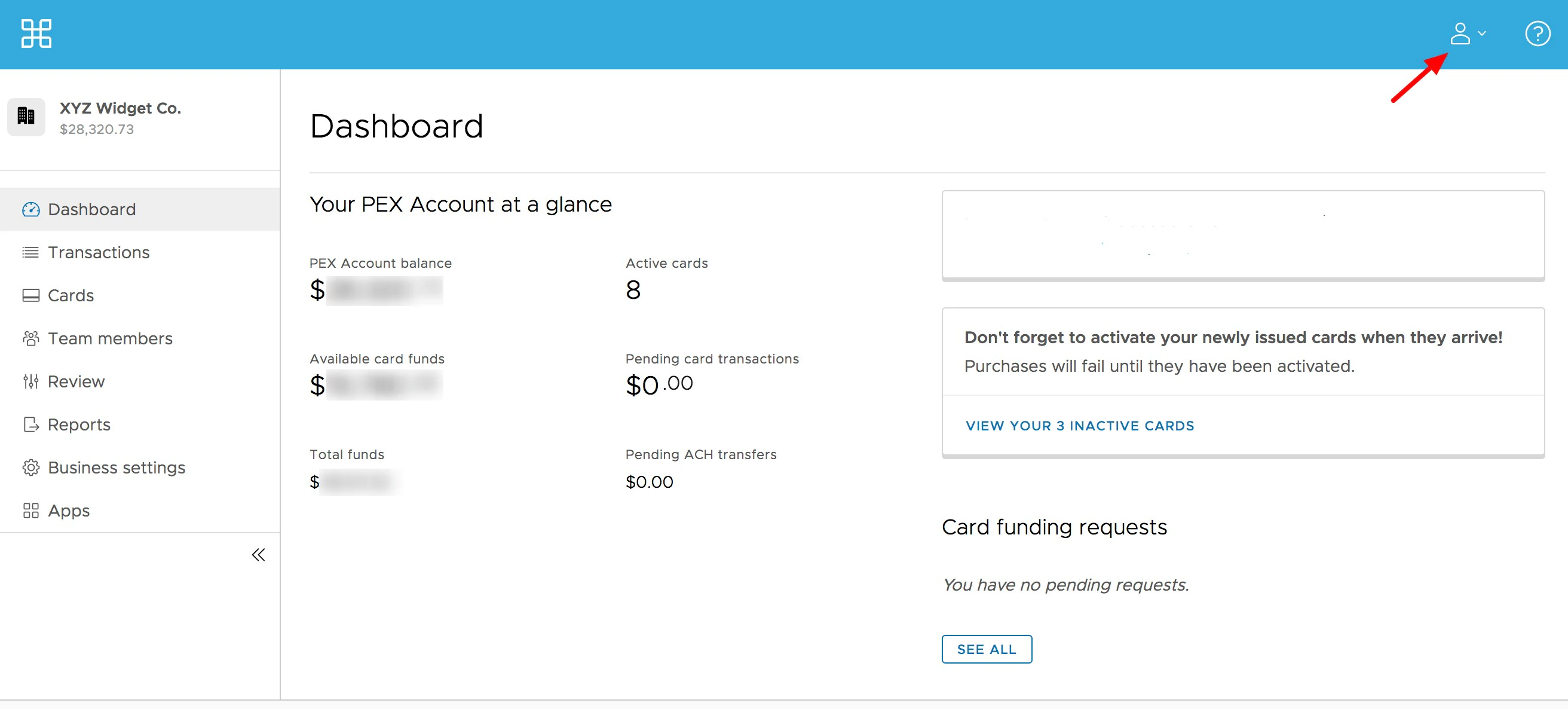
Click "My profile" in the upper right corner (the icon of a person)
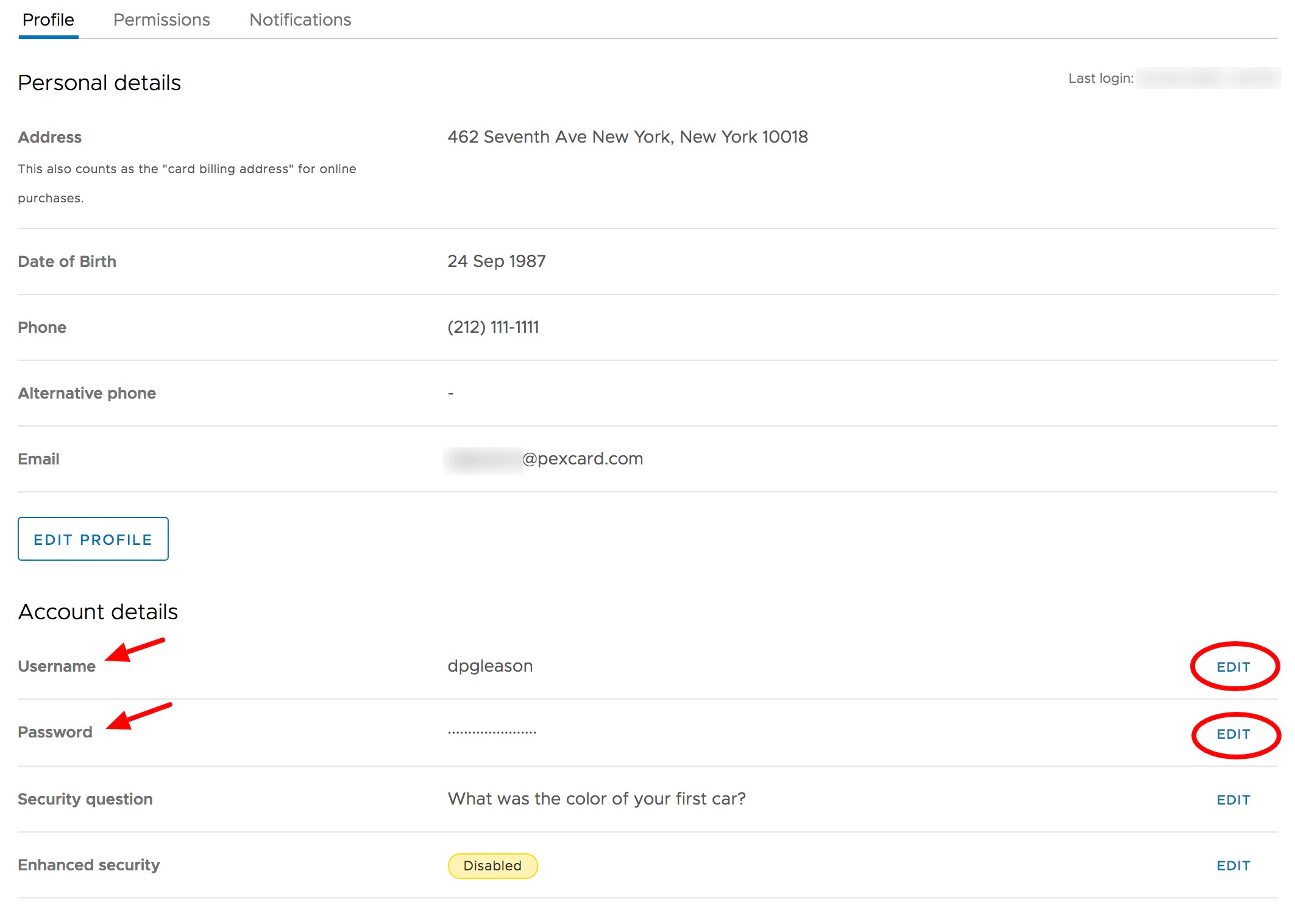
 Scroll down to the Account Details section, and Click "Edit" next to Username
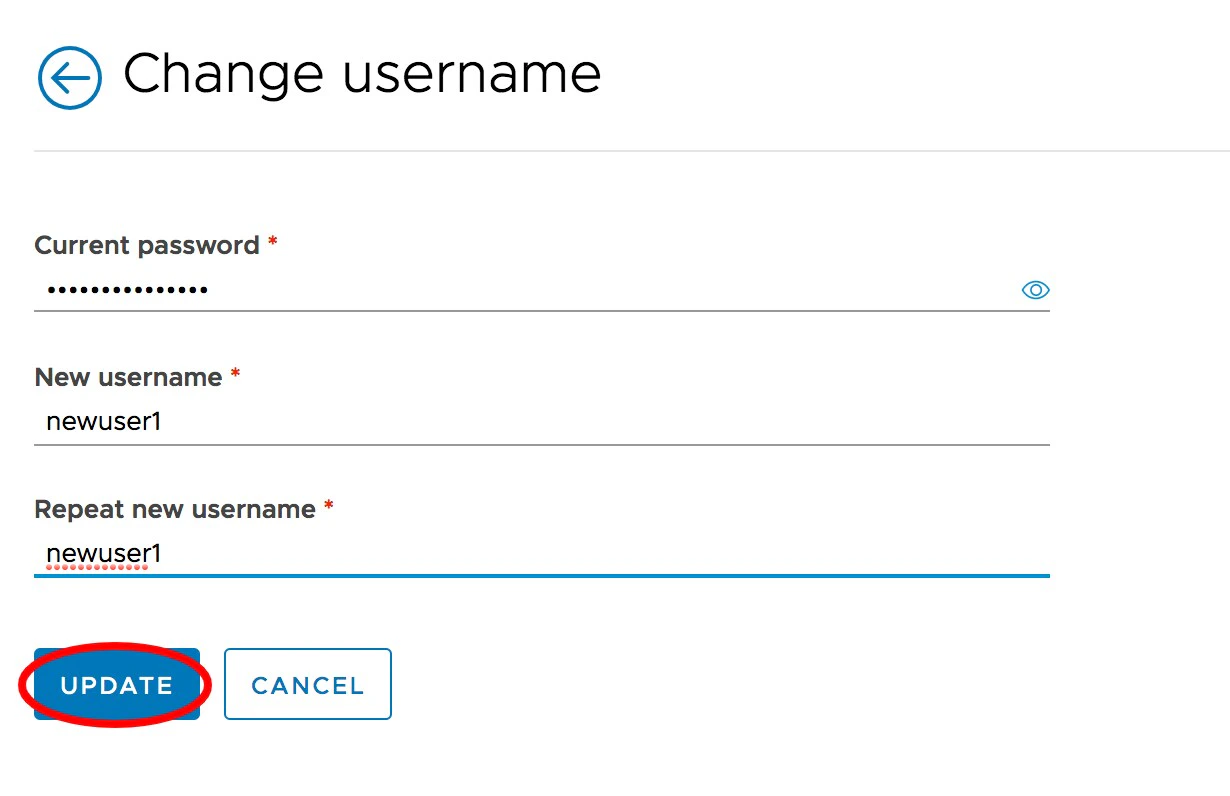
 Enter your current password
Enter your new username or password
Re-enter to confirm new username or password
Click the "Update" button to save changes
Enter your current password
Enter your new username or password
Re-enter to confirm new username or password
Click the "Update" button to save changes
 ## How to Change Your Password
Log in to [dashboard.pexcard.com](https://dashboard.pexcard.com?utm_source=support)
Click "My profile" in the upper right corner (the icon of a person)
Scroll down to the Account Details section, and Click "Edit" next to Password
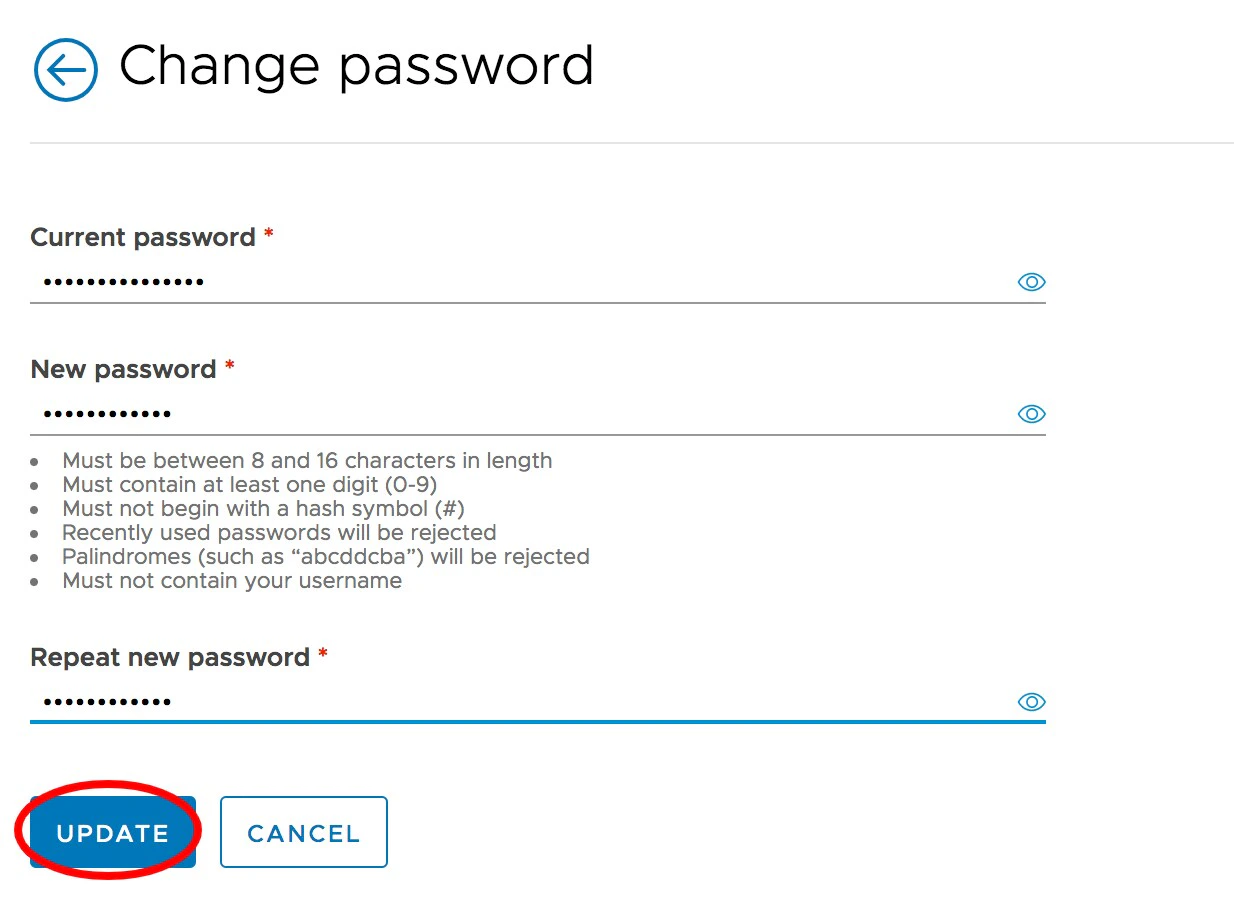
Enter your current password
Follow the new password requirements and create your new password. Passwords must meet the following requirements:
* Must be between 8 and 16 characters in length
* Must contain at least one digit (0-9)
* Must not begin with a hash symbol (#)
* Palindromes (such as "123aba321") will be rejected
* Must not contain your username
Re-enter to confirm the new password
Click "Save new password" button below
## How to Change Your Password
Log in to [dashboard.pexcard.com](https://dashboard.pexcard.com?utm_source=support)
Click "My profile" in the upper right corner (the icon of a person)
Scroll down to the Account Details section, and Click "Edit" next to Password
Enter your current password
Follow the new password requirements and create your new password. Passwords must meet the following requirements:
* Must be between 8 and 16 characters in length
* Must contain at least one digit (0-9)
* Must not begin with a hash symbol (#)
* Palindromes (such as "123aba321") will be rejected
* Must not contain your username
Re-enter to confirm the new password
Click "Save new password" button below
 ## Related topics
- [How to Change My Cardholder Username](/cardholder-guide/how-to-change-my-cardholder-username.md)
- [How to Change My Cardholder Password](/cardholder-guide/how-to-change-my-cardholder-password.md)
- [Managing My PEX Card and Account](/cardholder-guide/managing-my-pex-card-and-account.md)
- [Administrator Site](/administrator-guide/administrator-site.md)
- [How to link multiple administrator or cardholder accounts](/cardholder-guide/how-to-link-multiple-administrator-or-cardholder-accounts.md)
## Related topics
- [How to Change My Cardholder Username](/cardholder-guide/how-to-change-my-cardholder-username.md)
- [How to Change My Cardholder Password](/cardholder-guide/how-to-change-my-cardholder-password.md)
- [Managing My PEX Card and Account](/cardholder-guide/managing-my-pex-card-and-account.md)
- [Administrator Site](/administrator-guide/administrator-site.md)
- [How to link multiple administrator or cardholder accounts](/cardholder-guide/how-to-link-multiple-administrator-or-cardholder-accounts.md)